Finding your way around
The sidebar, the page header, search, notifications and your account menu.
Every screen in A-Sync uses the same frame, so once you know where things are in one module you know where they are in all of them.
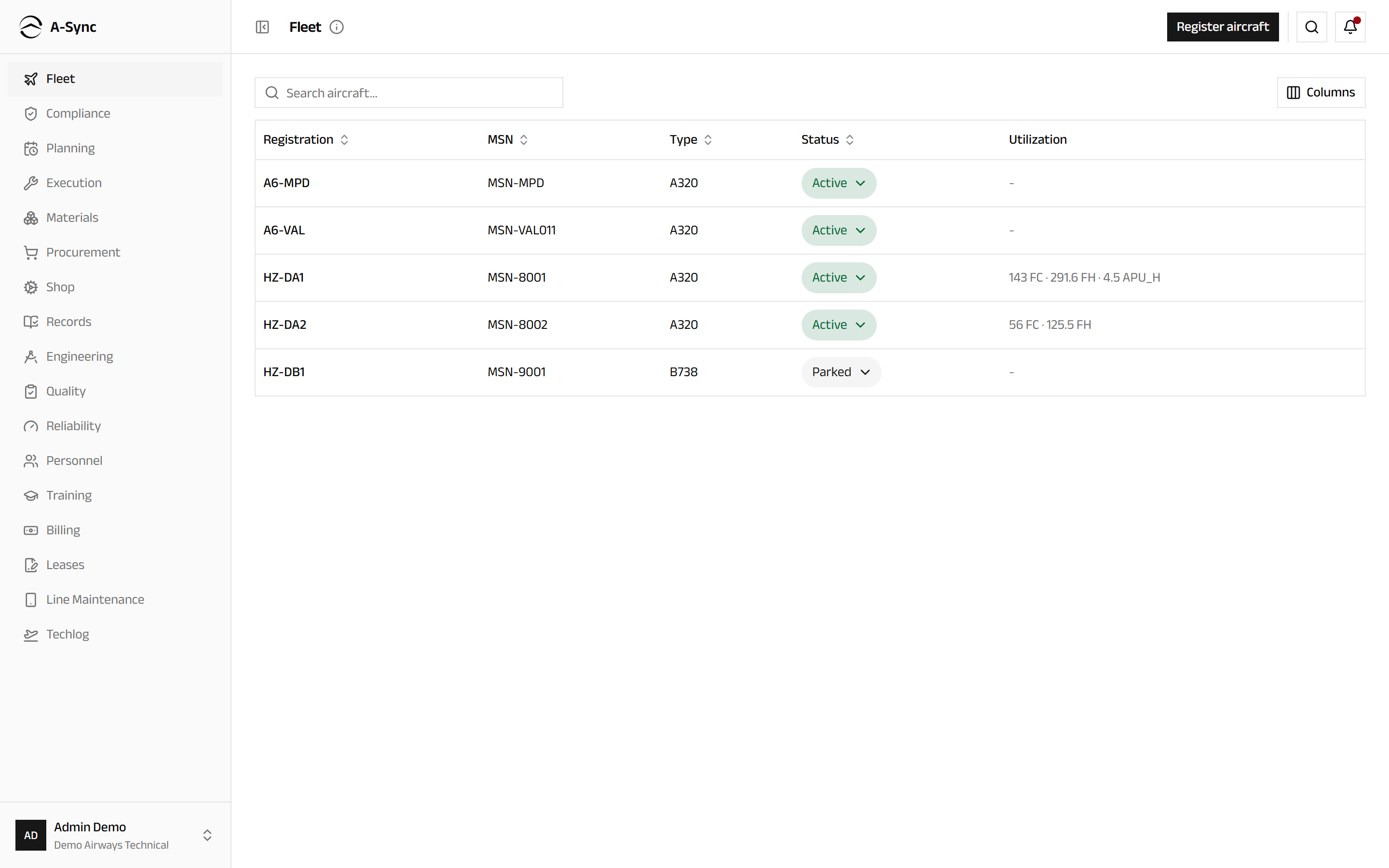
The sidebar
The sidebar lists the modules you have access to, in a fixed order that follows the shape of the operation - starting on the dashboard, then from what the fleet is, through what is due and who will do it, to what it cost.
| Module | What it covers |
|---|---|
| Dashboard | The screen you land on: the state of the operation on one page |
| Fleet | Aircraft, engines and the components fitted to them |
| Compliance | The maintenance programme, airworthiness directives and the MEL |
| Planning | Work packages, capacity, the roster and the planning board |
| Execution | Task cards, sign-offs, defects, handover and release to service |
| Materials | Stores: stock, counts, kits, shipments and scanning |
| Procurement | Purchase, repair, exchange and loan orders, vendors and tooling |
| Shop | The internal component and engine shop |
| Records | Airworthiness records, documents and export packages |
| Engineering | Technical publications, campaigns, weight and balance, damage |
| Quality | Audits, safety occurrences and material review |
| Reliability | Reliability reporting and aircraft health |
| Personnel | People, qualifications and the workforce view |
| Training | Courses, sessions and the training matrix |
| Billing | Quotes, orders, receivables, payables and budgets |
| Leases | Lease contracts, statements and redelivery |
| Line Maintenance | The offline-capable workspace for work on the aircraft |
| Techlog | The electronic technical log, used by flight crew |
Your sidebar is probably shorter
You only see the modules your roles allow. A mechanic, for example, sees no Billing, and flight crew see little beyond Techlog.
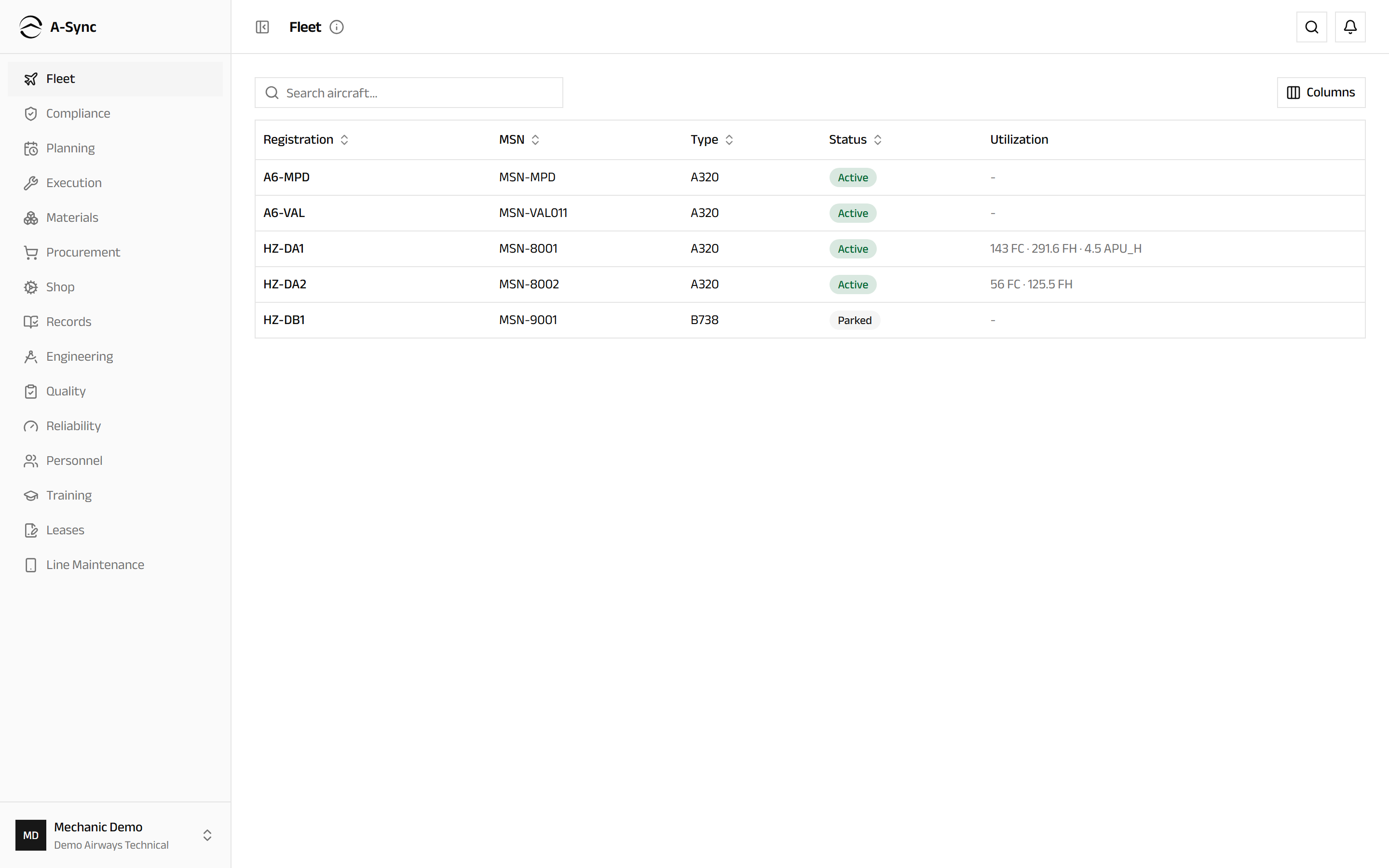
Compare the two screens above. Signed in as a mechanic there is no Billing in the sidebar and no Register aircraft action in the header - both belong to roles a mechanic does not hold.
To give the content more room, choose Collapse sidebar at the bottom of the list. The icons stay, so you can still move between modules.
On a phone
Below tablet width the sidebar is replaced by a bar along the bottom of the screen holding the first few modules, with everything else under More.
The page header
The header names the screen you are on and carries the actions for it. Where a screen has one obvious primary action - raising a defect, inducting a component, registering a document - it sits here, on the right.
Alongside it you will find:
- Search - jump to an aircraft, part, order or document without navigating.
- Notifications - items waiting on you, such as an approval or a document to acknowledge.
Your account menu
Choose your name at the top right for:
- Account and Settings - your profile, password and two-factor setup.
- Language - switch the interface language.
- Theme - Light, Dark or System, which follows your device.
- Sign out.
Moving through records
Lists behave the same way everywhere: select a row to open the record, and use the breadcrumb in the header to come back. Filters stay applied while you move between records, so you do not lose your place in a long list.