Getting access
Accepting your invitation, signing in, and what to do if the link no longer works.
How access starts
You cannot sign yourself up for the portal. Access begins when the maintenance organisation invites you: they send you a one-time link that ties your email address to your company's account with them.
Accept your invitation
- Open the invitation link you were sent. It shows Set up your portal access.
- Enter the Email address the invitation was sent to.
- Choose a password in Choose a password, and enter it again in Confirm password.
- Choose Set up access.
You are signed in immediately and land on your work orders.
The link works once, and only for you
The invitation is single-use and tied to the invited email address. Entering a different address will not work. Do not forward the link - anyone who opens it first would take your place.
Sign in afterwards
- Go to the portal address you were given.
- Enter your Email and Password.
- Choose Sign in.
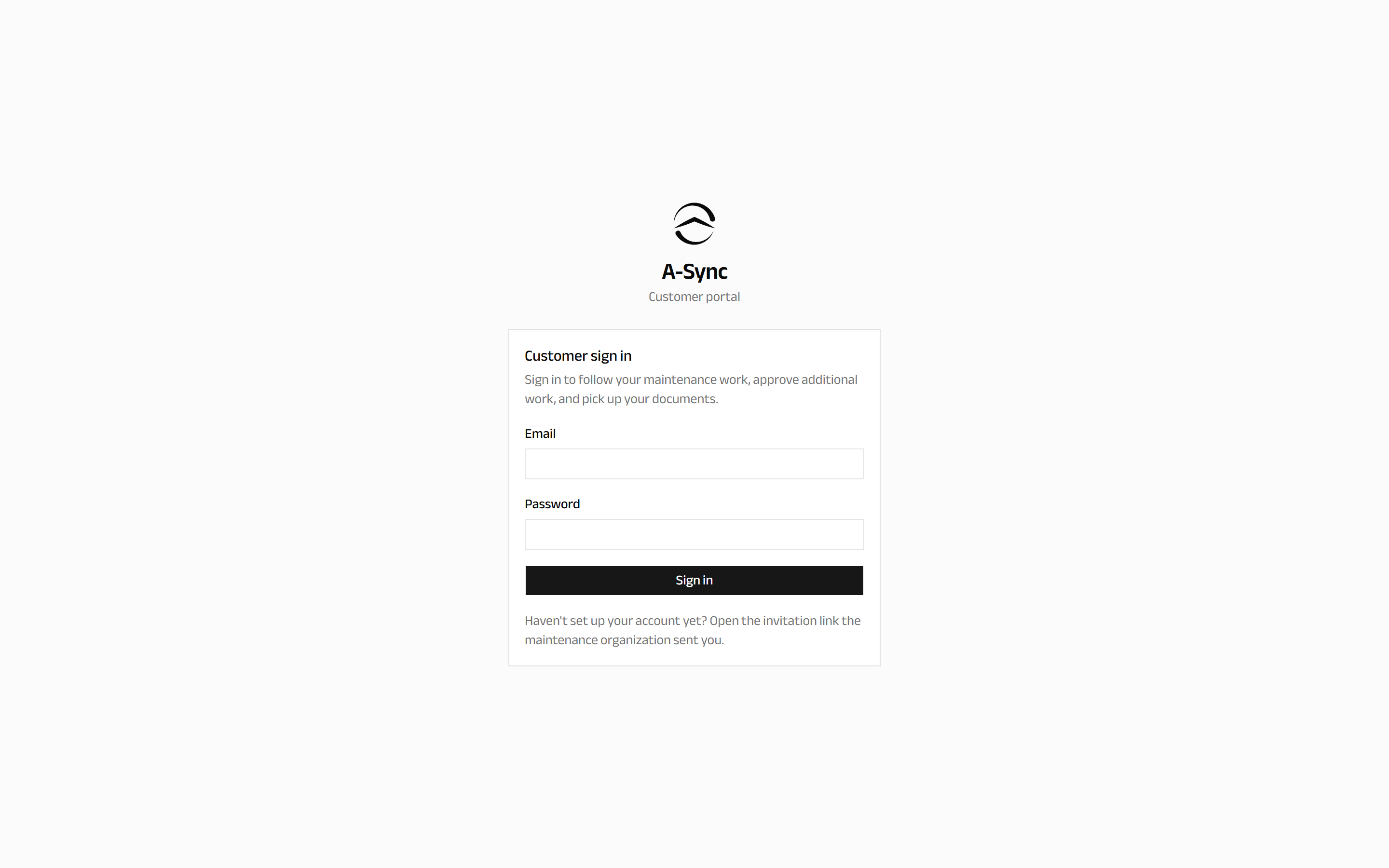
The portal has its own sign-in page. If you also work with other maintenance organisations, note that this account is only for this one.
If the link does not work
The accept screen explains the reason rather than failing silently:
| What you see | What it means |
|---|---|
| The invitation was revoked | The maintenance organisation withdrew it. Ask for a new one. |
| The invitation has expired | Invitations do not stay open indefinitely. Ask for a new one. |
| The link is incomplete | The address was truncated, usually by an email client. Copy the whole link. |
In every case, contact your account manager at the maintenance organisation and ask them to send a fresh invitation.
Protecting your account
Add two-factor authentication from Settings. It is optional, and adds a six-digit code from an authenticator app when you sign in. See Notifications and settings.
If your access stops working
Access can be suspended by the maintenance organisation - for example if you change roles, or if the commercial relationship changes. You are returned to the sign-in screen with the reason. Contact your account manager.