Notifications and settings
Where notices appear, and how to change your password or add two-factor authentication.
Notifications
The portal tells you when something needs you. Notices appear in the portal itself - they are never emailed.
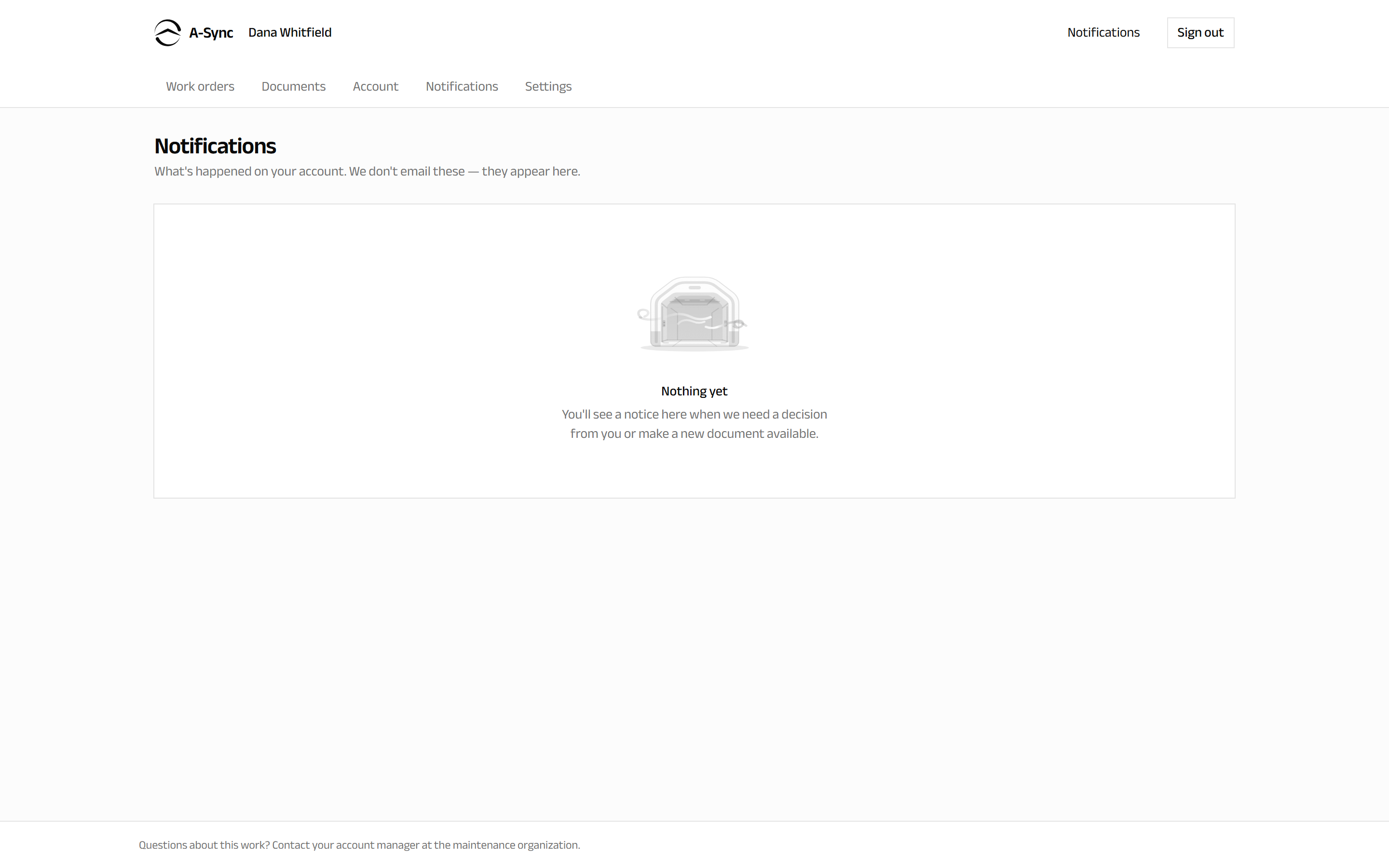
You get a notice when:
- Extra work has been found and a decision is needed from you.
- A new document has been made available - a certificate, a records package, an invoice or a quotation.
The count of unread notices is shown beside Notifications in the navigation, so you can see at a glance whether anything is waiting.
Nothing is emailed
Because notices live only in the portal, sign in periodically if you are waiting on a decision or a document. Work that needs your approval does not progress until you give it.
If the list is empty, nothing has happened on your account yet.
Settings
Settings covers your own sign-in details. It shows who you are signed in as.
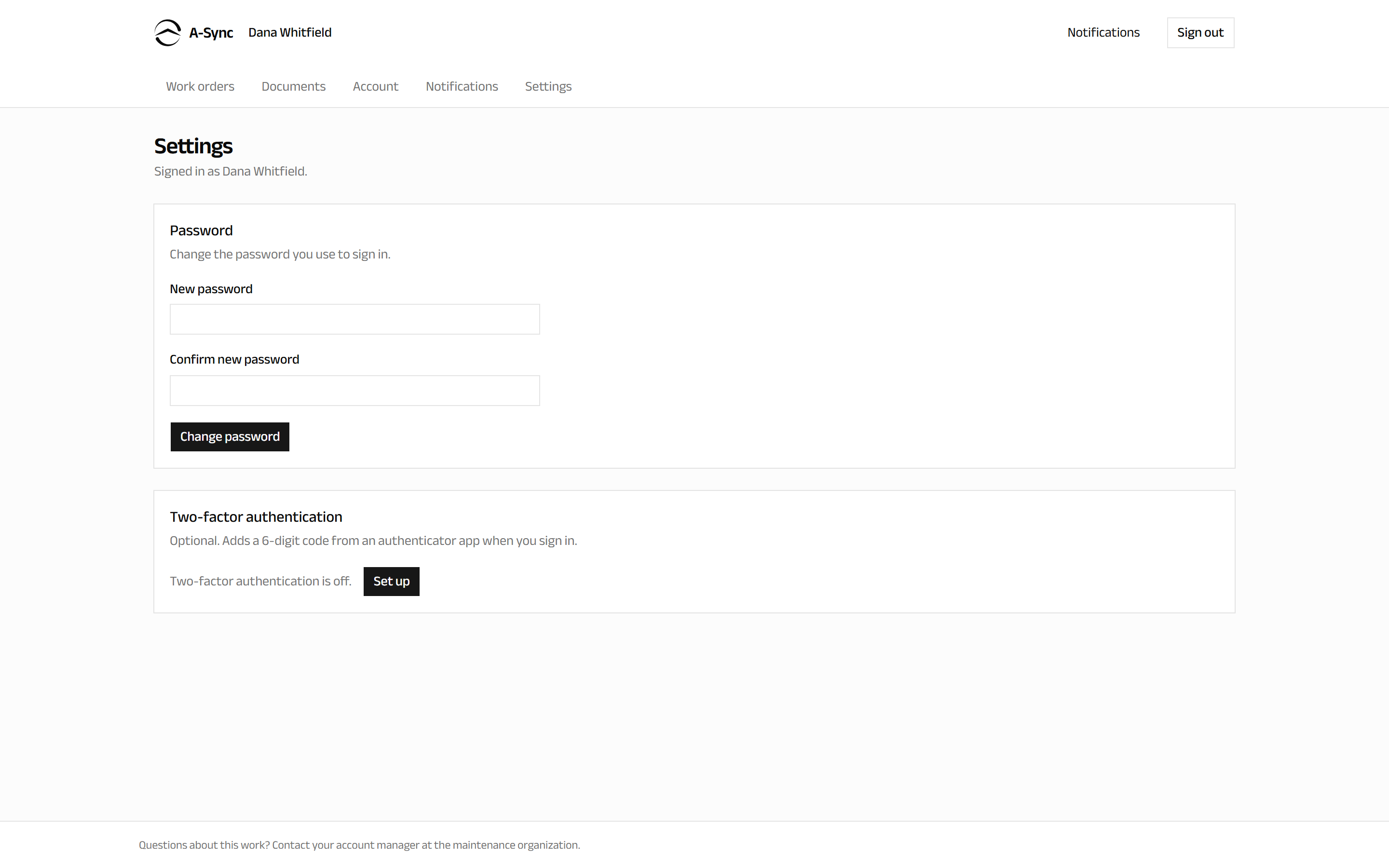
Change your password
- Choose Settings.
- Under Password, enter your new password.
- Save the change.
Add two-factor authentication
Two-factor authentication is optional here, and adds a six-digit code from an authenticator app when you sign in.
- Choose Settings.
- Under Two-factor authentication, start the setup.
- Scan the code shown with your authenticator app.
- Enter the six-digit code the app produces to confirm.
Keep a backup of your authenticator
If you lose access to your authenticator app, you cannot sign in and cannot reset it yourself. Contact your account manager at the maintenance organisation.
Getting help
The portal shows one contact route throughout: "Questions about this work? Contact your account manager at the maintenance organization." That is deliberate - the people doing your work are the people who can answer for it.