Compliance
The maintenance programme, airworthiness directives, the live due list, the MEL and ETOPS significance.
What it's for
Compliance is where you record what the fleet owes, and A-Sync works out when each item falls due. You describe a requirement once - its interval and the aircraft it applies to - and every applicable aircraft and component picks it up.
Nothing on the due list is typed in by hand. It is recalculated from the utilisation posted against the fleet, so the moment an aircraft flies, what is due moves with it. Planning works from this list, and everything the hangar does comes back here as a compliance record.
Key concepts
Requirement - one thing that has to be done. It is a Program task, an Airworthiness directive, a Service bulletin or an Engineering order.
Applicability - the Aircraft types or part numbers a requirement covers. Leave it empty and it applies to the whole fleet.
Interval - how often the requirement comes round. An Initial threshold is the first time it is due; a Repeat interval is every time after that. Either can be expressed in flight hours (FH), flight cycles (FC) or days.
Due item - one occurrence of a requirement against one aircraft or component, carrying its Remaining figure and its Projected due date.
Urgency - how close a due item is: Approaching, Due or Overdue. Overdue rows are deliberately impossible to miss.
Compliance record - when, and at what utilisation, a requirement was last accomplished. Recording it is what resets the clock.
Terminating action - the modification that ends a requirement for good. Once it is accomplished the item is closed out and never forecast again.
Extension - an authorised, one-time move of a due point, held to a Not-to-exceed limit it may never pass. A second person approves it.
MEL - the Minimum Equipment List: the catalogue of equipment an aircraft may dispatch without, and for how long. It is revision-controlled, with one revision in force at a time.
ETOPS significance - a marker on requirements that matter to extended-range operations. It is a lens only: flagging an item never changes when it is due.
Common tasks
Read the due list
- Choose Compliance in the sidebar.
- Choose All, Approaching, Due or Overdue to narrow the list by urgency.
- Type into Search due items… to find one aircraft or one reference.
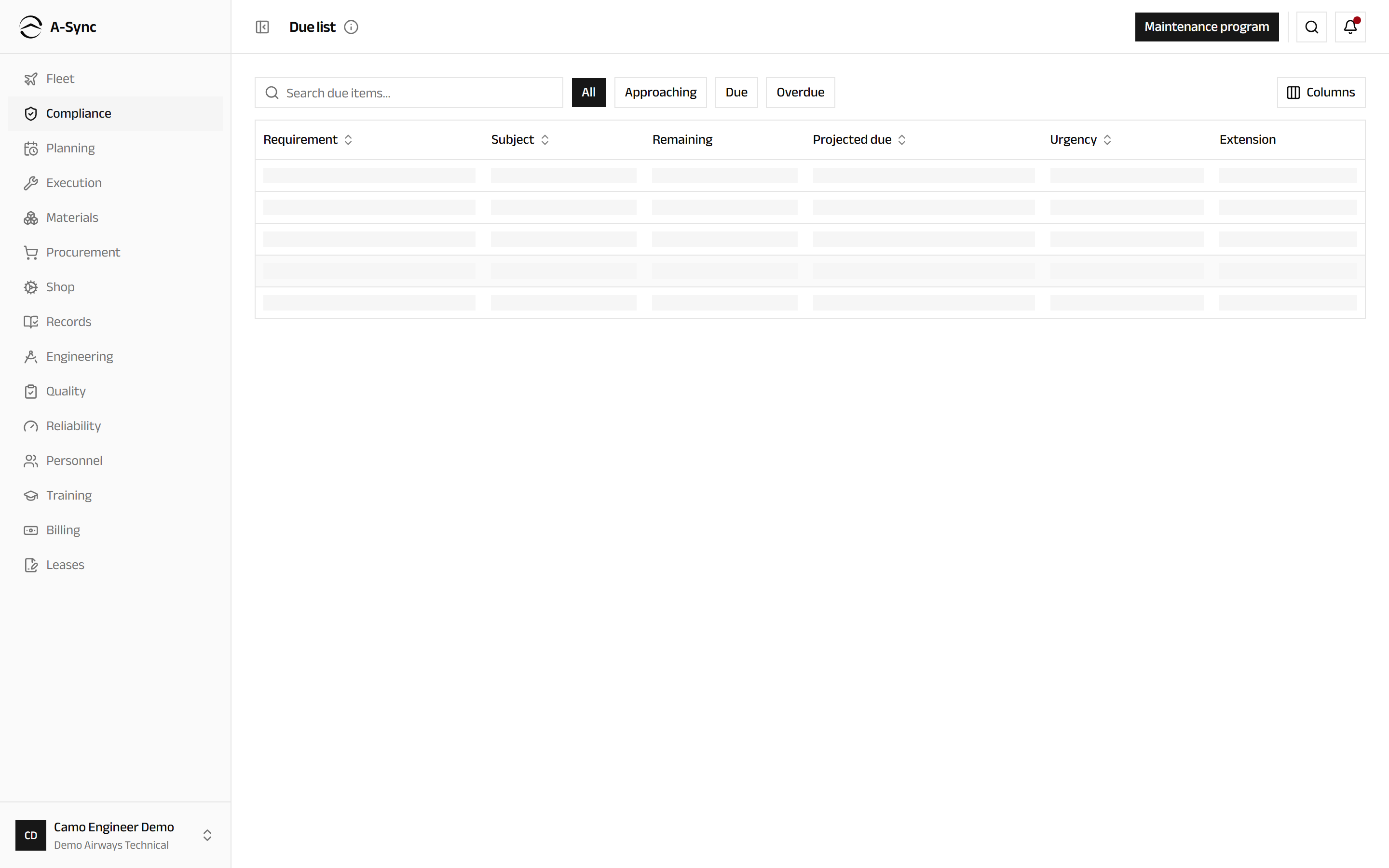
Each row carries the Requirement, the Subject it applies to, what is Remaining, the Projected due date, the Urgency and any Extension in force. The list recomputes as utilisation posts, so it is always the current answer rather than a report you have to run.
Add something to the maintenance programme
- Choose Compliance, then Maintenance program.
- Choose New requirement.
- Choose the Kind.
- Enter the Reference and the Title.
- Enter the Aircraft types it applies to, comma separated, or leave it empty for every type.
- Enter a Repeat interval, an Initial threshold, or both.
- If a modification ends the requirement, describe it under Terminating action (optional).
- Choose Create requirement.
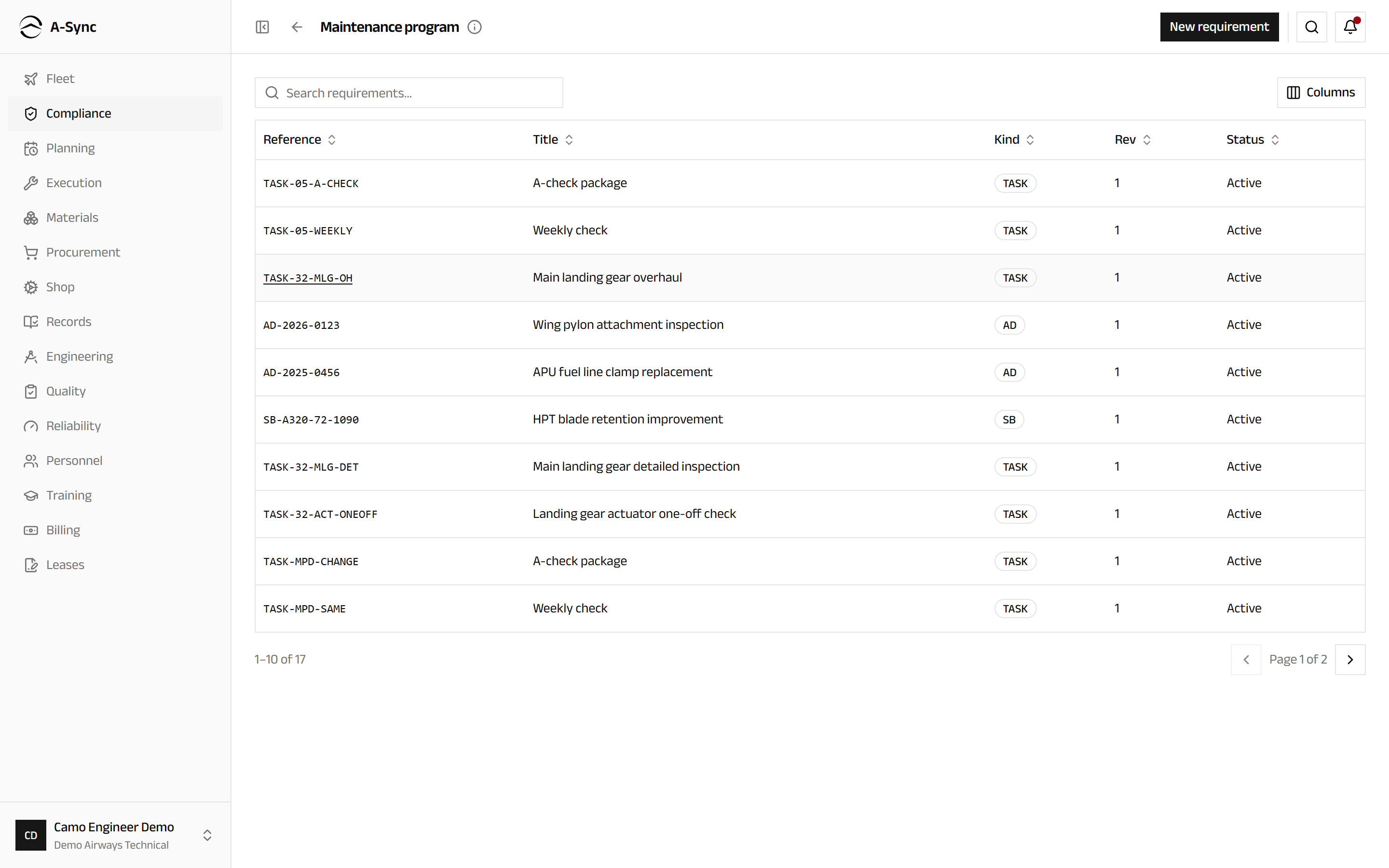
The due list updates for every applicable aircraft as soon as the requirement is created - you do not have to trigger a recalculation.
Who can do this
Only CAMO engineers change the maintenance programme. Everyone else reads it.
Check which aircraft a requirement affects
- Choose Compliance, then Maintenance program.
- Select the Reference to open the requirement.
- Choose Evaluate fleet.
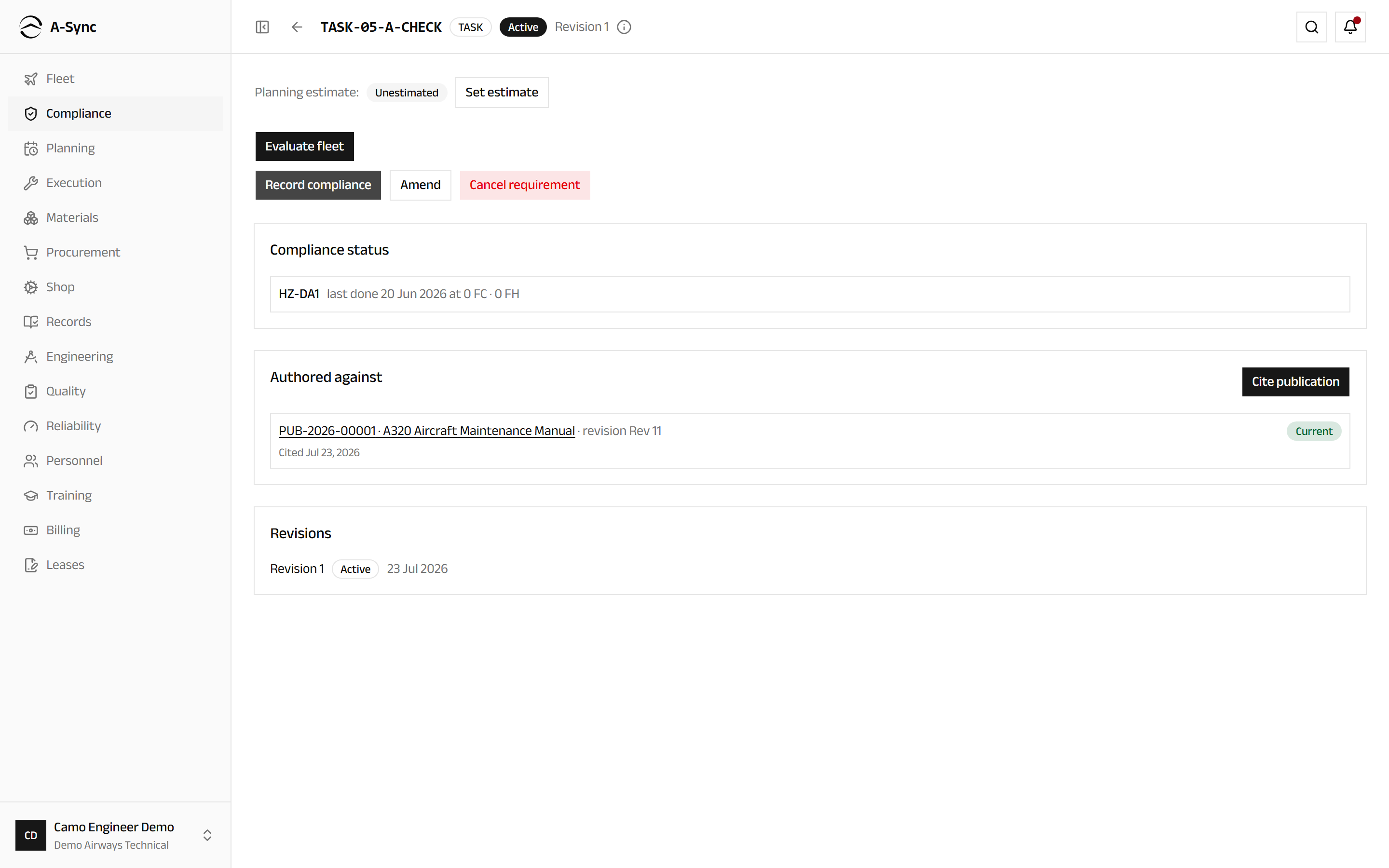
A-Sync reports how many assets are affected and when it last evaluated. Where nothing matches, it says so plainly rather than showing an empty list.
The same screen holds Compliance status - every aircraft or component the requirement has been accomplished on, with the date and the utilisation at the time - and Revisions, the full history of the requirement itself.
Record compliance
- Open the requirement.
- Choose Record compliance.
- Choose the Aircraft.
- Enter the Done date.
- Enter the FH and FC at which the work was done.
- If the requirement is finished for good, turn on Terminating action accomplished.
- Choose Record.
The due list recomputes immediately. A requirement recorded with its terminating action accomplished is closed out and drops off the forecast, but its history is kept permanently.
Amend a requirement
An authority revises an AD, or an interval changes. Requirements are never edited in place - an amendment creates the next revision and supersedes the current one.
- Open the requirement.
- Choose Amend.
- Adjust the Title, the Repeat interval, the Initial threshold or the Terminating action (optional).
- Choose Create revision.
Compliance history carries forward to the new revision and the due list is recalculated. The superseded revision stays visible under Revisions.
Cancel a requirement
- Open the requirement.
- Choose Cancel requirement.
- Choose Cancel requirement again to confirm.
Cancelling cannot be undone here
The requirement stops generating due items straight away. Its history and its prior revisions stay on record, but you cannot reinstate it from this screen - choose Keep requirement if you are not certain.
Request an extension
Where an item cannot be accomplished by its due point and the authority permits relief, request an extension against the due item rather than moving the date.
- Choose Compliance in the sidebar.
- Find the due item and choose Request extension.
- Enter the Authority reference.
- Enter the Justification.
- Under Not-to-exceed, enter the Date and any hour or cycle limit the item must not pass.
- Choose Request extension.
The item shows Extended with its reference once approved, and Expired once the not-to-exceed point passes. Only one extension can be open against an item at a time.
Approval is a separate pair of hands
A CAMO engineer requests an extension; quality approves it. The requester can never approve their own request.
Give an item a planning estimate
The long-horizon forecast needs to know roughly what each occurrence costs in labour. Setting an estimate changes nothing about compliance.
- Open the requirement.
- Choose Set estimate.
- Enter the Labor hours per occurrence.
- Optionally enter the Required qualification (optional).
- Choose Save estimate.
Items with no estimate are counted separately in the forecast as Unestimated, so the gap is visible rather than silently assumed to be zero.
Set up a MEL catalogue
One catalogue covers one aircraft type for one operator. Aircraft match on the type and operator exactly.
- Open MEL catalogs under Compliance.
- Choose New catalog.
- Enter the Aircraft type.
- Enter the Operator reference (optional), or leave it empty for your own operation.
- Choose Create catalog.
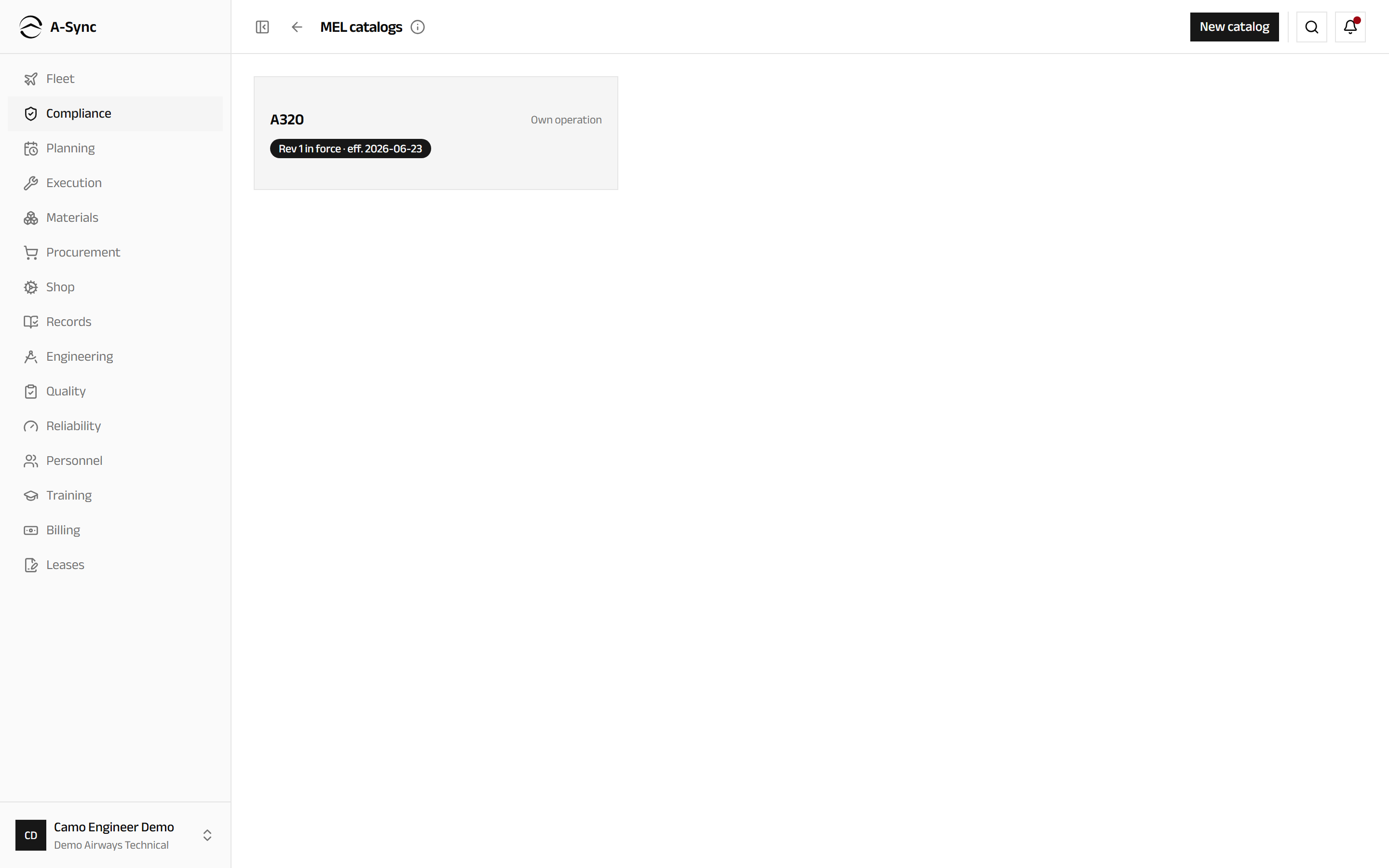
Each card shows which revision is in force, its effective date, and whether a draft revision is open.
Publish a new MEL revision
- Open the catalogue.
- Choose Draft new revision. Published items are copied forward into the draft.
- Choose Add item and enter the ATA chapter, Item number, Title, Category, Installed and Required for dispatch, or choose Import to load a prepared list.
- Enter the Effective date and choose Save date.
- Choose Publish revision.
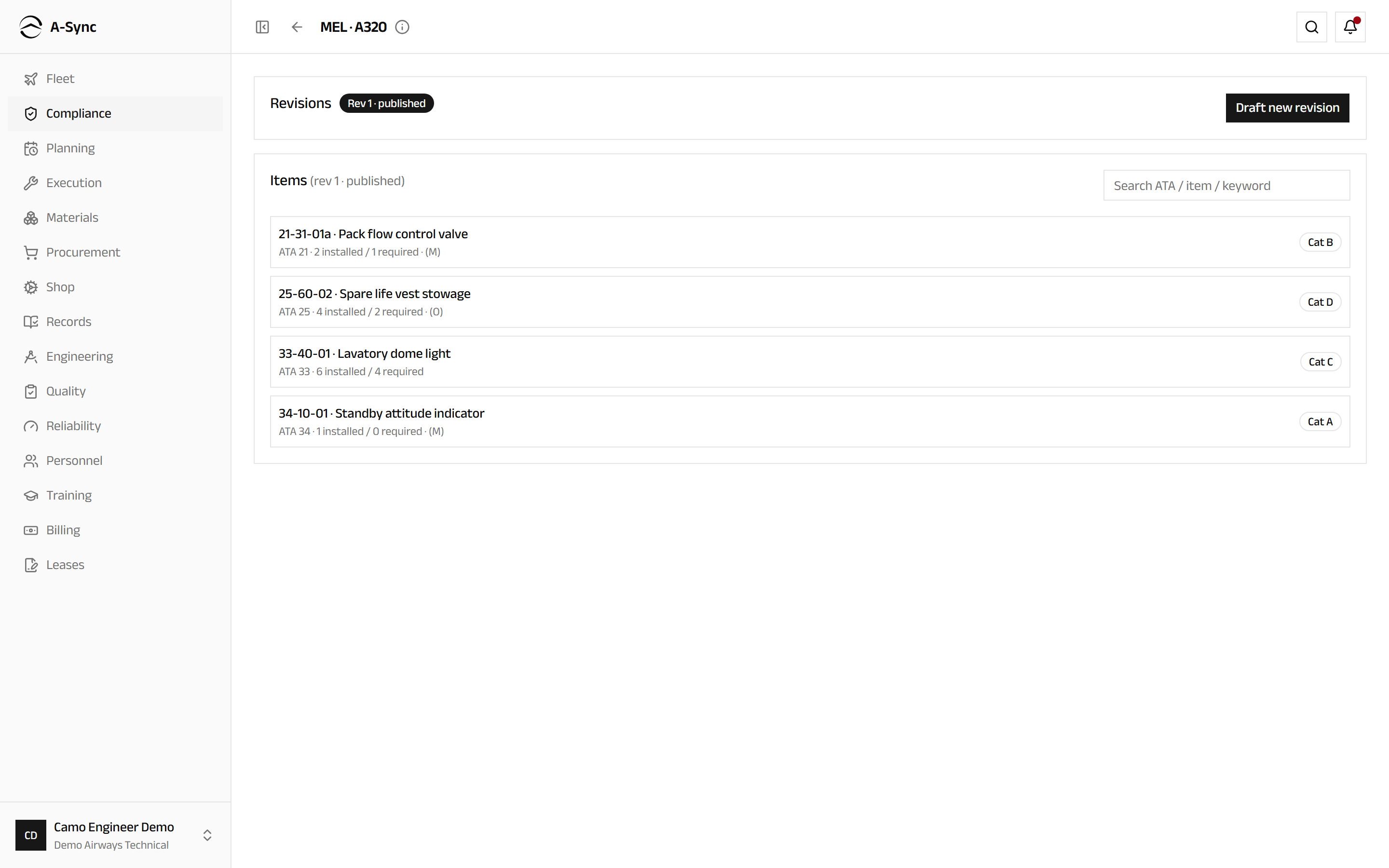
Category A items carry their own rectification interval; B, C and D follow the regulatory calendar of 3, 10 and 120 days. Importing is two-phase: Validate reports problems row by row, and Apply refuses unless every row is valid.
Publishing changes what the floor can defer
Only one revision is in force at a time, and deferrals switch to the catalogue as soon as the first revision publishes. Until then the hangar records deferrals manually.
Track ETOPS-significant items
- Open ETOPS significance under Compliance.
- Choose the aircraft.
- Under Other due items, find the requirement and choose Flag ETOPS.
- Enter the Category.
- Choose Flag ETOPS.
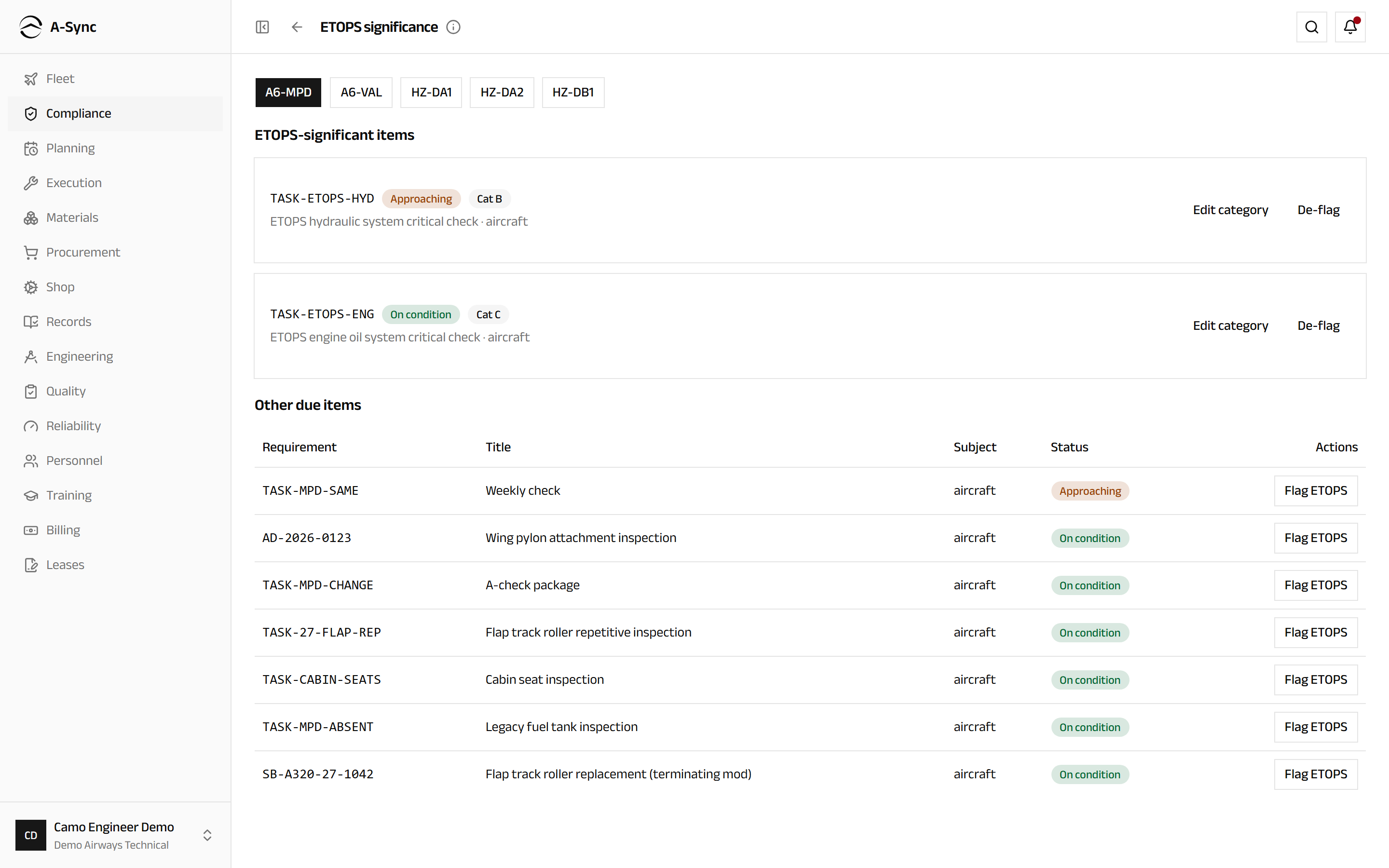
Flagged items move to ETOPS-significant items at the top of the screen. An overdue one is badged ETOPS-dispatch concern - a flag for operations to act on, never a block on the aircraft. Use Edit category to correct the category and De-flag to remove significance.
Role notes
| Role | What it can do here |
|---|---|
| CAMO engineer | Create, amend and cancel requirements; record compliance; manage the MEL; flag ETOPS significance; request extensions |
| Quality | Approve or refuse an extension request |
| Planner | Read the due list and build work packages from it |
| Everyone else | Read the programme, the due list, the MEL and ETOPS significance |
Reading is wide, changing is narrow
Every staff role can see what is due - a mechanic needs to know why a job exists. Changing the programme belongs to the CAMO engineer alone, because the consequence is an airworthiness decision.
Related modules
- Fleet supplies the utilisation that makes items fall due.
- Planning turns due items into work packages.
- Execution does the work and defers what cannot be fixed now, against the MEL held here.
- Engineering holds the manuals a requirement is written from, and the extension approvals.
- Records keeps the compliance history as part of the airworthiness record.