Planning
Workload forecasting, work packages, hangar and line capacity, the roster, the planning board and the flight schedule.
What it's for
Planning turns what is due into what will actually happen. You take the items falling due in the window ahead, group them into a package for one aircraft, schedule that package into a bay or a line window, and put people against it.
It is also where the plan meets reality: the operator's flight schedule, where each aircraft actually is, how much hangar time the rotation leaves you, and whether the trades you have can absorb the work you have promised.
Key concepts
Forecast - the due items falling inside the planning horizon, with the labour each is estimated to take.
Work package - one aircraft's worth of scoped work. It starts as a draft, becomes published when it is ready for the floor, then in work once the hangar starts it.
Revision - every scope change to a published package bumps its revision, and the reason is kept. Nothing changes quietly under the people doing the work.
Capacity slot - a hangar bay or a line window that packages are scheduled into. A slot is either Hangar or Line.
Trade - a skill group, such as airframe or avionics. Package hours can be split across trades so shortfalls show up per trade rather than in total.
Roster assignment - a named person, on a package or a slot, for a number of man-hours per day.
Ground opportunity - a same-station turnaround in the flight schedule that is long enough to be worth using. Promoting one creates an ordinary line slot.
Scenario - a set of assumptions the long-horizon forecast is generated against. Generating a forecast changes no compliance data whatsoever.
Common tasks
Build a work package from the forecast
- Choose Planning in the sidebar.
- Read down the forecast, or type into Search forecast….
- Tick each due item you want in the package. The running total appears beside the list.
- Choose Create work package.
- Enter the Title, for example
A-check HZ-DA1 - Aug 2026. - Optionally enter the Check type and choose the Cost center.
- Choose Create package.
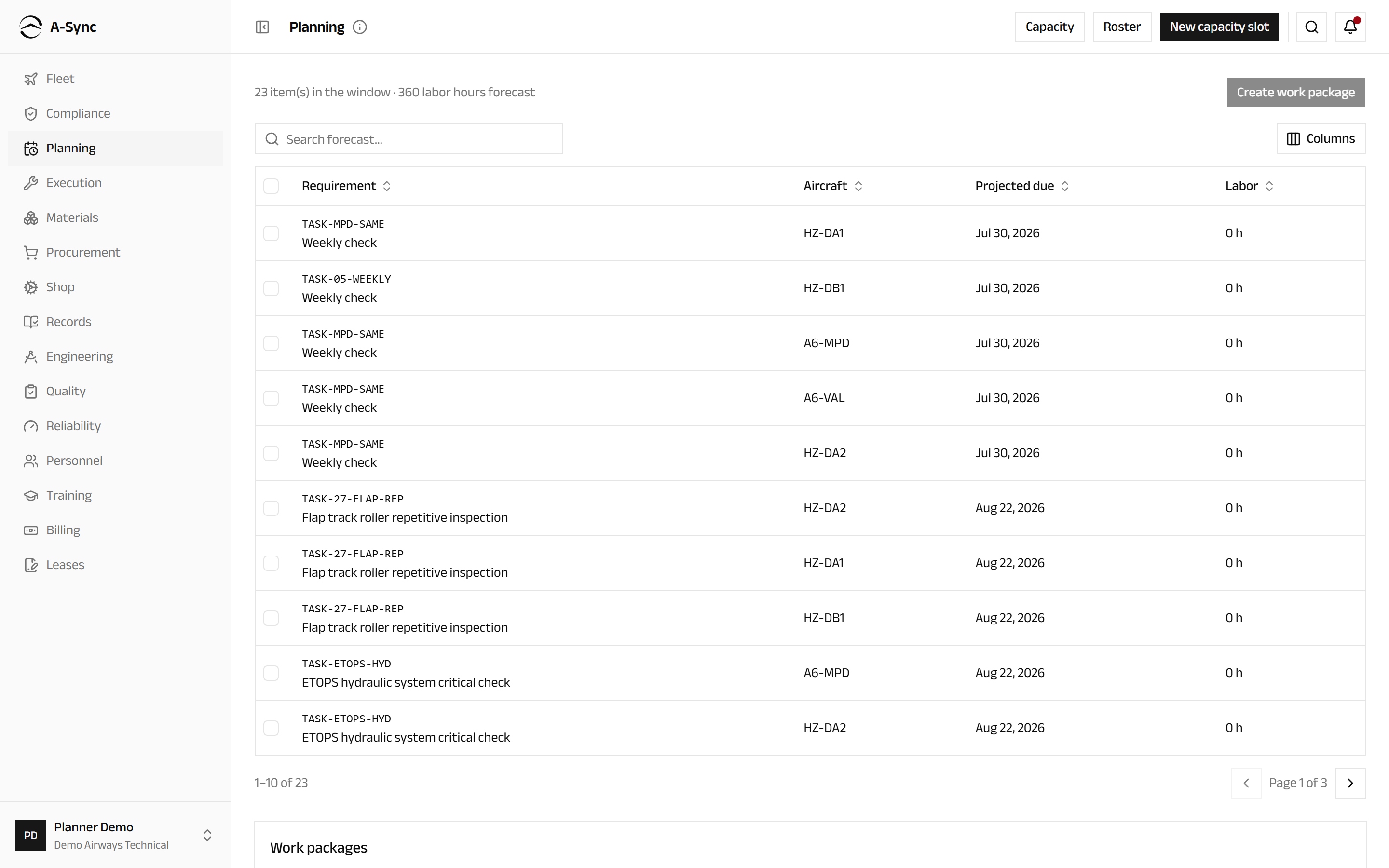
Labour, material and qualification estimates from the selected items are rolled up onto the package automatically.
One package, one aircraft
A package covers a single aircraft. If your selection spans two tails, A-Sync refuses and tells you which tails you have mixed - narrow the selection and try again.
Create a capacity slot
- Choose Planning in the sidebar.
- Choose New capacity slot.
- Enter the Name, such as
Bay 2. - Choose the Kind: Hangar or Line.
- Enter Starts and Ends.
- Add Notes if the slot needs explaining.
- Choose Create slot.
Schedule and publish a package
- Choose Planning in the sidebar.
- Select the package under Work packages.
- Choose Assign slot and pick the capacity slot.
- Choose Publish.
- When the hangar starts, choose Start work.
Overlapping assignments raise a Capacity conflict warning. The warning is advisory: A-Sync tells you what you are about to double-book and lets you decide.
To add work that is not in the maintenance programme, choose Add manual task, enter the Task title and the Labor hours, then choose Add task. On a published package this bumps the revision.
ETOPS dual-maintenance caution
If a package accomplishes the same ETOPS-significant requirement on redundant systems, an ETOPS dual-maintenance caution appears. It is advisory only - sign-off is never blocked - but consider staggering the work.
Split a package's hours across trades
- Open the work package.
- Under Per-trade demand, choose Edit demand.
- Enter the man-hours for each trade, up to the item's labour estimate.
- Choose Save demand.
Anything you do not distribute stays Unallocated and is reported separately on the capacity screen, so nothing is quietly dropped.
Check capacity against the plan
- Choose Planning, then Capacity.
- Read the Planned vs available grid: each cell shows available hours minus required hours, for one trade on one day.
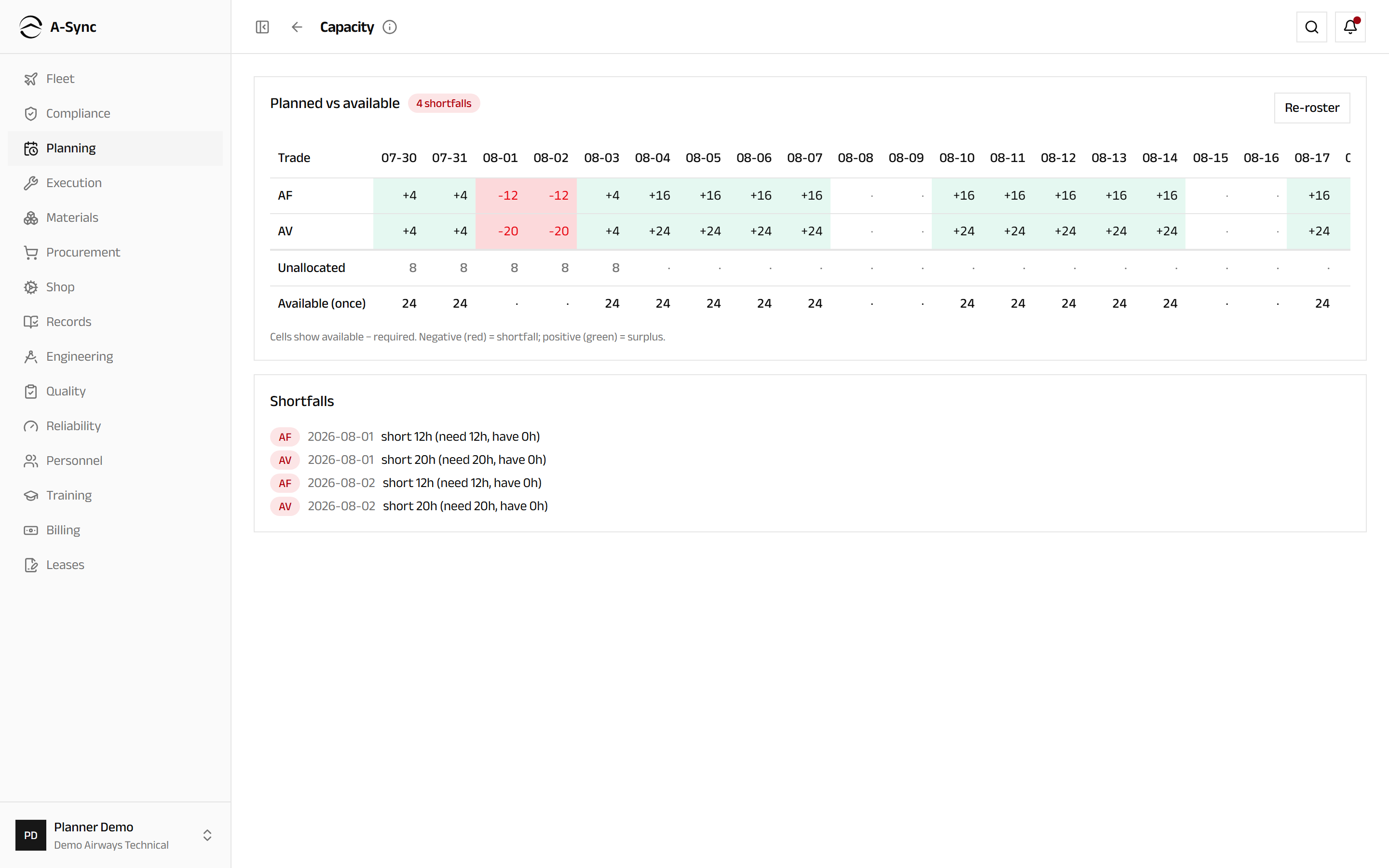
Negative cells are shortfalls and positive cells are surplus. Below the grid, Unscheduled demand lists packages with no capacity slot - their hours are not in the window until you schedule them - and Shortfalls spells out how many hours short each day and trade is.
Choose Re-roster to go straight to the roster and fix a shortfall.
Roster people onto the work
- Choose Planning, then Roster.
- Choose New assignment.
- Choose the Member and the Trade.
- Choose the Target - a work package or a capacity slot.
- Enter Starts on and Ends on.
- Enter Hours / day.
- Choose Roster.
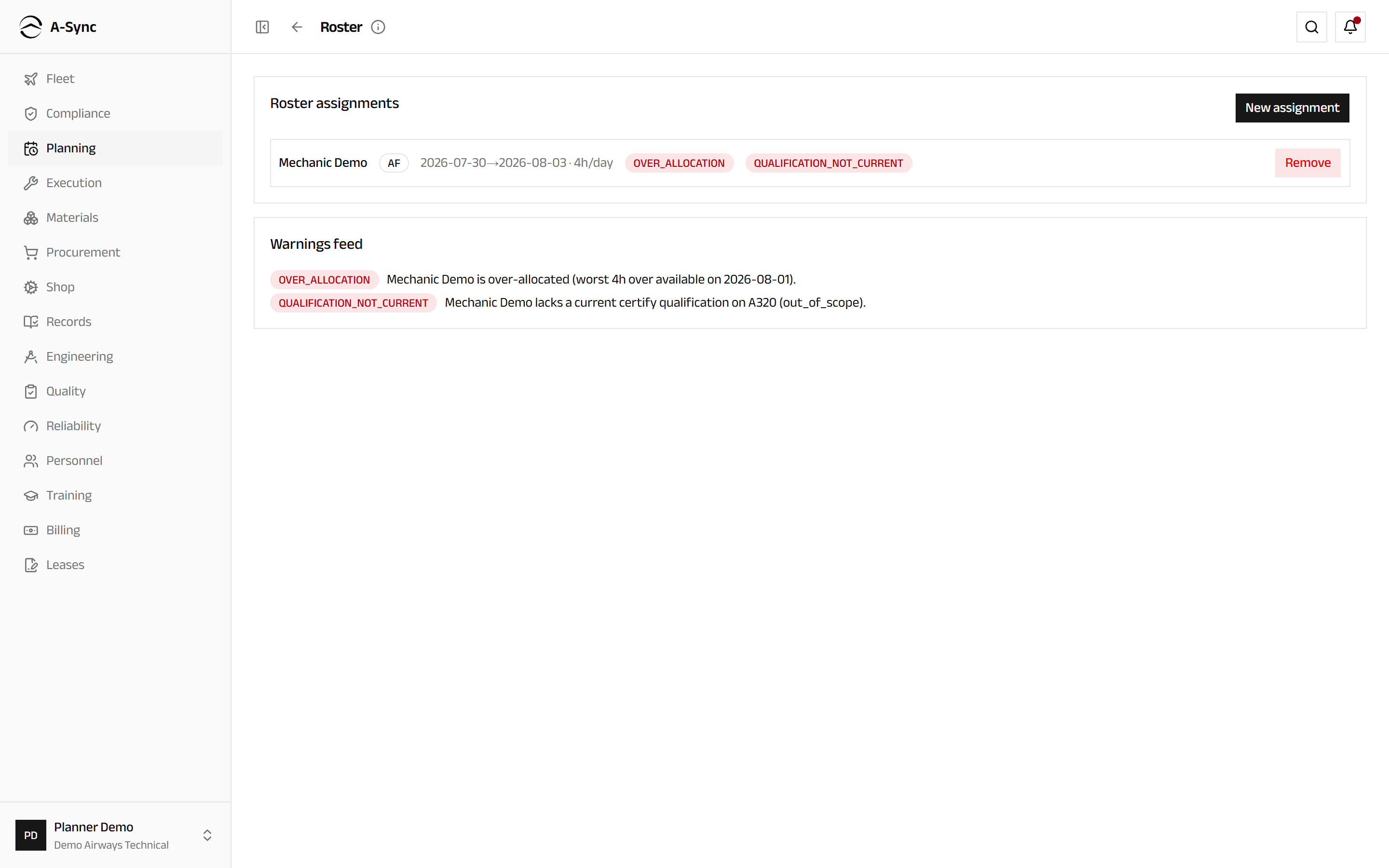
Over-allocation, trade mismatch and certification-currency problems are flagged live as you roster, on the assignment itself and in the Warnings feed. Where the horizon is clean, A-Sync says so. Choose Remove to take an assignment back off.
Move the plan around on the board
- Open the Planning board under Planning.
- Drag a slot bar to move it, or drag its edge to resize it.
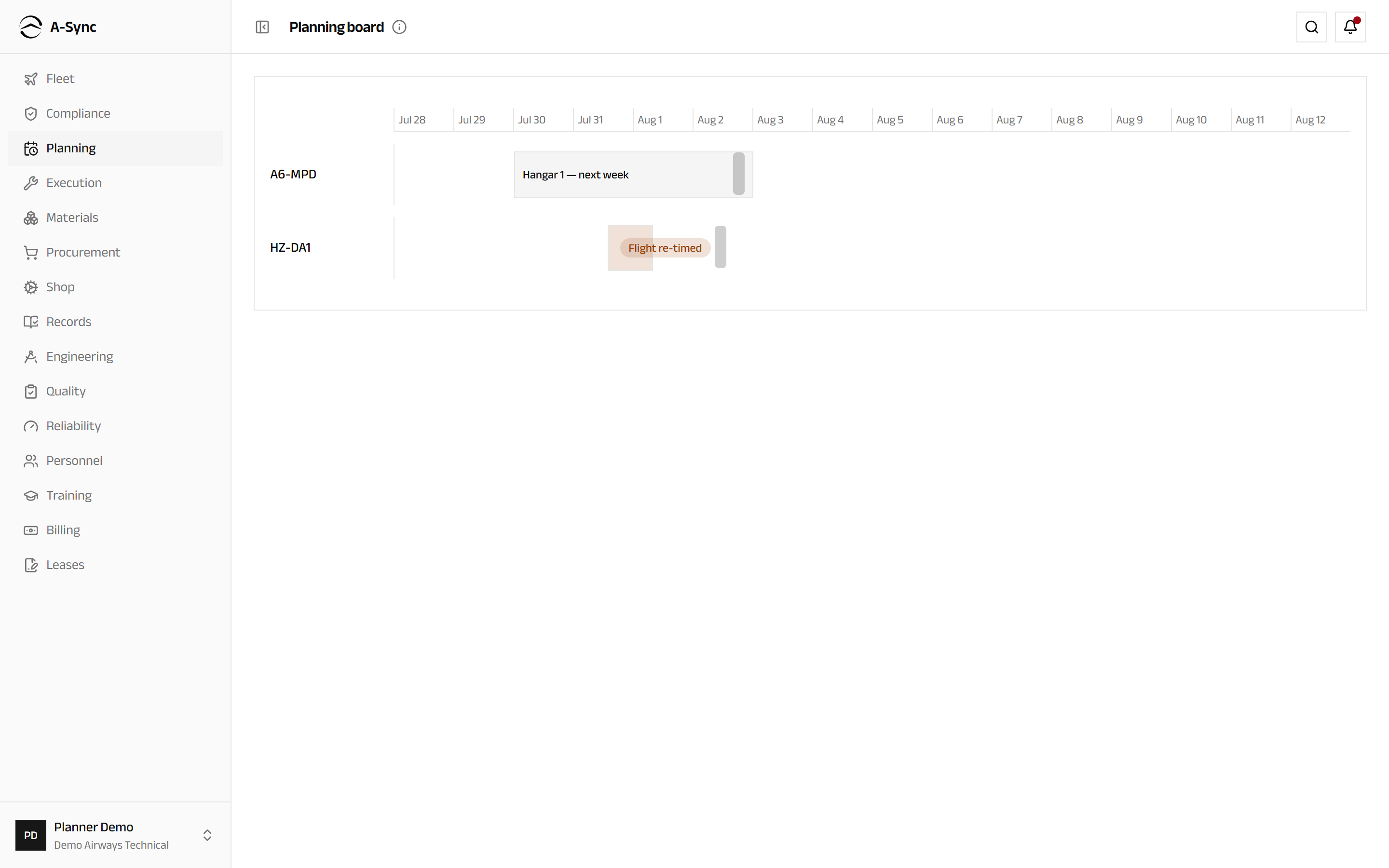
The board is aircraft lanes across time - the whole plan as one picture. Slots that are not tied to an aircraft appear under Unassigned. Conflicts show as inline chips and never stop the save. If someone else moves the same slot while you are working, A-Sync tells you and refreshes the board.
Reading is open, moving is not
Everyone can read the board. Dragging and resizing is limited to planners and CAMO engineers.
Import the operator's flight schedule
- Open Schedule imports under Planning.
- Choose Import schedule.
- Choose Download the schedule template.
- Fill it with the operator's schedule and attach it as the Filled template (CSV).
- Choose Validate and read the row-by-row report.
- Choose Apply once every row you care about is valid.
Validating lands nothing. Applying lands the valid rows and supersedes the flights they replace; rows with errors keep their reason so you can fix them. Every run is retained and can be reopened to see exactly what landed, what was re-timed and what was cancelled.
Turn ground time into a maintenance window
- Open Fleet routing under Planning.
- Choose the Aircraft.
- Read the Rotation - plan against actual for each flight.
- Under Ground opportunities, choose Promote on a turnaround worth using.
- Choose Promote to line slot.
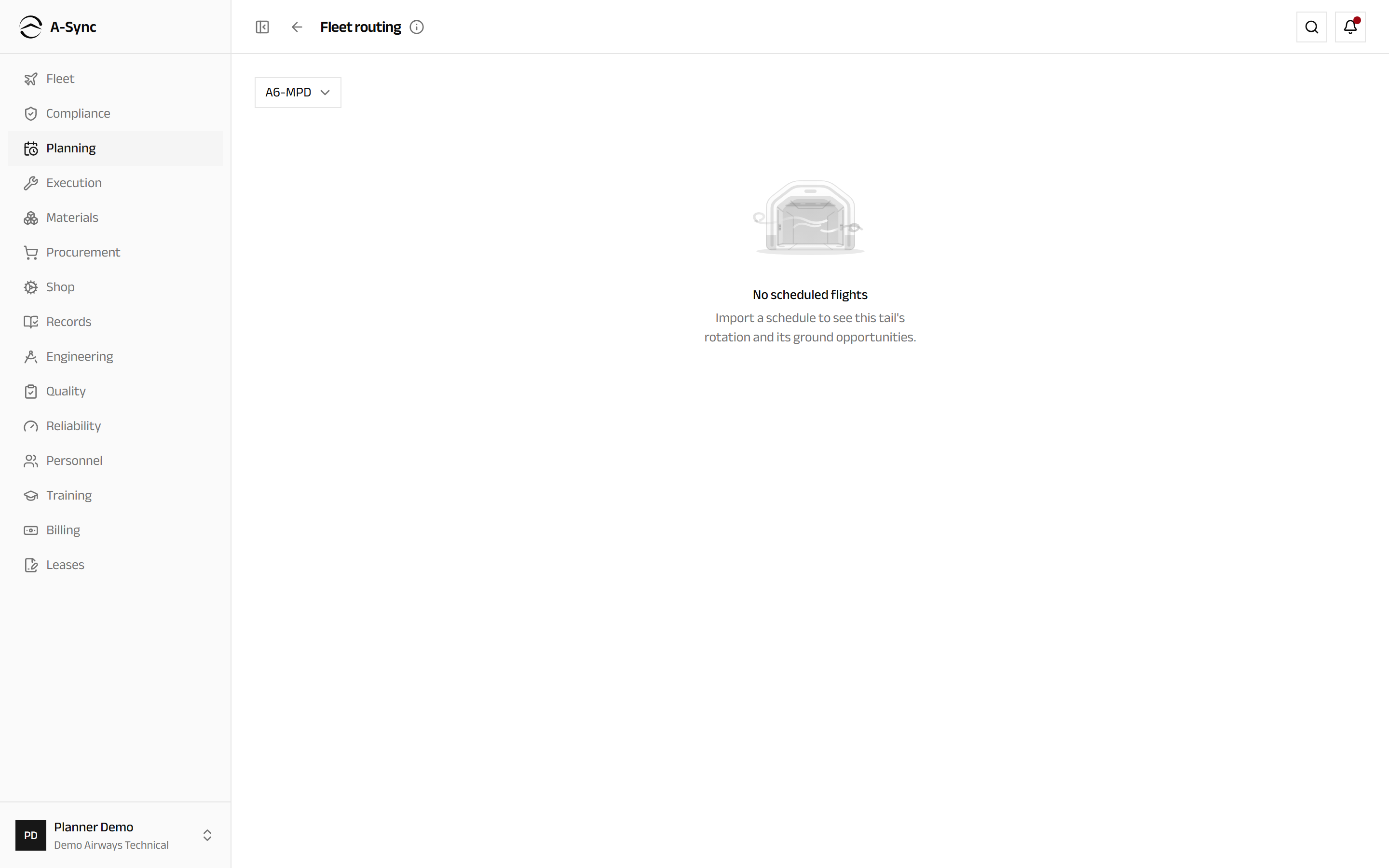
The new slot is an ordinary line slot: it takes packages and raises double-booking warnings like any other.
Where a re-import re-times or cancels the flight behind a slot you already promoted, the slot appears under Slots flagged for attention. It never moves on its own - review it, then choose Acknowledge to clear the flag.
Use Mark ETOPS and Clear ETOPS on a scheduled flight to record that the sector is flown under extended-range rules.
Look years ahead
- Open Long-horizon forecast under Planning.
- Choose Generate baseline for the five-year view on today's assumptions.
- To test an assumption, enter a Name, optionally a Fleet FH/day (optional), and choose Create scenario.
- Choose Generate beside the scenario.
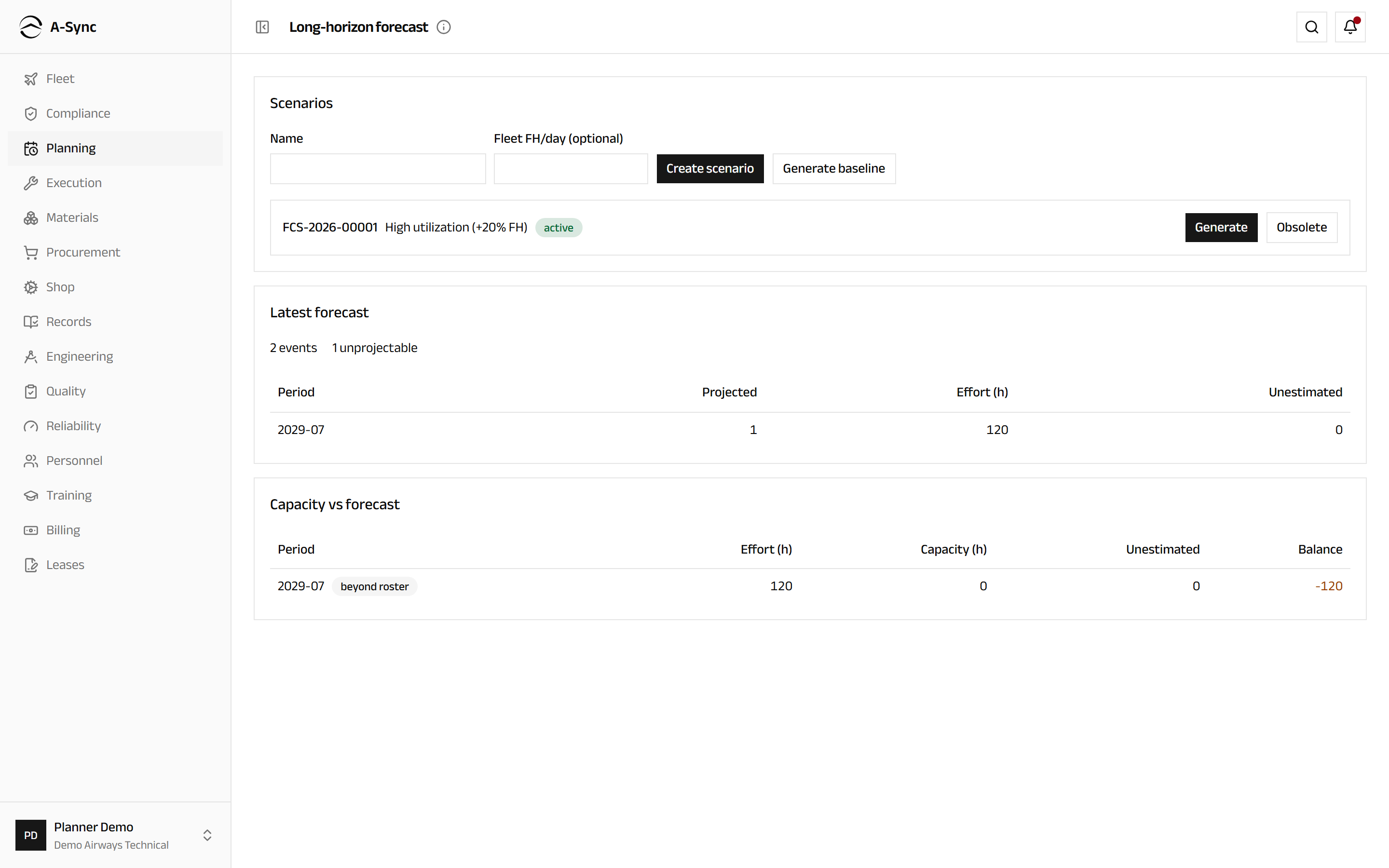
Latest forecast breaks the years down by Period, Projected events, Effort (h) and how many were Unestimated. Capacity vs forecast puts that against Capacity (h) and the resulting Balance, marking periods beyond roster where there is no roster to compare with.
Each forecast is a point-in-time snapshot, kept as generated. Choose Obsolete to retire a scenario you no longer want generated against.
Role notes
| Role | What it can do here |
|---|---|
| Planner | Everything: packages, slots, scheduling, rostering, board edits, schedule imports, promoting ground time, forecasts |
| CAMO engineer | The same package, slot, roster, board and forecast actions |
| Everyone else | Read the forecast, packages, capacity, the roster, the board and the routing |
Two planning actions are narrower
Importing the flight schedule and promoting a turnaround into a line slot are the planner's alone - they change what the rest of the operation believes about where the aircraft will be.
Related modules
- Compliance produces the due items the forecast is built from.
- Execution picks up a package once it is published.
- Materials reserves and kits the parts a package needs.
- Personnel holds the people and qualifications the roster draws on.
- Fleet is where the aircraft and their utilisation live.