Materials
Stores and warehouse work - stock, reservations, counting, kitting, shipments and scanning.
What it's for
Materials is the stores. It holds what you have, where it is, who owns it and what condition it is in - and it moves that stock to the work that needs it.
Every part that reaches an aircraft passes through here: reserved against a task, picked from a bin, issued to the person doing the job, and accounted for afterwards.
Key concepts
Stock line - a specific quantity of one part, in one warehouse, in one condition, with its own batch or serial number and its own certificate.
Warehouse and bin - where stock physically sits. A warehouse can belong to a station; a bin is a location inside it.
Reservation - a claim on stock for a particular task, before it is picked. Reservations are what stop two jobs counting on the same part.
Ownership class - who the stock belongs to: Own (operator), Customer-owned, Consignment, Pool or Loaned-in. This drives what you may do with it and whether it counts toward your inventory value.
Certificate - the release document a part arrived with: FAA 8130-3, EASA Form 1, a Certificate of conformity or another form. Parts that require one cannot be received without it.
Obligation - something you owe back: a core return, a loan return, a consignment settlement, or restoring a position you robbed a part from.
Common tasks
Work the reservation and pick queue
The Materials landing screen is the fulfilment queue: everything reserved and waiting, with AOG demand always sorted to the top.
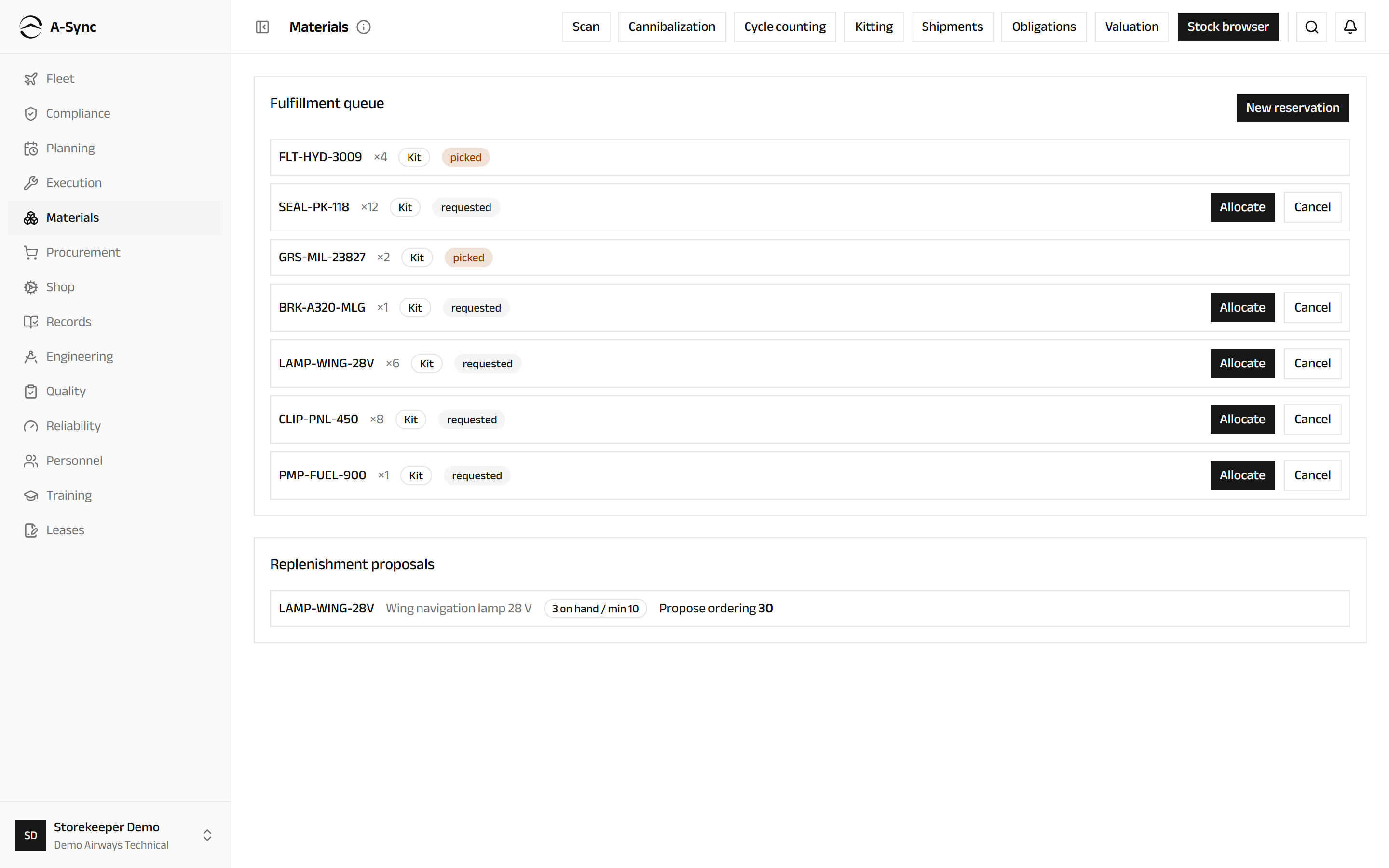
Each reservation moves through three steps, and the queue gives you the button for whichever comes next:
- Allocate - bind the reservation to a specific stock line.
- Pick - mark it taken off the shelf.
- Issue - hand it to the task, which consumes it.
Below the queue, Replenishment proposals lists parts whose serviceable stock has fallen below their reorder point. Choose Propose ordering to pass one to Procurement.
Reserve a part for a task
- Choose Materials in the sidebar.
- Choose New reservation.
- Choose the Part and the Task it is for.
- Enter the Quantity.
- Turn on AOG priority if the aircraft is grounded waiting for it.
- Choose Reserve.
Look up stock
- Choose Materials, then Stock browser.
- Filter or search for the part.
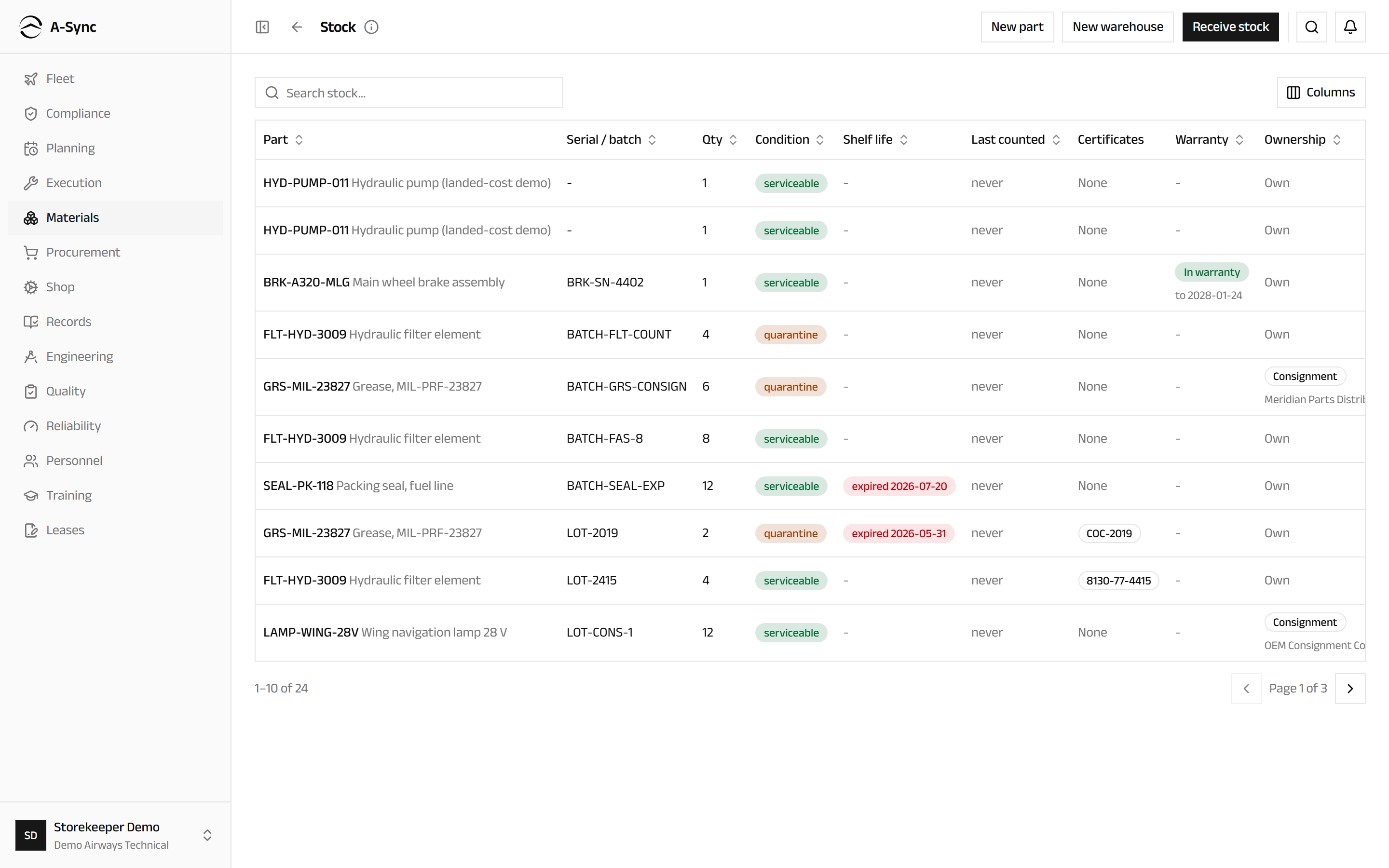
The browser is also where stores data is set up - New warehouse and New part - and where stock is received.
Receive stock
- Open the Stock browser.
- Choose Receive stock.
- Choose the Part and the Warehouse.
- Enter the Quantity, and the Batch no. or Serial no..
- For a shelf-life controlled part, enter the Shelf-life expiry.
- Choose the Certificate type and enter the Certificate ref..
- Set the ownership class if the stock is not your own.
- Choose Receive.
Certificates are enforced
A part marked Certificate required cannot be received without one. This is deliberate - it is the last point at which an undocumented part can be stopped.
Run a cycle count
Counts are blind: the counter does not see the expected quantity, and a count on its own never changes stock. Corrections are approved separately.
- Choose Materials, then Cycle counting.
- Choose New campaign.
- Choose the Kind and the Warehouse, or leave it as Every warehouse.
- Optionally narrow the scope by value band or by Not counted since.
- Choose Create campaign.
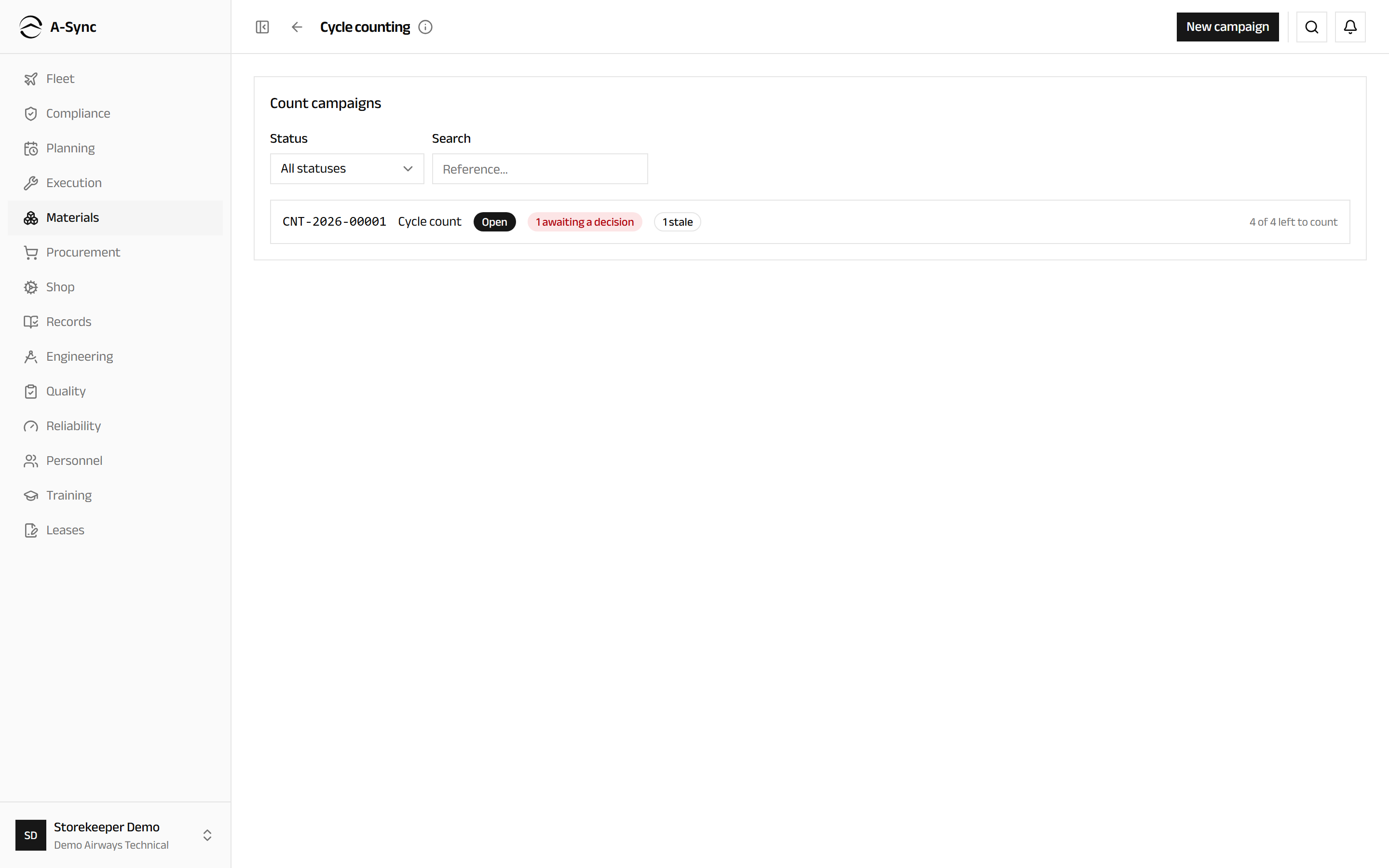
The scope is fixed when you create the campaign: one task per stock line it selects. Lines already under another open campaign are reported and left alone.
To count, open the campaign, select a task, and enter what you physically found. Where the count differs from the record, the line moves to awaiting a decision for someone with approval rights to accept or reject.
Build a kit for a check
A kit pre-picks the parts a scheduled check always needs, so they are staged and waiting when the aircraft arrives.
- Choose Materials, then Kitting.
- To define the part list once, choose New definition and add a line per part and quantity.
- To raise a kit for an actual check, choose New kit order, pick the definition and the staging location.
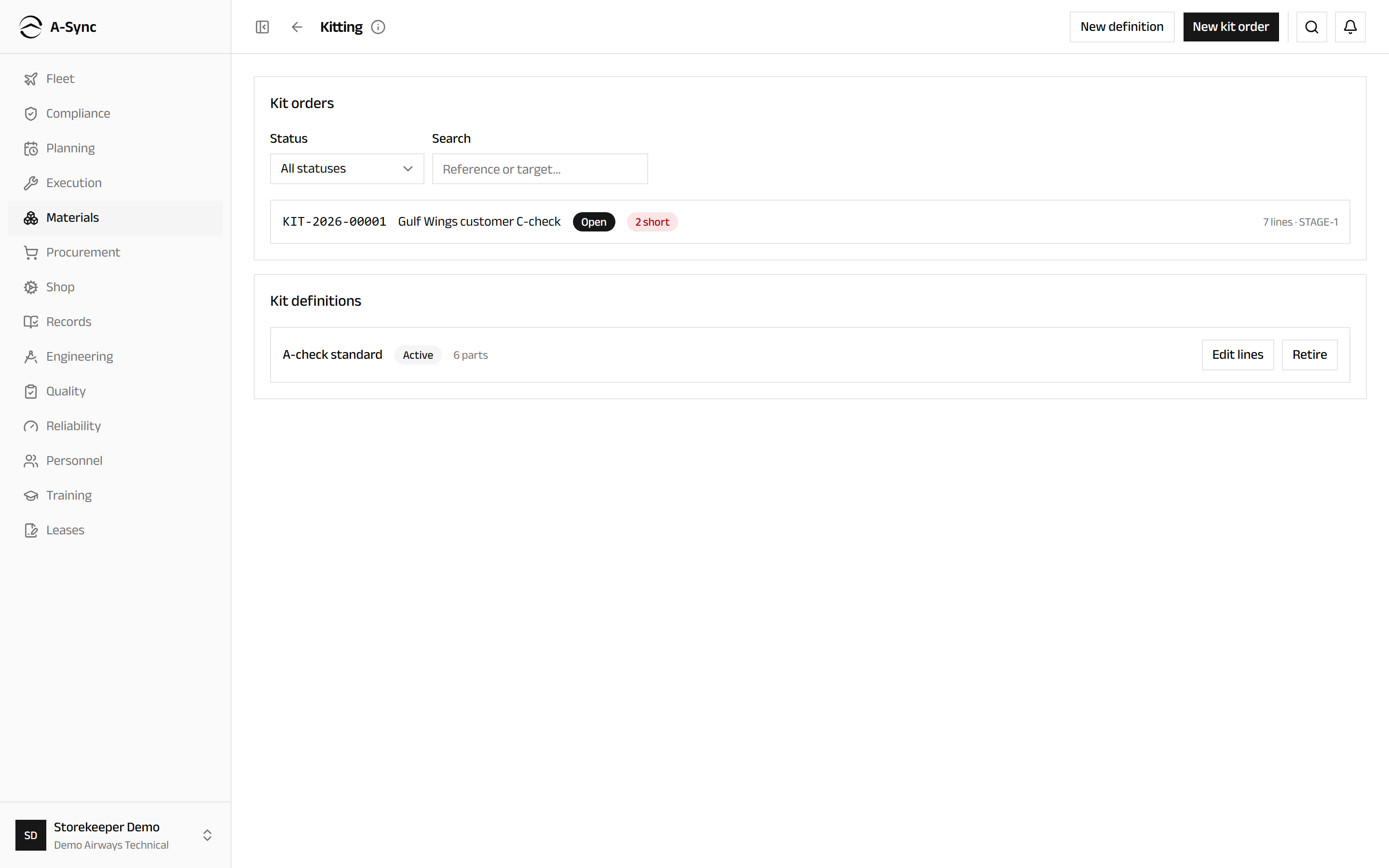
Kitted stock stays reserved while it is staged, and anything not consumed is accounted for at close-out. A kit that cannot be filled completely is flagged as short.
Send and receive a shipment
- Choose Materials, then Shipments.
- Choose New shipment.
- Choose the Counterparty, and set Ship from and Ship to.
- Enter the Carrier and the AWB / tracking number.
- Add the lines being shipped, and any customs detail.
- Save the shipment.
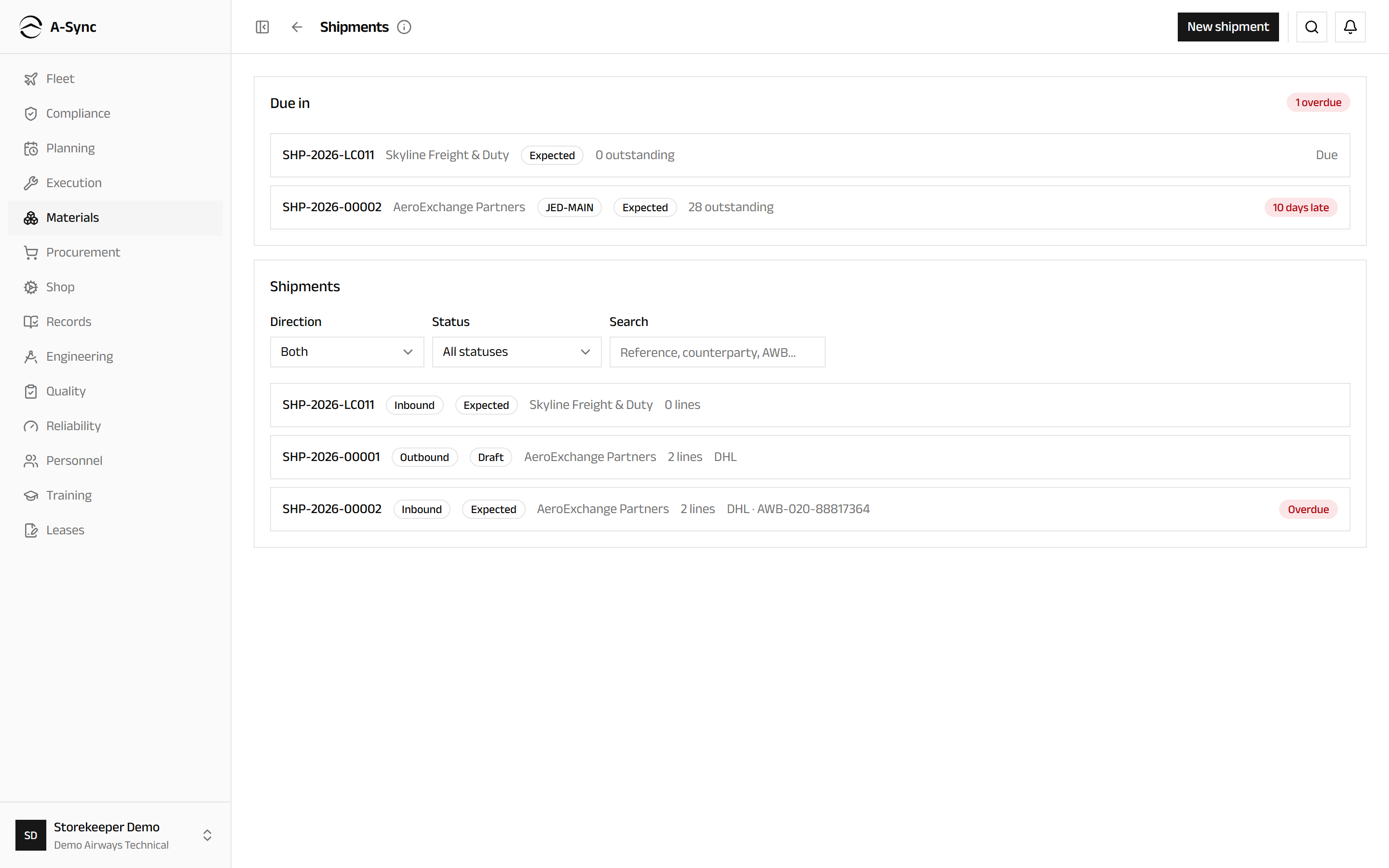
The screen shows what is going out, what is coming in and what is already late, with overdue arrivals counted and flagged.
One counterparty per shipment
A shipment goes to or comes from a single party. A second party means a second shipment.
Scan on the stores floor
Scanning replaces typing for the common floor movements.
- Choose Materials, then Scan.
- Scan a stock, bin or shipment label.
- Choose what to do: Move to another bin, Issue to a task, Record a count, Confirm a kit pick or Receive.
- Confirm the quantity.
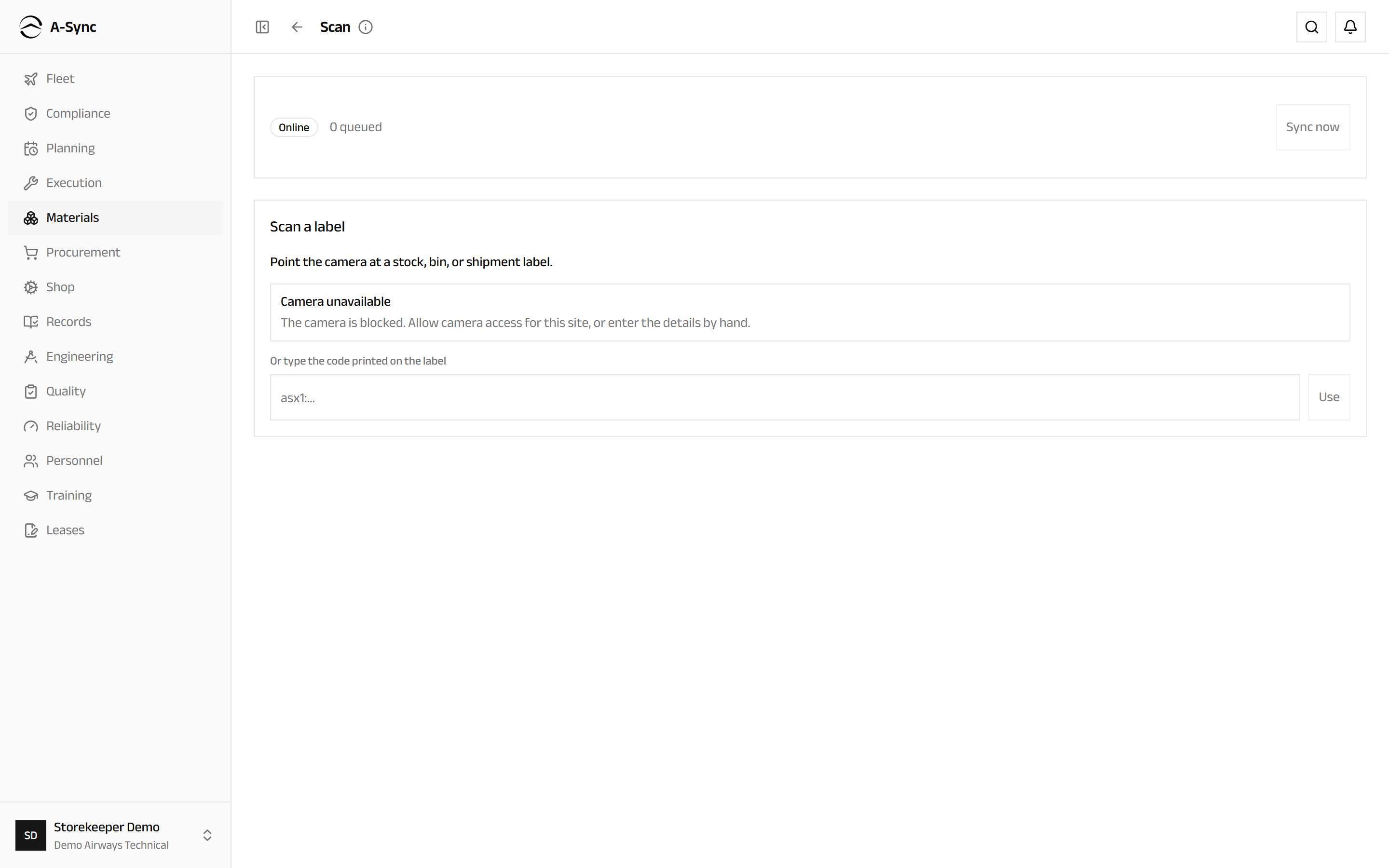
If you are offline, the movement is queued and A-Sync confirms it will sync when you reconnect. Labels outside what the device has cached cannot be looked up until you are back online.
Track what you owe back
Choose Materials, then Obligations for open core returns, loans, consignment settlements and restorations, with overdue items flagged. Filter to Overdue only to work the backlog.
Rob a part from another aircraft
Cannibalisation is controlled, not ad hoc: request, approve, remove, fit, and then restore the donor.
- Choose Materials, then Cannibalization.
- Choose New request and identify the donor aircraft, the part and the aircraft that needs it.
- Wait for approval - a CAMO engineer must approve the rob.
- Once approved, perform the removal and fitment.
The donor position is badged restoration required until it is made good, and the open obligation stays on the Obligations screen.
See what the stock is worth
Choose Materials, then Valuation.
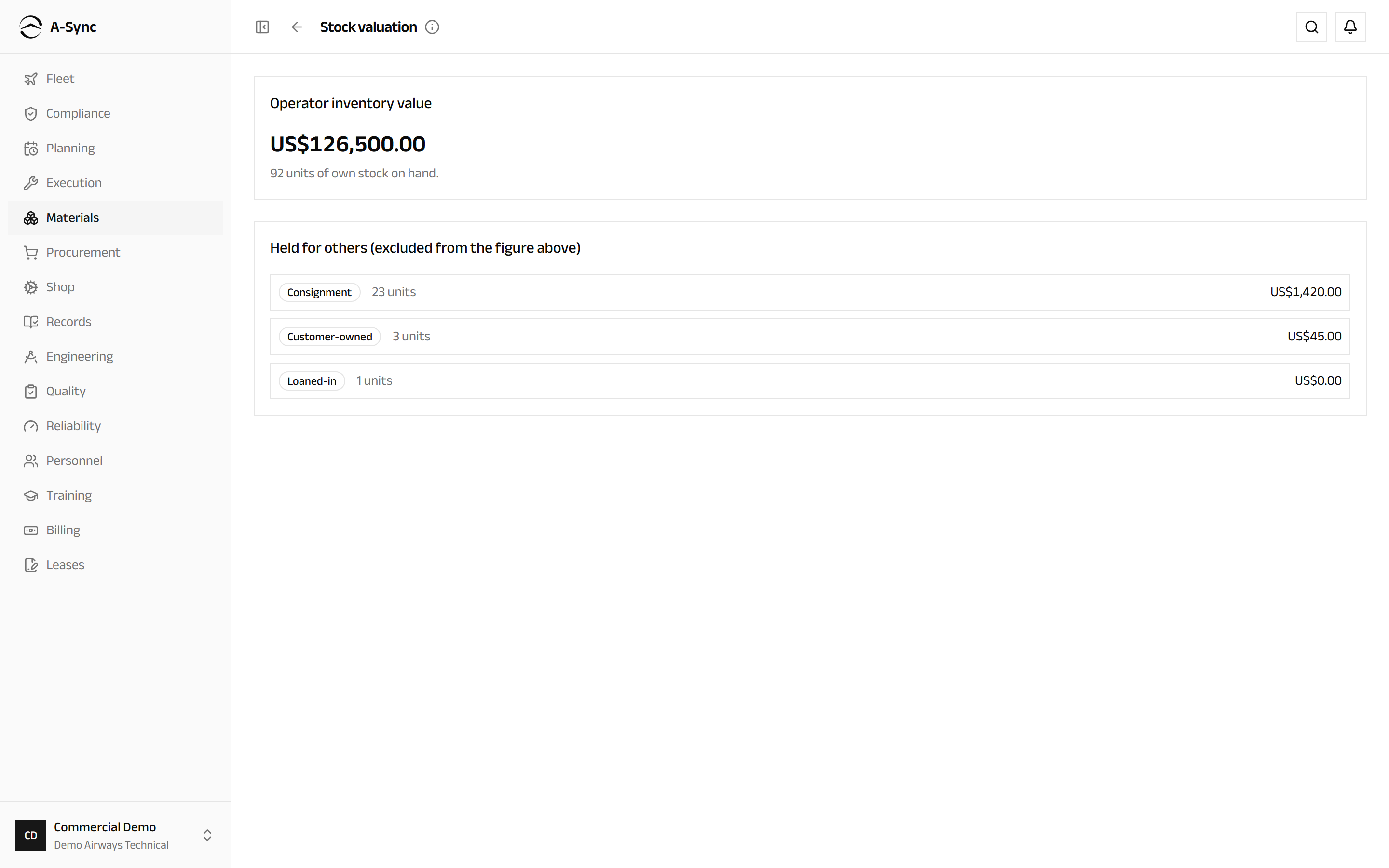
The headline figure counts own stock only. Customer-owned, consignment, pool and loaned-in material is listed separately, because it is not yours to value.
Valuation is restricted
Valuation needs cost visibility. If you do not have it, A-Sync tells you the screen is restricted rather than showing an empty page.
Role notes
| Role | What it can do here |
|---|---|
| Storekeeper | Receive, issue, move and count stock; shipments, kits, tooling and labels |
| Planner, mechanic, CAMO engineer | Reserve parts against tasks |
| CAMO engineer | Approve cannibalisation requests |
| Commercial | Stock valuation |
| Administrator | Stock adjustments |
| Everyone else | Read stock, reservations and obligations |
Adjustments are deliberately narrow
A stock adjustment changes a recorded quantity with no physical movement behind it, so it is restricted to administrators and always needs a reason. A count correction is the normal route for a discrepancy.
Related modules
- Execution raises the demand that reservations serve.
- Procurement buys, repairs, exchanges and loans what stores cannot supply.
- Fleet is where fitted components live once installed.
- Shop receives removed components for repair.
- Billing picks up stock value and customer-owned material.