Records
The airworthiness record - signed record streams, the controlled document registry, back-to-birth component history and export packages.
What it's for
Records is the durable output of everything else in A-Sync. Every signature a mechanic, inspector or certifier makes lands here, together with the documents that support it and the history of every serialised component you hold.
It exists for the moments when somebody outside asks you to prove what happened: an audit, a lease return, an asset sale. The measure of this module is how long it takes to answer - minutes rather than weeks.
Key concepts
Signed record - an entry somebody put their name to. Records are appended, never edited and never deleted, and each stream is chained so a missing or altered entry would show.
Stream - the record series belonging to one aircraft or one component. Records are filed against the asset they concern, not the job that produced them.
Document - a registered file: a Certificate, a Manual reference, a Task card PDF or Other. The registry holds what the document is, who registered it and when, and where the file itself lives.
Amendment - a document that replaces an earlier one. The new document is badged amendment, the old one superseded, and both stay readable.
Back-to-birth history - the full chronological trace of a serialised component: every installation, removal, shop visit, signed record and document from the day it entered service.
Asserted history - history the operator declared rather than A-Sync recorded, typically what a unit arrived with. It is accepted, but it stays permanently marked asserted so it is never mistaken for evidence the system witnessed.
Export package - a zip of the documents in scope plus a CSV index, built in the background and downloadable when it is finished.
Common tasks
Find a signed record
- Choose Records in the sidebar.
- Type into the search box above Search records - a task, a signer or part of the statement.
- Read the Kind, Summary and Recorded columns, and sort or page through the results.
Searching runs across the whole record stream, so a large history stays usable.
Register a document
- Choose Records.
- Choose Register document.
- Choose the File.
- Check the Kind and the Content type.
- Enter the Title.
- Leave Supersedes (optional) as Not an amendment.
- Choose Register & upload.
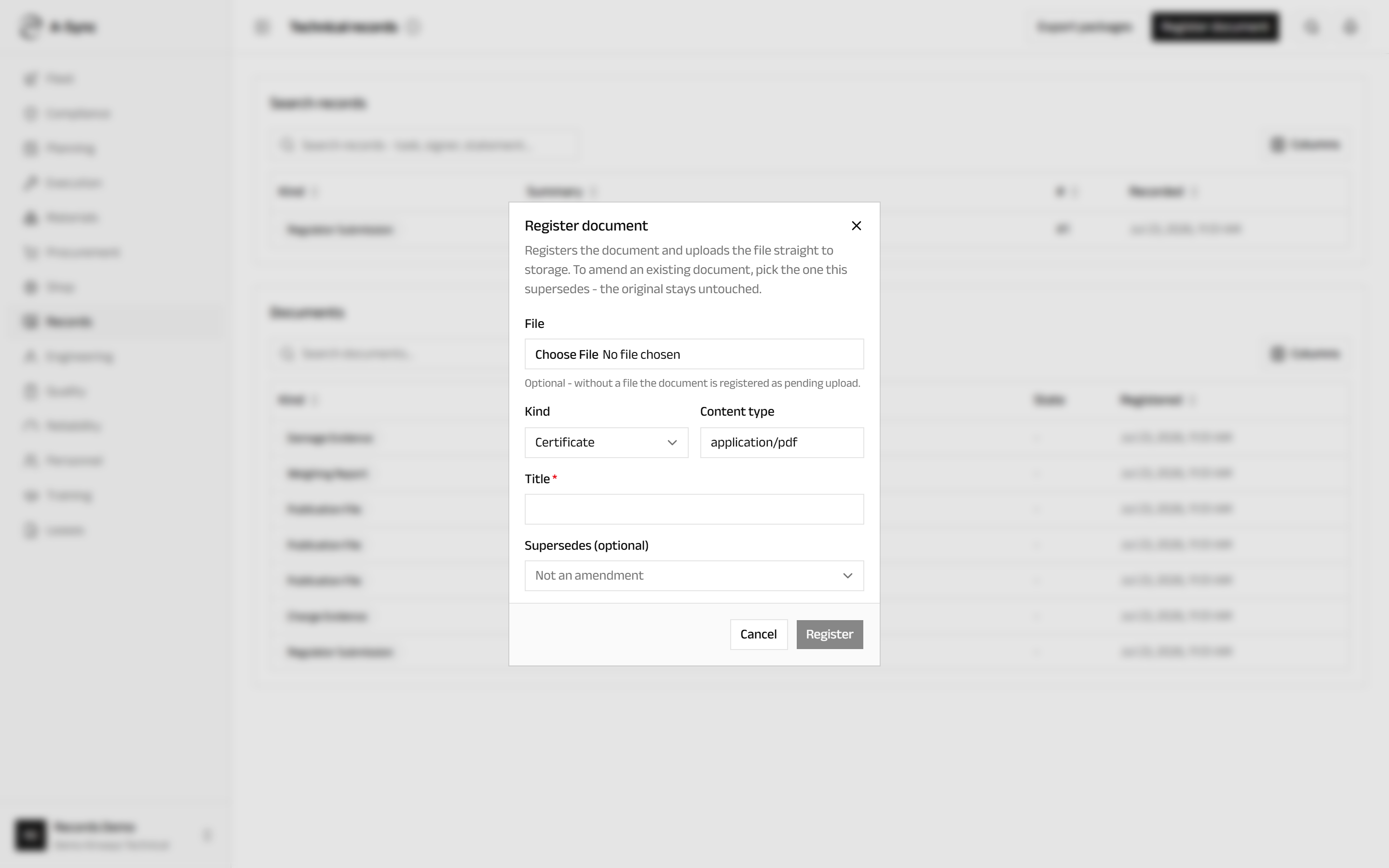
The file goes straight to storage and A-Sync confirms it arrived.
A document can be registered before its file exists
Register with no file and the document is created as pending upload, so the reference can be recorded now and the scan attached later.
Amend a document
- Choose Records, then Register document.
- Attach the corrected File and enter its Title.
- Under Supersedes (optional), choose the document this one replaces.
- Choose Register & upload.
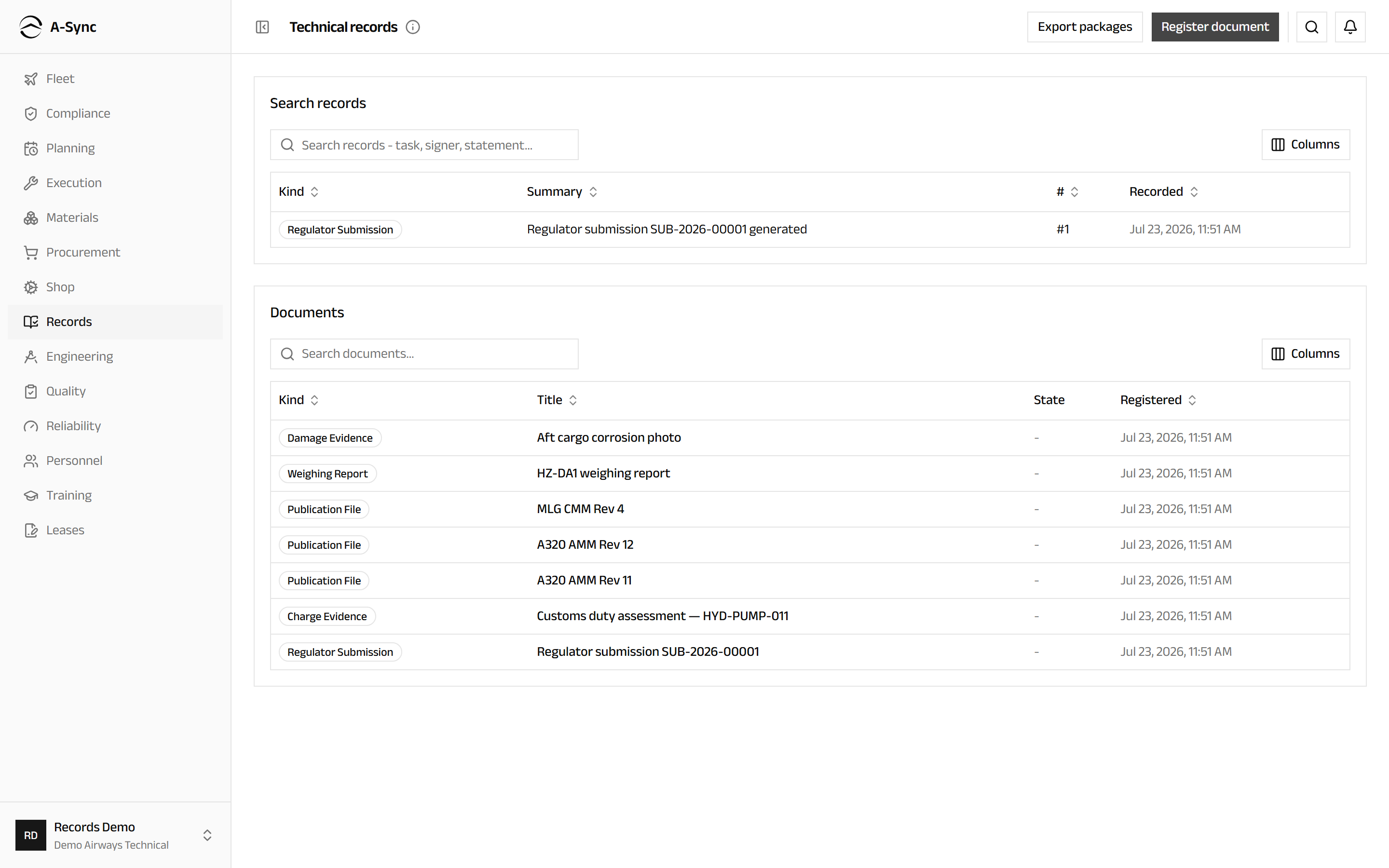
In Documents the new entry is badged amendment and the one it replaced is badged superseded. Both remain in the registry and both remain retrievable.
Originals are never changed
Nothing in Records is edited or deleted. A correction is always a new record that supersedes the old one, and the audit trail keeps both with the identity and time of each.
Read a component's back-to-birth history
- Open the component from wherever it is referenced - an aircraft's configuration in Fleet, a shop order, or a safety occurrence raised against it.
- Read the header for the part number, serial number and accumulated hours and cycles.
- Read down Back-to-birth history, oldest event to newest.
Entries are badged by what they are - Installed, Removed, Shop visit, Signed record, Document or Asserted baseline - and anything the operator declared rather than A-Sync witnessing carries the asserted badge. Safety occurrences raised against the component are listed below the history.
Export a records package
- Choose Records, then Export packages.
- Choose New export.
- Choose the Scope - Aircraft or Component.
- Choose the aircraft or the component.
- Choose Start export.
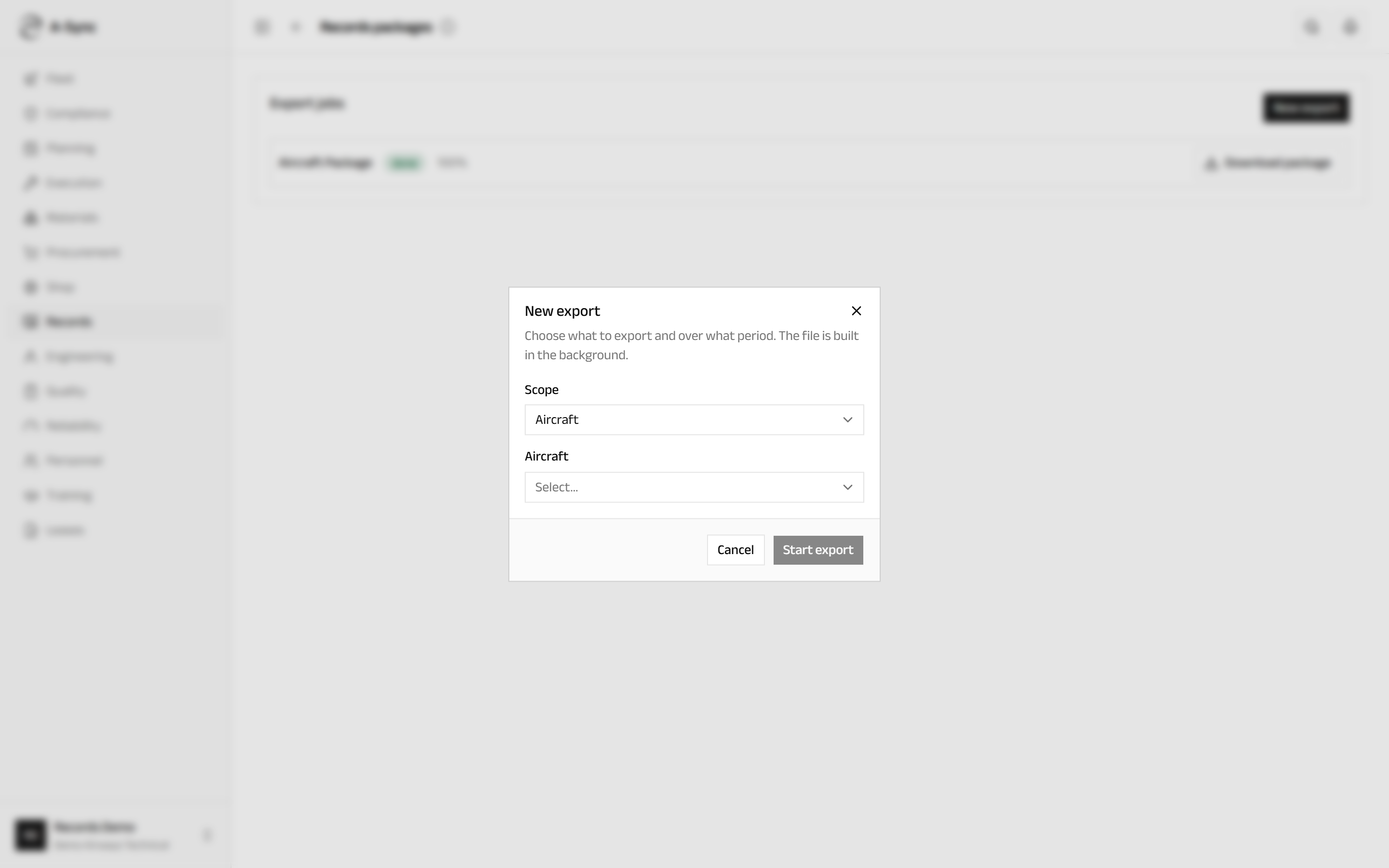
The job runs in the background and its progress updates on screen while you wait.
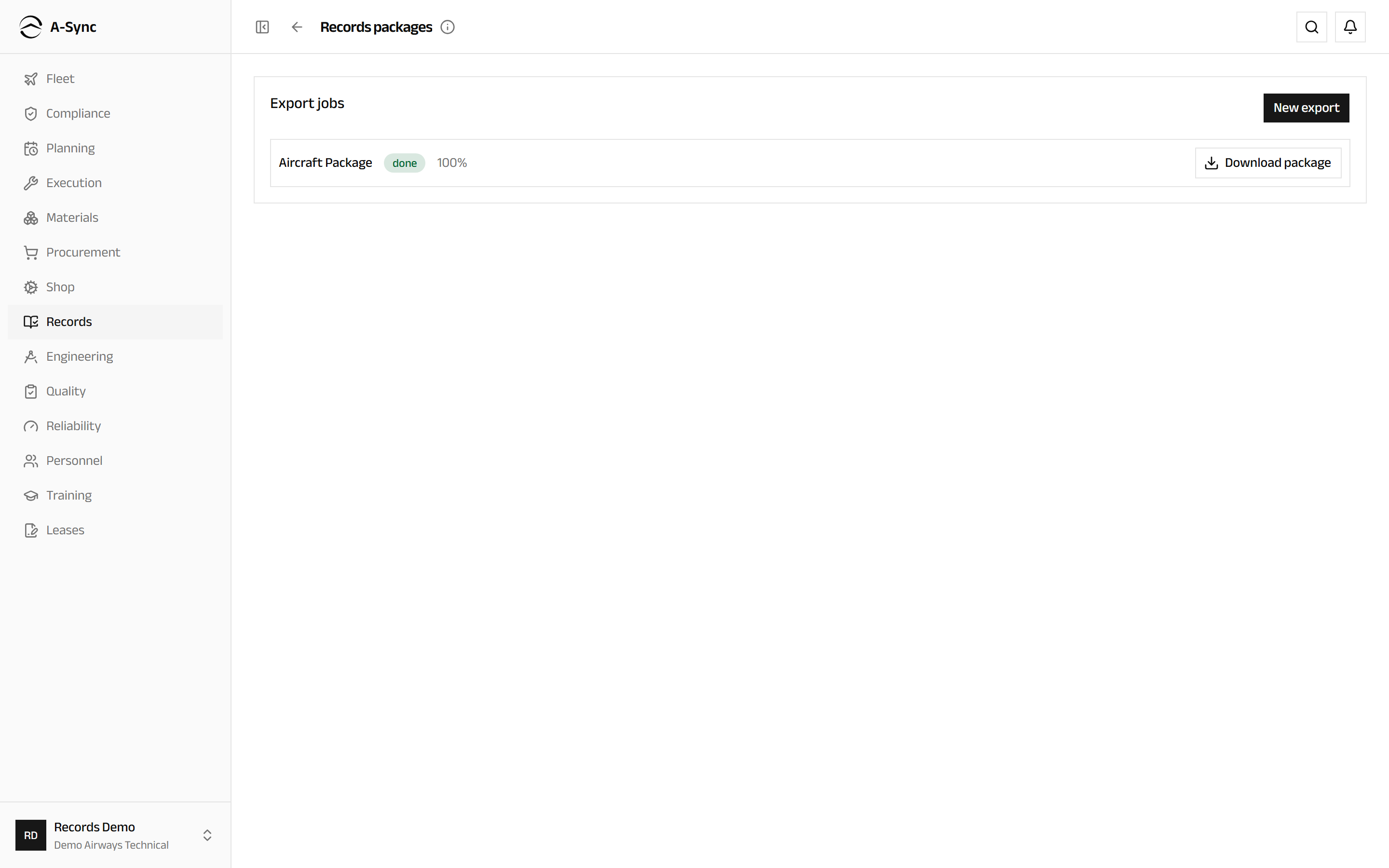
When it finishes, choose Download package for a zip of every document in scope together with a CSV index of what it contains.
Who can export
Exports are limited to records officers, CAMO engineers, quality and commercial staff. Everyone else can read records and documents but cannot build a package from them.
Role notes
| Role | What it can do here |
|---|---|
| Records officer | Search records, register and amend documents, build export packages |
| CAMO engineer, quality | Search records, register documents, build export packages |
| Commercial | Search records and build export packages |
| Planner, mechanic, inspector, certifier, storekeeper, purchaser | Search records and register documents |
| Everyone else | Read records, documents and component history |
Reading is open, writing is narrow
Every staff role can read the record streams and the document registry - the history is only useful if the people doing the work can see it. Registering documents and exporting packages are the controlled acts.
Related modules
- Execution produces most of the signatures that land here.
- Shop writes each shop visit and its release certificate into the component's history.
- Fleet is where a component's installations and removals come from.
- Lease draws on export packages at redelivery.
- Quality uses the record trail as audit evidence.
Shop
The component and engine shop - inducting units, teardown findings, workscope approval, and release on an authorised-release certificate.
Engineering
The controlled technical library, read-and-sign, one-time task extensions, OEM revisions, modification campaigns, weight and balance, and structural damage.