Shop
The component and engine shop - inducting units, teardown findings, workscope approval, and release on an authorised-release certificate.
What it's for
The shop is where a unit that came off an aircraft is put right. A component is inducted on a shop order, stripped, assessed, worked and reassembled, and then either released back to service or written off - and every step of that is recorded as it happens rather than reconstructed afterwards.
The shop's product is not the repair. It is the repair plus the paperwork that lets somebody fit the unit again: the findings, the approved workscope, the disposition, and the authorised-release certificate signed against them.
Key concepts
Shop order - one unserviceable unit, one visit. Its identity - part number, serial, description, ATA chapter - is frozen at induction, so what the order says it worked on cannot drift.
Gate - the controlled sequence a visit moves through, such as inducted, teardown, assessment, repair, reassembly and final inspection. Every move records who made it and when.
Hold - time the order is stopped for a stated reason, such as awaiting parts or awaiting approval. Hold time is measured separately from working time.
Finding - something teardown revealed, recorded at the bench with its sub-part, any measurement, a disposition, and the signature of whoever found it.
Workscope - the agreed list of work, assembled from the requested work and the findings. Nothing beyond teardown is done until it is approved, and a later finding is added as an amendment that goes back for approval.
Routing - a sub-assembly or piece-part sent somewhere else, to another shop order or to an outside vendor. The final gate is blocked while anything routed out is still outstanding.
Disposition - what the visit ended as: repaired, overhauled, modified, inspected or tested serviceable, scrapped, or returned unrepaired.
Authorised-release certificate - the regulated release document, issued as an FAA 8130-3, an EASA Form 1, or both together. Without one, a repaired part cannot go back into service.
Capability list - the controlled list of part numbers and ATA chapters your shop is rated to work, and at what service level. It is revision-controlled, and once published it gates what the shop may accept.
Build goal - on an engine or APU visit, the minimum life the engine must have left when it is released.
Common tasks
Find a shop order
- Choose Shop in the sidebar.
- Read down the board of open orders.
- Select a card to open the order.
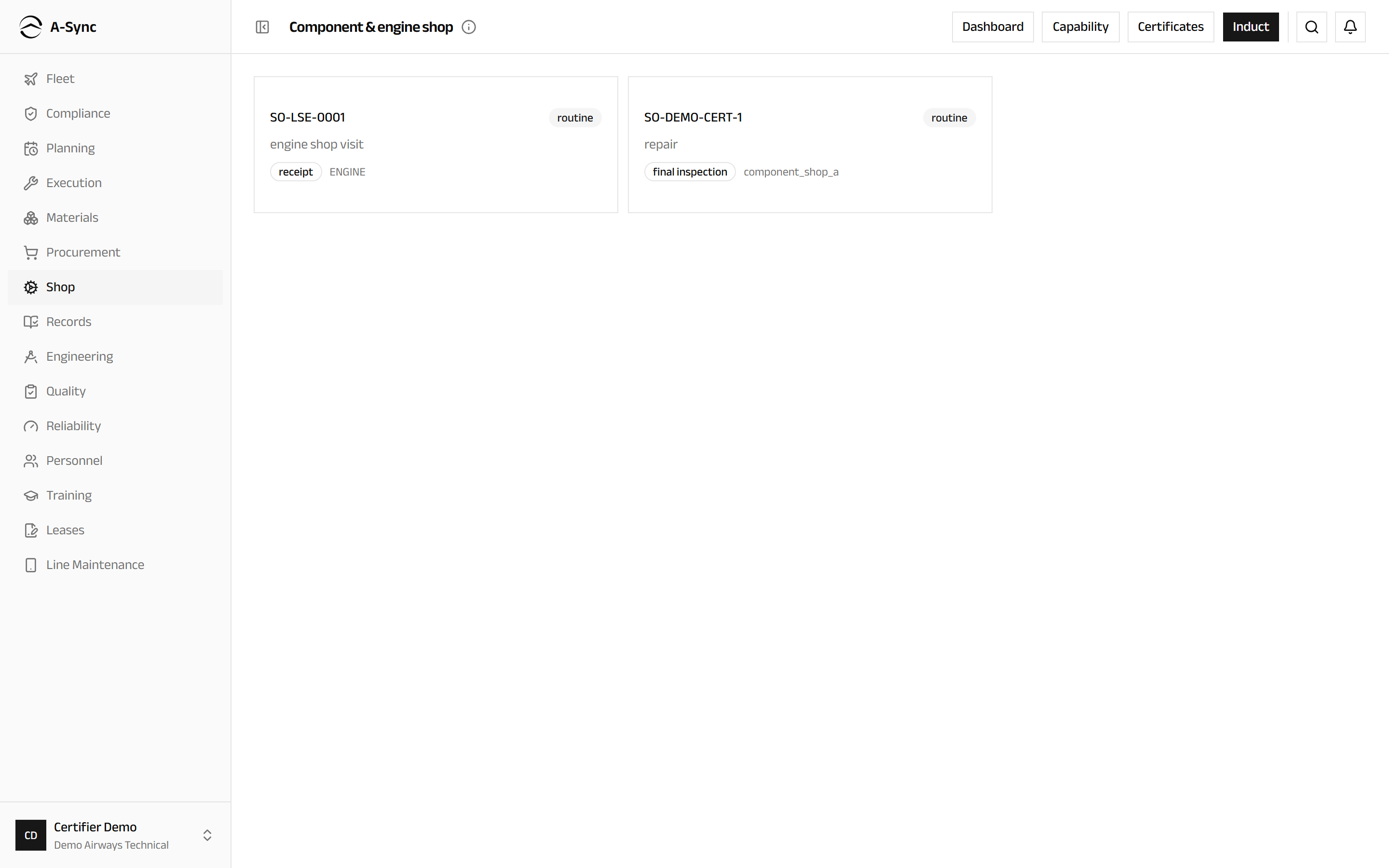
Each card carries the order reference, its priority, the work requested, the gate it currently sits at, its work centre, and the date it is needed by. An order stopped for a reason is badged on hold.
Induct a unit
- Choose Shop, then Induct.
- Choose the Unit from the unserviceable and quarantined units on hand.
- Choose the Order type - inspection, test, repair, overhaul, modification or an engine shop visit.
- Choose the Priority and the Work center.
- Enter the Needed by date and the Removal reason.
- Choose the Cost center the visit's cost belongs to.
- Choose Induct order.
One open order per unit
A unit already on an open shop order cannot be inducted a second time. Finish or cancel the first order.
Work outside the capability list
If the part number and service level are not rated on the published capability list, induction is blocked. Quality can accept the order anyway by turning on Accept via capability review and recording a Capability review justification, which stays on the order as the reason it was taken.
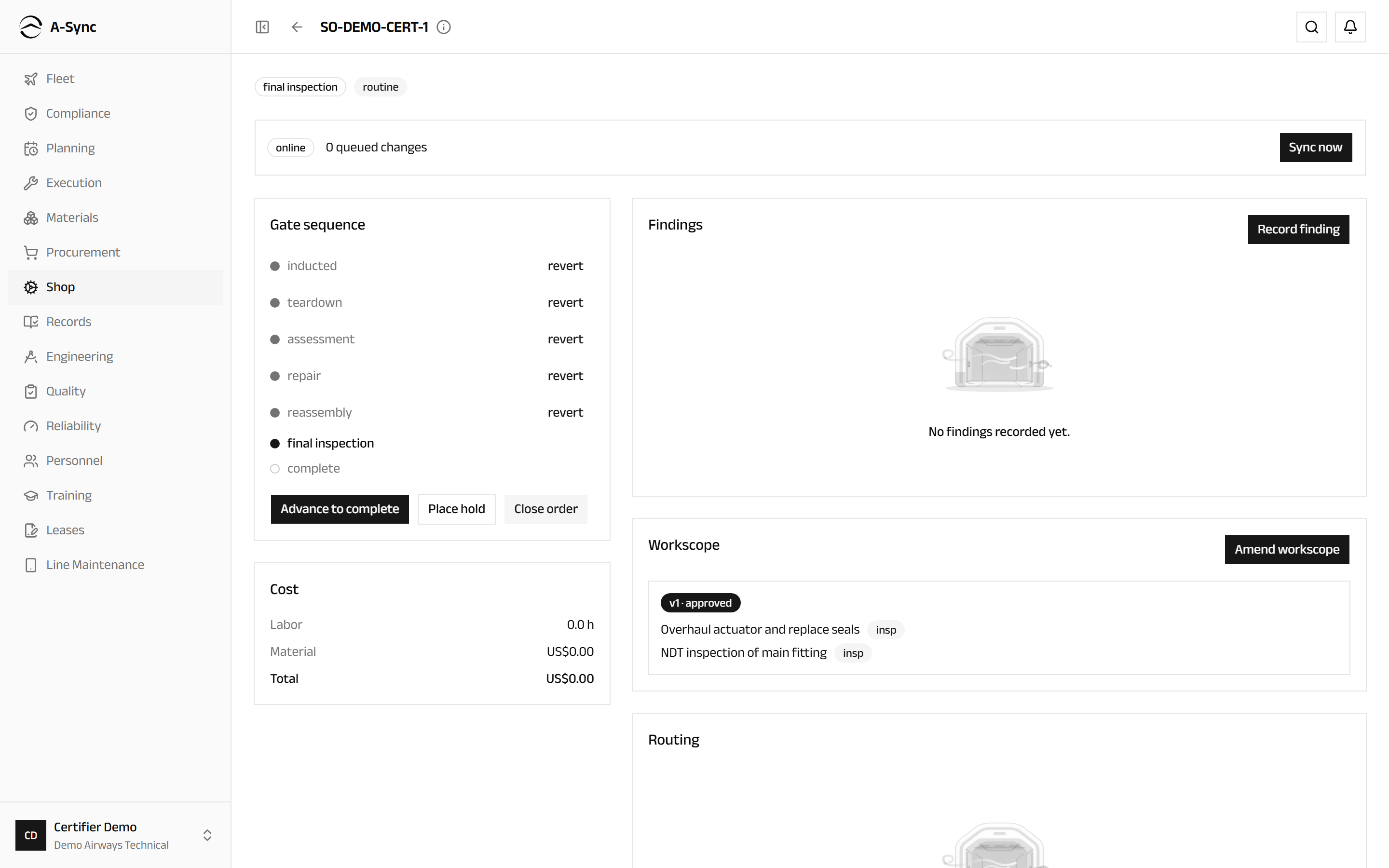
Move the order through its gates
- Open the order.
- In Gate sequence, choose Advance to the next gate.
- To go back a step, choose Revert to the previous gate and enter a Reason (required).
- To stop the clock, choose Place hold, choose the Reason and enter a Note (required).
- When the obstacle clears, choose Lift hold.
Nothing is ever overwritten: a reverted gate keeps the move that came before it, and every hold keeps its reason so awaiting-parts delay can be told apart from awaiting-approval delay.
Record teardown findings
- Open the order and go to Findings.
- Choose Record finding.
- Enter the Description and, where it helps, the Sub-part (optional).
- Choose the Disposition for what you found.
- Where something was measured, enter the Measure, the Value and the Unit.
- Choose Sign finding.
A finding is signed by whoever recorded it, and it is what the workscope is built from. If your tablet is offline the finding is queued and syncs when you reconnect.
Draft and approve the workscope
- In Workscope, choose Create workscope.
- Choose Add item for each piece of work, entering the Title and the Instruction (optional).
- Turn on Requires inspection sign-off where an independent inspection is needed.
- Choose Submit.
- The approver chooses Approve, or Reject with Review comments (required).
Approval turns each item into a task that is executed and signed off individually. If a later finding needs more work, choose Amend workscope - the amendment goes back through approval, and items already approved and completed are untouched.
No work before approval
Nothing beyond teardown can be recorded against the order until a workscope is approved. This is the control that makes a shop order a process rather than a status label.
Route a sub-assembly or a piece-part
- In Routing, choose Route item.
- Choose the Finding it comes from.
- Choose Route as - to another shop order, to an outside repair, or as a replacement part.
- Identify the sub-assembly or part and enter the Qty.
- Add Notes and route it.
- When it comes back, choose Resolve, record the Resolution and a Note (required).
Nothing closes with a part still out
The final gate cannot be passed while any routed item is outstanding. A-Sync lists exactly what is still missing.
Issue the authorised-release certificate
- Open the order once it has reached its final gate.
- In Authorized-release certificate, choose Review & sign.
- Check the Block data - Part number, Serial number, Description and Status / work.
- Choose the Release type: FAA 8130-3, EASA Form 1, or Dual (8130-3 + Form 1).
- Enter the Approval basis (optional) and any Remarks (optional).
- Choose Sign & issue.
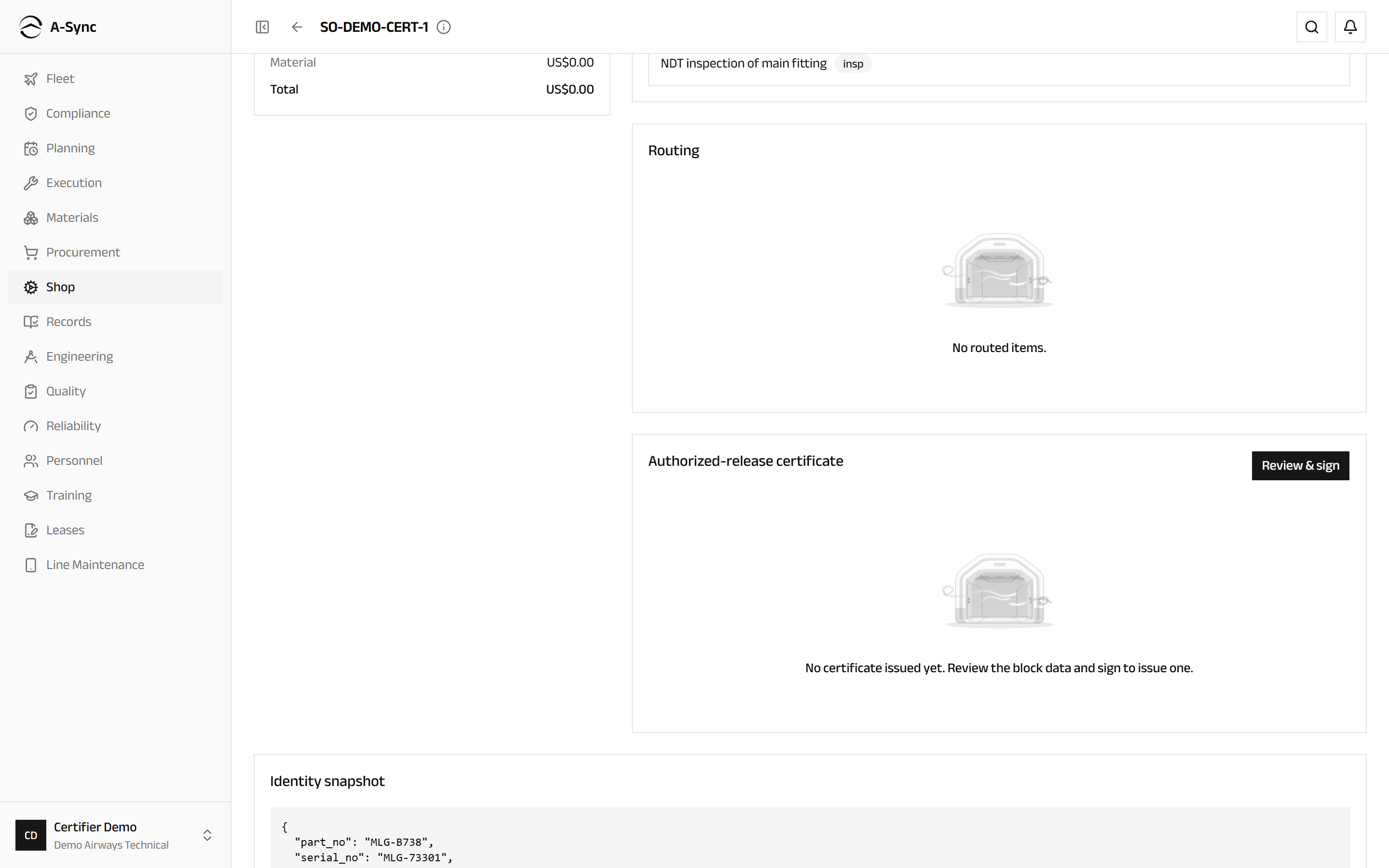
A-Sync allocates the tracking number, renders the signed form, sets the order's release reference to it, and writes it into the part's back-to-birth history. Download PDF retrieves it from the order and from the part's history afterwards.
Only certifying staff can sign a release
An authorised-release certificate is a regulated document. Only a certifier may sign one, and only within their own current authorisation - an authorisation that has lapsed, or that does not cover the work's ATA chapter, blocks issuance and names what is missing. Nobody else in A-Sync, at any role, can issue one on their behalf.
Signing needs a connection
Issuing allocates a tracking number and archives the signed document, so it cannot be done offline. Your entries are kept - reconnect and sign again. Findings and gate moves are unaffected.
To correct an issued certificate, choose Supersede and give a Reason for correction: a corrected certificate is issued under a new number and the two are linked both ways. To cancel one outright, choose Void and record the Reason - the number is never reused, and the order is left with no certificate in force.
Every certificate the shop has ever issued is listed under Shop, then Certificates, filterable by Status, Release type, Part number and issue date, each with its signed PDF.
Close the order
- Advance the order to its final gate.
- Choose Close order.
- Choose the Disposition.
- Enter the Release reference (required) - the certificate number, if one was issued here.
- Choose Close shop order.
Closing changes the unit
Closure updates the unit's inventory condition. A serviceable disposition puts it back on the shelf; a scrap disposition marks it scrapped permanently. The record is always kept - nothing is ever deleted.
Manage an engine shop visit
- Open the engine shop visit.
- In Module configuration, choose Apply module breakdown and enter the Breakdown template key for the engine type.
- In Build status, choose Set goal.
- Enter the FH goal and the FC goal, then choose Save goal.
The panel then shows the limiting life-limited part for the build and whether it meets goal or falls below goal, recalculating as parts are replaced.
Releasing below the build goal
An engine whose limiting part is short of the goal can only be released after somebody records a Below-goal override with a Justification (required). An engine with a life-expired part cannot be released at all, and there is no override for that.
Keep the capability list current
- Choose Shop, then Capability.
- Choose Draft new revision - the published ratings are copied forward for you to edit.
- Choose Add rating and enter the Part number, the ATA chapter, or both, with the Service levels you are approved to perform and any Limitations (optional).
- Choose Publish revision, set the Effective date and confirm.
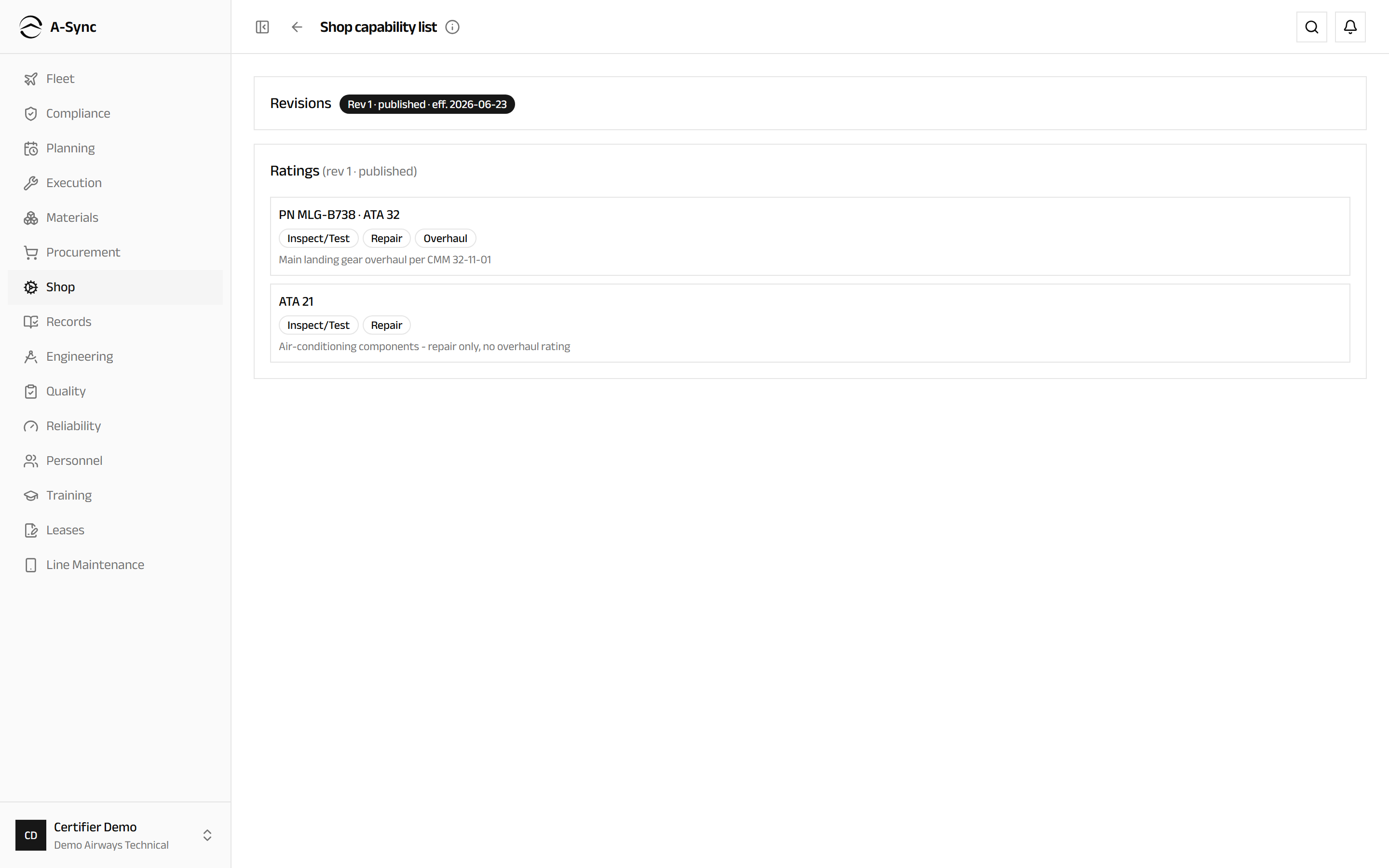
Publishing supersedes the previous revision and makes the new ratings read-only. Every revision stays viewable, so it is always answerable which list was in force on a given date.
Who can do this
The capability list belongs to quality. Everyone else reads it.
Run the day from the dashboard
- Choose Shop, then Dashboard.
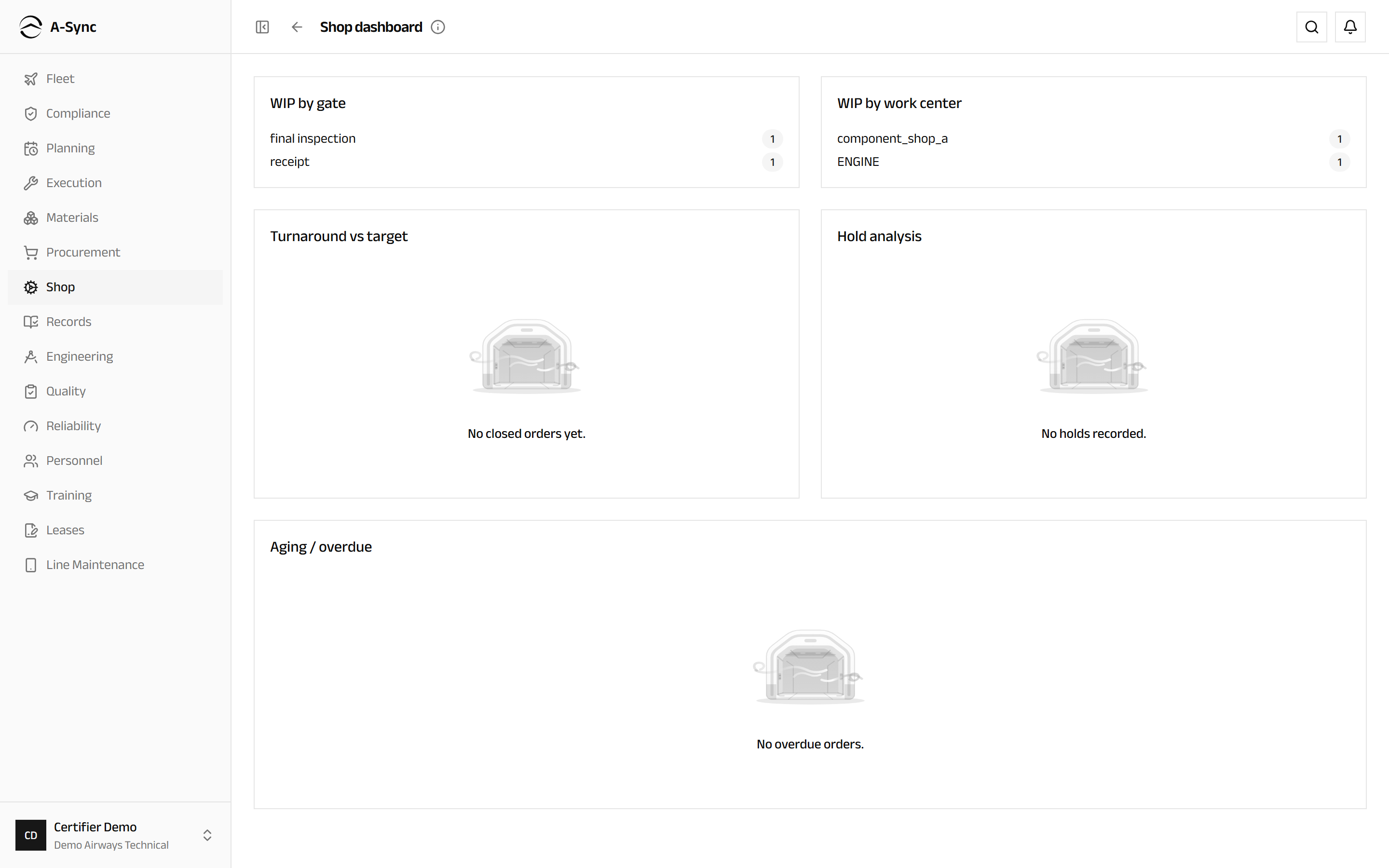
WIP by gate and WIP by work center show where the work is sitting. Turnaround vs target compares each order type's average Gross and Net days against its Target - net is time with holds taken out. Hold analysis attributes lost hours by reason, and Aging / overdue lists everything past its date, each entry opening the order behind it.
Role notes
| Role | What it can do here |
|---|---|
| Certifier | Induct units, move gates and record findings, plus approve workscopes, scrap a unit and sign release certificates |
| Mechanic, inspector | Induct units, move gates, place and lift holds, record findings, route items |
| Planner | Induct units and move gates |
| CAMO engineer | Approve workscopes and record a below-goal build override |
| Quality | The capability list and capability reviews; scrapping and below-goal overrides |
| Everyone else | Read shop orders, the dashboard, the capability list and the certificate register |
Release is not delegable
Issuing, superseding or voiding an authorised-release certificate is reserved to certifying staff and checked against their current authorisation at the moment they sign. No other role - including an administrator acting for them - is offered the action.
Related modules
- Fleet is where the unit came from and where it goes back to.
- Materials supplies replacement parts and takes the released unit back into stock.
- Procurement sends work outside when the shop is not rated for it.
- Records holds the certificate and the shop event in the part's back-to-birth history.
- Quality owns the capability list the shop accepts work against.
- Billing picks up what the visit cost.
Procurement
Buying, repairing, exchanging and borrowing material - the vendor register, requests for quotation, receiving, warranty recovery and the tool register.
Records
The airworthiness record - signed record streams, the controlled document registry, back-to-birth component history and export packages.