Line Maintenance
The workspace you take to the aircraft - assigned work, the punch clock, sign-offs, defects and parts lookup, all usable without a connection.
What it's for
Line Maintenance is the workspace you carry to the aircraft. It holds the tasks currently in work, clocks you on and off them, takes your sign-off for what you performed, raises a defect the moment you find one, and tells you whether a part is on the shelf.
It is built for a tablet in a hangar or on a remote stand, where the network comes and goes. Everything you record is written to the device first and sent when the connection returns, so losing signal never stops the job.
Installing A-Sync on a tablet, and the rules about what a device can and cannot do without a connection, are covered in Tablets and working offline. This chapter is about the workspace itself.
Key concepts
Working set - the copy of your work A-Sync keeps on the device: the open tasks in the work packages currently being worked, the serviceable stock on hand, and the reference documents behind them. It is refreshed every time you open the workspace with a connection.
Queued change - something you have recorded that the server has not yet accepted. Queued changes are counted in the status bar across the top of the screen and are held on the device, not in the browser tab.
Punch - clocking in for your shift, and punching on and off individual tasks. Punches are what turn time spent into recorded labour.
Sign-off - your attestation that you performed a step of a task. It is signed in your name and stands as a record afterwards.
Conflict - a queued change that collided with a newer version on the server, usually because somebody moved the task on while you were offline. A-Sync never merges the two silently; you decide which version wins.
Common tasks
Prepare the device before you lose signal
- Choose Line Maintenance in the sidebar while you still have a connection.
- Check the status bar reads online and 0 queued changes.
- Check that the tasks you expect are listed under Assigned work.
- Walk out to the aircraft.
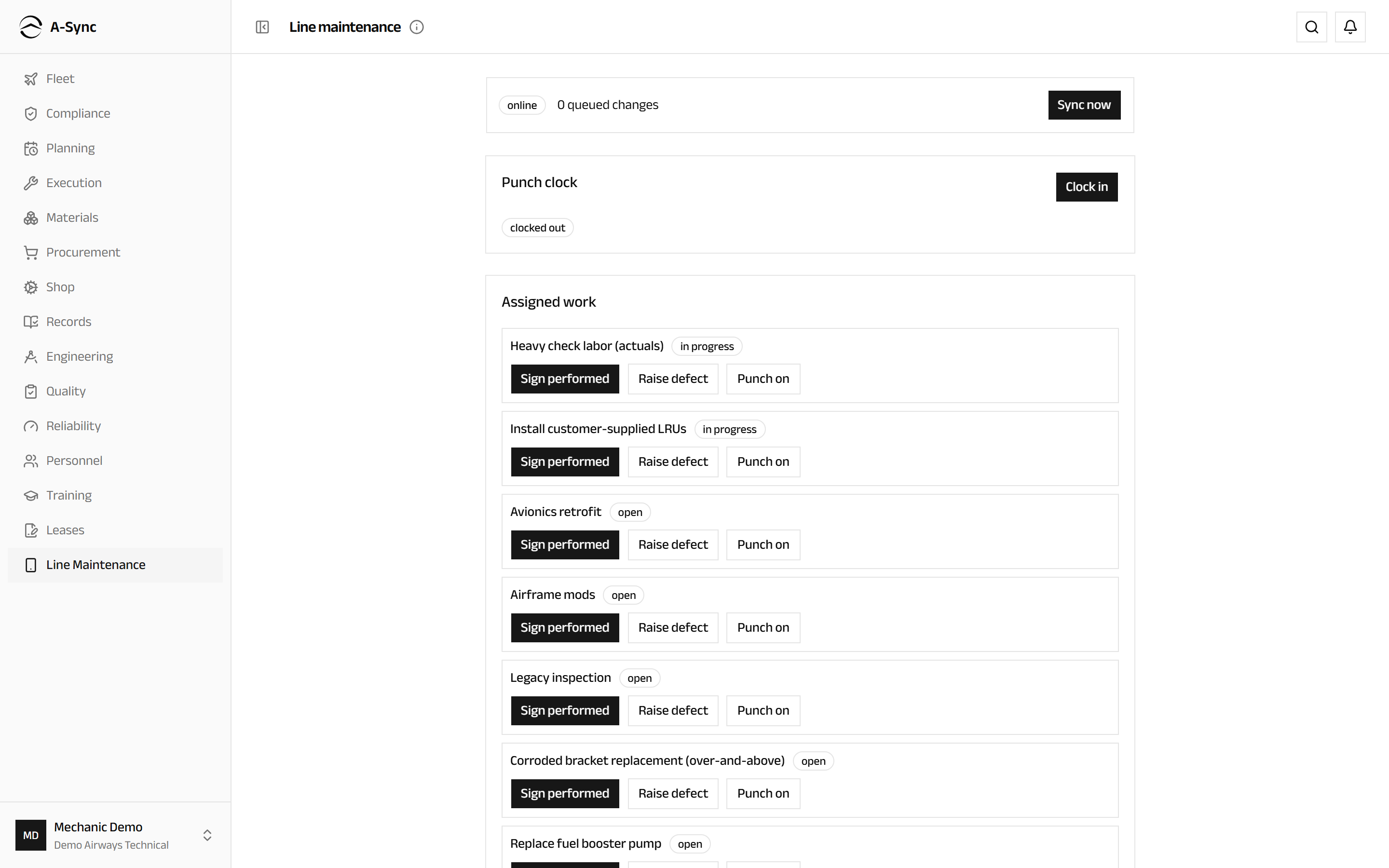
The status bar is the one thing worth glancing at before you start: it tells you whether you are online or offline, how many changes are waiting, and gives you Sync now.
Clock in and out
- In Punch clock, choose Clock in at the start of your shift.
- Work as normal.
- Choose Clock out at the end of it.
The badge beside the heading changes between clocked out and clocked in, and names the task you are on. Punches are queued like everything else, so clocking in with no signal is fine.
Record time against a task
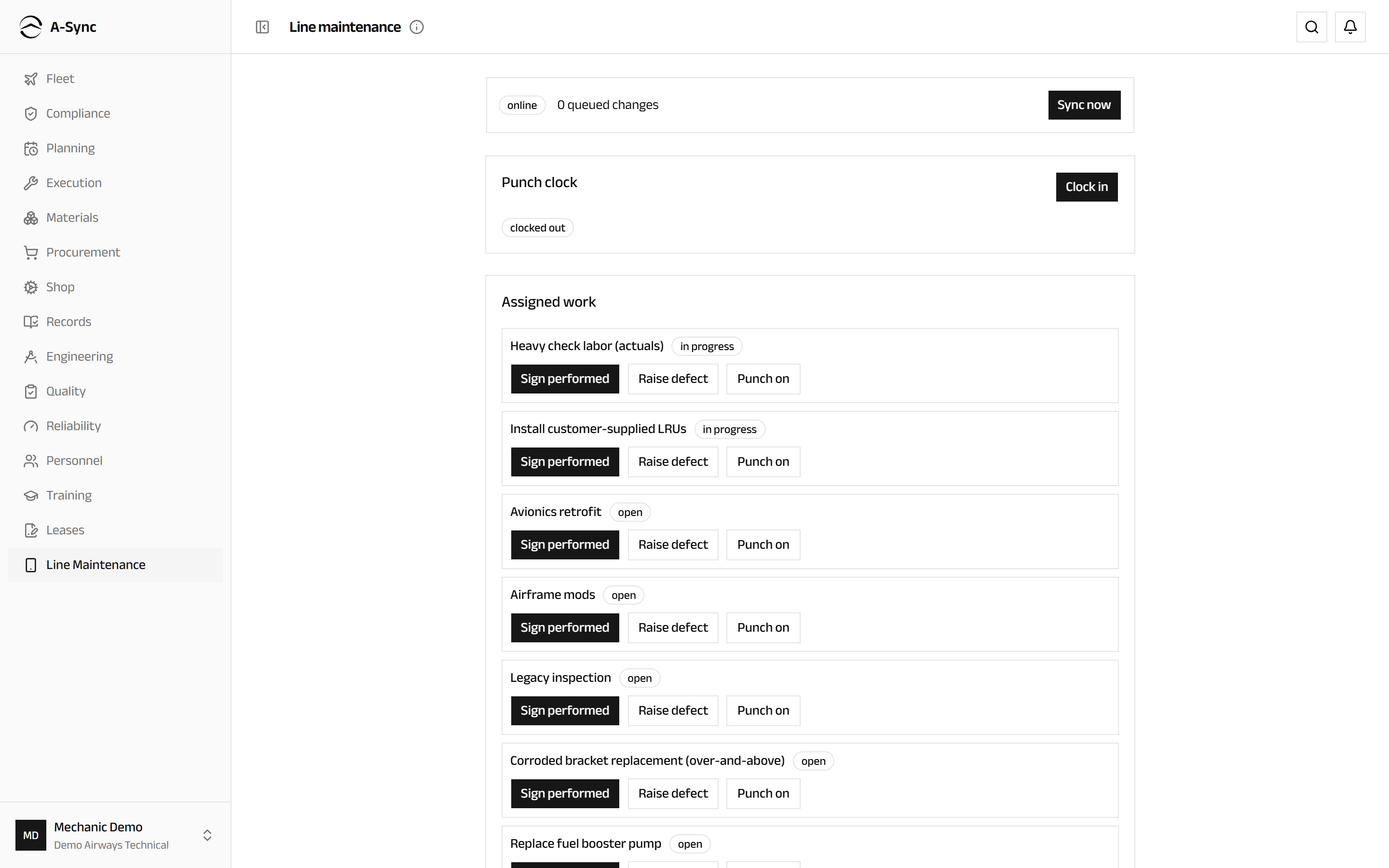
- Find the task under Assigned work.
- Choose Punch on to start recording time against it.
- Do the work.
- Choose Punch off when you stop.
Sign for work you performed
- Find the task under Assigned work.
- Choose Sign performed.
- The task is badged queued until the sign-off reaches the server.
A sign-off is a record, not a draft
Your signature is captured with your name and the state of the task at the moment you signed. It is not edited or deleted afterwards - a mistaken sign-off is corrected in Execution, and both versions stay on record.
This signs the performing step only
Sign performed records that you did the work. An independent inspection, and the release of an aircraft to service, are signed elsewhere by an inspector or a certifier. Nothing on this screen returns an aircraft to service.
Raise a defect
- Find the task the defect came off under Assigned work.
- Choose Raise defect.
- Describe what you found in Defect description.
- Choose Queue defect.
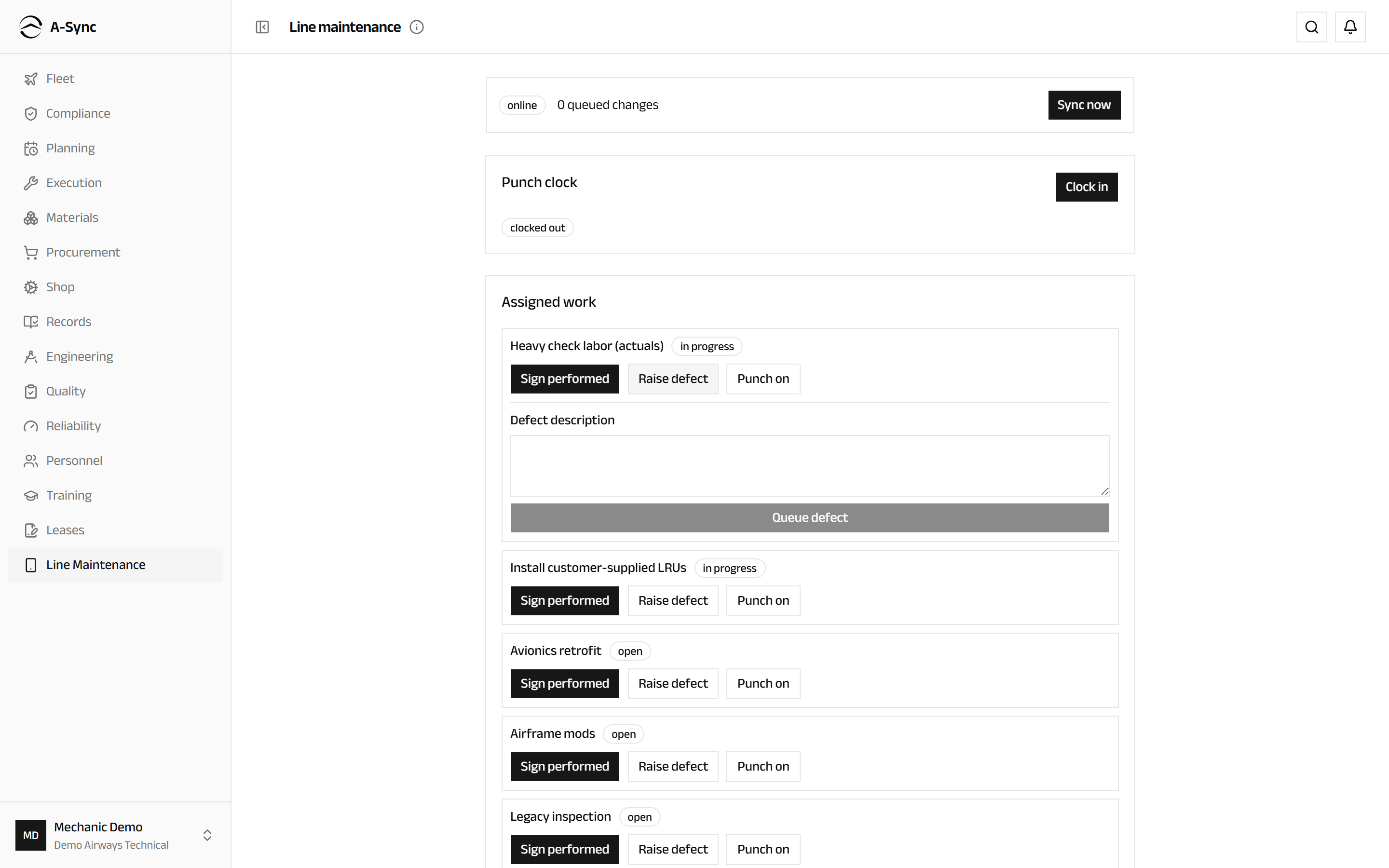
Queue defect stays unavailable until you have written a description. The defect is raised against the aircraft the task belongs to and linked to the task it came from, so whoever picks it up can see where it was found.
Look up a part
- Scroll to Parts lookup.
- Type a part number or part of a description into Part search.
- Read the quantity on hand beside each result.
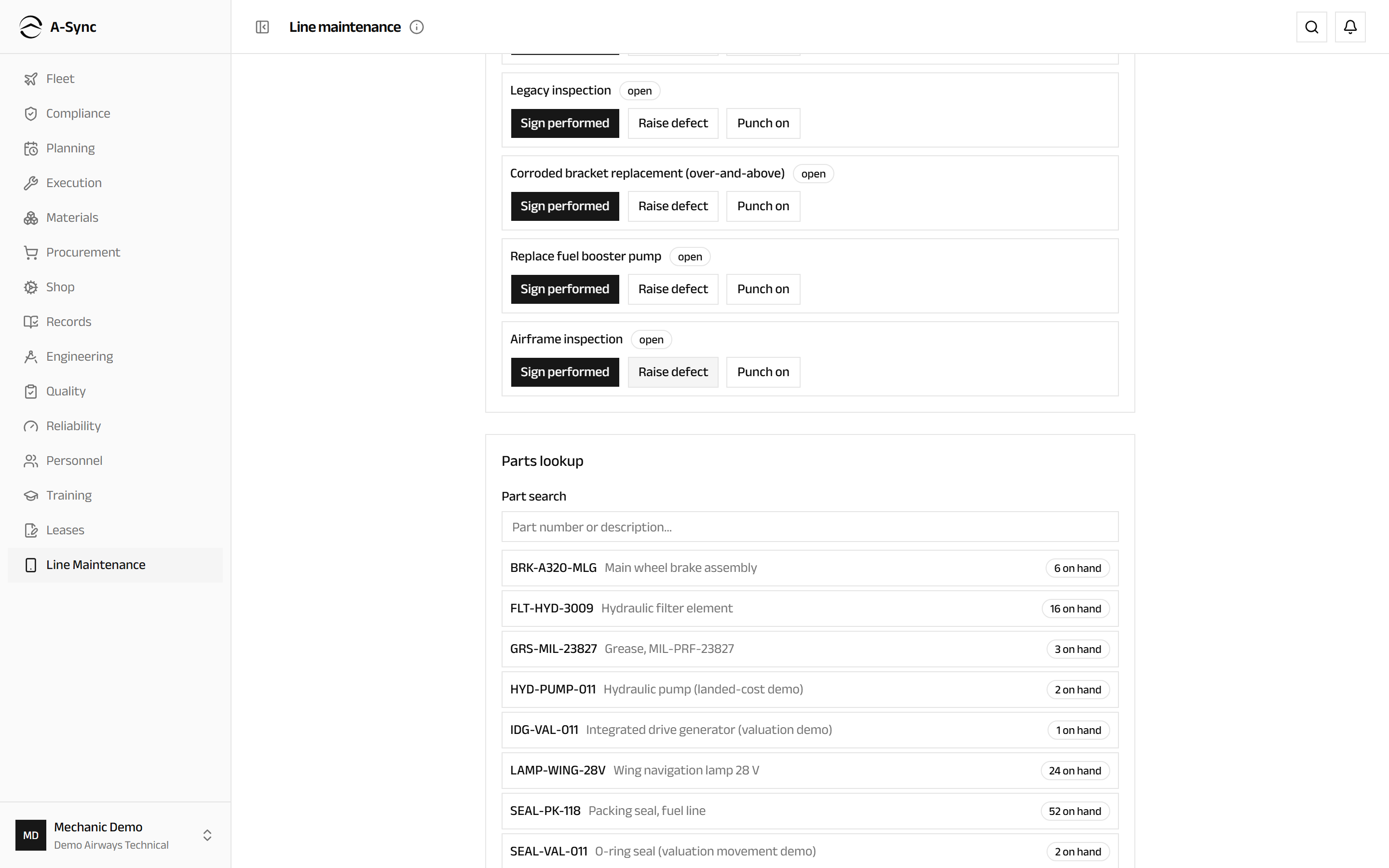
A lookup, not a transaction
The figures come from the copy held on your device, so they are as current as the last time you were online. Reserving, picking and issuing stock happen in Materials.
Send your work to the server
- Reconnect.
- Choose Sync now, or simply wait - A-Sync starts sending as soon as the connection returns.
- Watch the queued count fall to 0 queued changes.
Items are sent in the order you made them. If a sync does not complete, A-Sync tells you your changes are safe and keeps retrying; nothing is dropped and nothing is sent twice.
Resolve a conflict
Conflicts appear at the top of the workspace under Conflicts needing resolution, one per collision, with a plain explanation of what clashed.
- Read the message on the conflict.
- Choose Keep server to accept the version already on the server and discard yours.
- Or choose Keep mine to re-apply your version over it.
Resolving needs a connection, and is final
A conflict cannot be resolved offline. Once you choose a side, that side is the record - so read the message before you decide.
Role notes
| Role | What it can do here |
|---|---|
| Mechanic | Punch, sign performed, raise defects, look up parts |
| Inspector | Everything a mechanic can; inspection sign-offs are taken in Execution |
| Certifier | Everything a mechanic can; release to service is signed in Execution |
| Administrator | Full access to the workspace |
| Everyone else | No access - the module does not appear in their sidebar |
Who sees this module
Line Maintenance is in the sidebar for mechanics, inspectors, certifiers and administrators only. Storekeepers do not use this screen, but the stores scanning surface in Materials works the same way offline.
Related modules
- Execution holds the full task card, inspections, deferrals and the release to service. Everything you sign here belongs to a task that lives there.
- Materials reserves, picks and issues the parts you look up.
- Planning builds the work packages that decide what reaches your device.
- Fleet is the aircraft the work is against.
- Personnel is where recorded time and attendance are reviewed.
Leases
Lease contracts, maintenance-reserve rates and statements, lessor claims, and returning an aircraft or engine at the end of a lease.
Techlog
The electronic technical log - the crew record of every sector flown, defects reported from the flight deck, and the open items to review before departure.