Procurement
Buying, repairing, exchanging and borrowing material - the vendor register, requests for quotation, receiving, warranty recovery and the tool register.
What it's for
Procurement is how you get what the stores cannot supply. It carries the whole commercial chain: the requisition that records a need, the quotations that price it, the order that commits the money, and the receiving inspection that turns a delivery into stock you are allowed to issue.
It also covers the arrangements that are not simple purchases - sending a unit away for repair, swapping an unserviceable core for a serviceable unit, borrowing or lending a unit, and drawing on a pool - together with the supplier register that decides who you may buy any of it from.
Key concepts
Requisition - a recorded need for a part. It is the demand everything else sources from, so nothing is bought twice by accident.
RFQ - a request for quotation: one request, sent to several vendors, priced by each of them and then compared and awarded.
Purchase order - the commitment to buy. It names a vendor from the register, carries the agreed price and a promised date, and ends at receiving inspection.
Repair order - a unit sent out to a vendor for repair or overhaul, with an expected turnaround time and, where it applies, a warranty flag.
Exchange order - a supplier ships you a serviceable unit now and you owe them your unserviceable core back within an agreed window, for a fee.
Loan order - a unit borrowed for a period (loan-in) or lent out to somebody else (loan-out), with a due-back date and charges.
Pooling contract - a standing arrangement with a provider covering listed part numbers or ATA chapters, which exchange and loan orders can be sourced from.
Party - anybody outside your organisation you deal with: a Supplier, Lender, Pool provider, Customer or Consignment owner. One party may hold several of those roles.
Vendor standing - whether a supplier is approved, and for what. New orders can only name a vendor approved for the relevant work.
Warranty term and coverage - a term is the rule (what a part is warranted for and for how long); the coverage is the stamp that rule leaves on each unit as it arrives.
Common tasks
Raise a requisition
- Choose Procurement in the sidebar.
- In Requisitions, choose New requisition.
- Choose the Part and enter the Quantity.
- If the need came from stores, choose the matching entry under From proposal; otherwise leave it as None (manual).
- Choose Raise requisition.
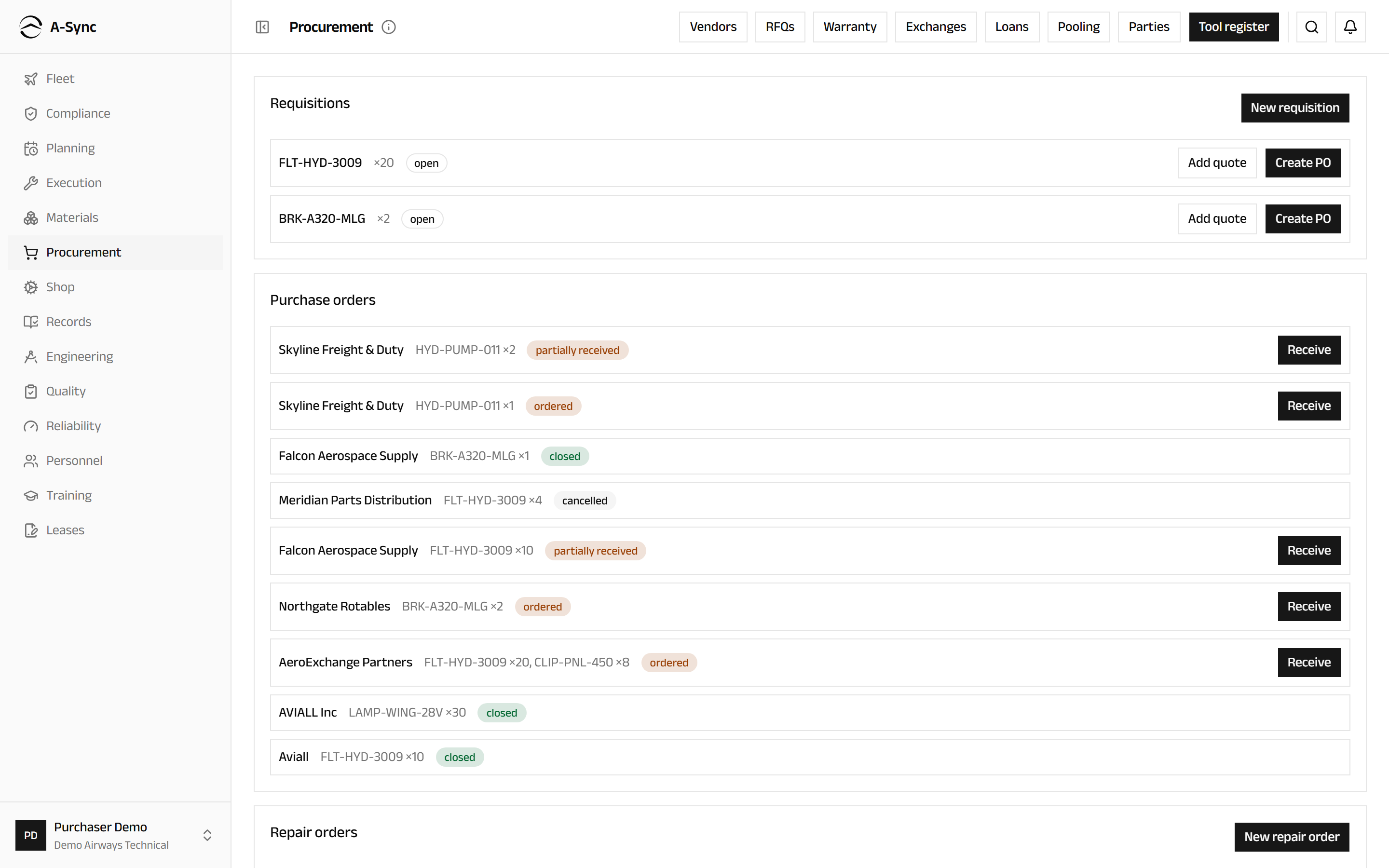
The board is the whole desk in one screen: Requisitions waiting to be priced or ordered, Purchase orders waiting to be approved, ordered or received, and Repair orders waiting to be shipped or returned, each showing the turnaround days it has left.
Ask several vendors to price the same thing
- Choose Procurement, then RFQs.
- Choose Raise an RFQ.
- Add a line for each thing you want priced - From a requisition, From a replenishment proposal, or Ad-hoc if nobody requisitioned it - with its Part, Quantity, Condition and Needed by date.
- Under Who to ask, select the vendors.
- Write anything they all need to know into Notes to the vendors.
- Choose Raise as draft, check the lines, then choose Issue to the vendors.
Each vendor gets their own copy as a PDF, and a quote template you can send with it so their answer imports instead of being retyped.
Lines freeze when you issue
Every vendor has to be answering the same question, so issuing locks the lines. To change one after that, cancel the RFQ and raise it again.
Asking is not buying
A vendor who is not approved can still be asked to price something - that costs nothing. Approval is checked when you award, because that is where the money is committed.
Record what a vendor came back with
- Open the RFQ and find the vendor under Vendors.
- Choose Record their quote.
- Choose Type the lines, or Import their filled-in template and attach their file.
- Choose the Currency, then enter the Unit price, Lead time (days) and Minimum order for each line they bid.
- Tick They didn't bid this on anything they passed on.
- Optionally set Valid until, then choose Record the quote.
If a vendor will not quote at all, choose They declined and record what they said - knowing why they passed is worth as much next time as a price would have been. If a vendor corrects a price, choose Record a correction: the new figure becomes the offer, and what they said before stays readable.
Award the request
- Open the RFQ and read Comparison, which sets the current bids side by side line by line and marks the lowest.
- Choose Award.
- For each line choose the Winning bid, or leave it as Don't award this line.
- Where your choice is not the lowest evaluated bid, say why under Why this vendor won.
- Acknowledge any winning vendor's recorded conditions.
- Choose the award button, which names how many lines go to how many vendors.
Each winning vendor gets one purchase order carrying the prices they quoted, with nothing re-entered, and every awarded line names the order it became.
Nothing is converted between currencies
The lowest price is found within one currency only. A line bid in two currencies has no lowest at all, and whoever you pick, you have to say why.
Create a purchase order from a requisition
- Choose Procurement.
- On the requisition, choose Add quote to record what a vendor offered, then choose Create PO.
- Choose the Vendor from the register.
- Enter the Promised date - orders without a promise are not counted for or against the vendor's delivery record.
- Check the Unit price and choose the Cost center the spend belongs to.
- Choose Create purchase order.
Once the order exists, use Approve and then Mark ordered on the board to follow it out to the vendor.
The vendor gate is real
An order can only name a vendor approved for that kind of work. A vendor approved with conditions passes once you confirm you have read them. A blocked vendor stops the order outright, and only an administrator can override that - with a reason that is recorded against the vendor and shown on their register entry.
Receive goods against an order
- On the purchase order, choose Receive.
- Choose the Warehouse the goods are going into.
- Enter the Batch no.
- Choose the Certificate type - FAA 8130-3, EASA Form 1, Certificate of conformity, Other or None - and enter the Certificate ref.
- Choose Receive goods.
Certificates are enforced at the door
A certificate-controlled part received without a reference stays blocked from issue until the certificate is captured. This is the last point at which an undocumented part can be stopped.
Send a unit out for repair
- Choose Procurement.
- In Repair orders, choose New repair order.
- Choose the Component - an unserviceable serialised unit.
- Choose the Vendor.
- Enter the Expected TAT (days).
- Turn on Warranty claim expected if you believe the vendor should carry the cost.
- Choose Open repair order.
Use Ship when the unit leaves and Mark returned when it comes back. The board flags an order overdue once it passes its expected turnaround.
Register an external party
- Choose Procurement, then Parties.
- Choose Register party.
- Enter the Name.
- Select every Roles entry the party holds - a firm can be both a supplier and a lender.
- Add Contact notes if you have them.
- Choose Register party.
Deactivating a party blocks new references to it; orders already open carry on.
Bring a vendor onto the approved register
- Choose Procurement, then Vendors.
- Choose Assess a vendor.
- Choose the Supplier from the registered parties.
- Under Approved for, select the scopes they are approved for.
- Set the Review interval (months) and the Next review date.
- Add Review notes and choose Save assessment.
- Open the vendor and choose Record a decision to set their standing, with the reason and any Conditions buyers must acknowledge.
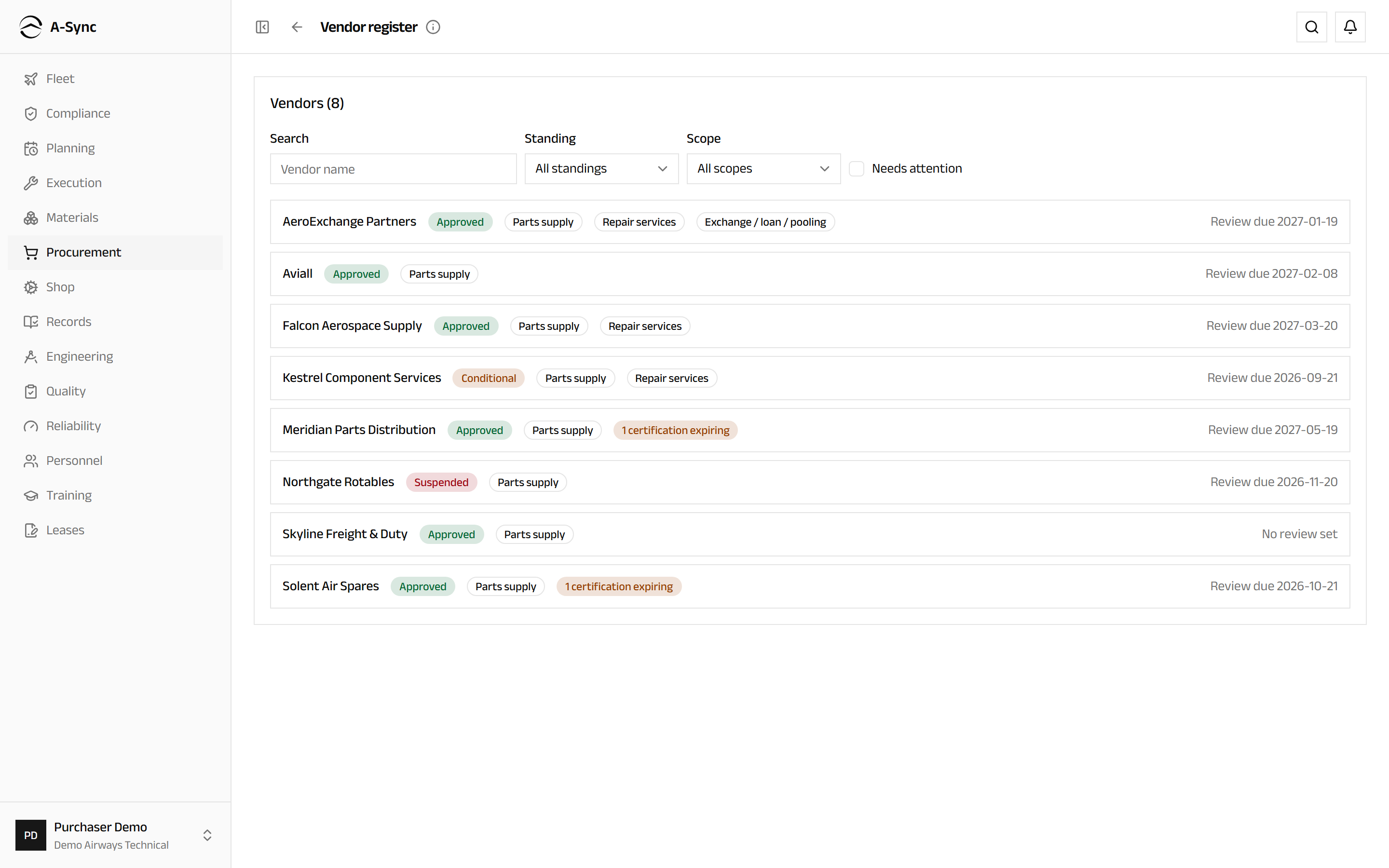
On a vendor's own page, Record a certification captures an approval such as AS9120 or EASA Part 145 with its expiry, Map a name links a free-text vendor name from older orders so that history counts towards them, and Performance shows on-time delivery, receiving rejections, warranty claims and spend drawn from what the system already recorded.
Who can do this
Vendor assessment, standing and certifications belong to quality. Everyone else reads the register.
Approval lapses on its own
Once a required certification expires or a review date passes, the vendor lapses overnight and stops taking new orders until quality records a review restoring them.
Exchange an unserviceable core
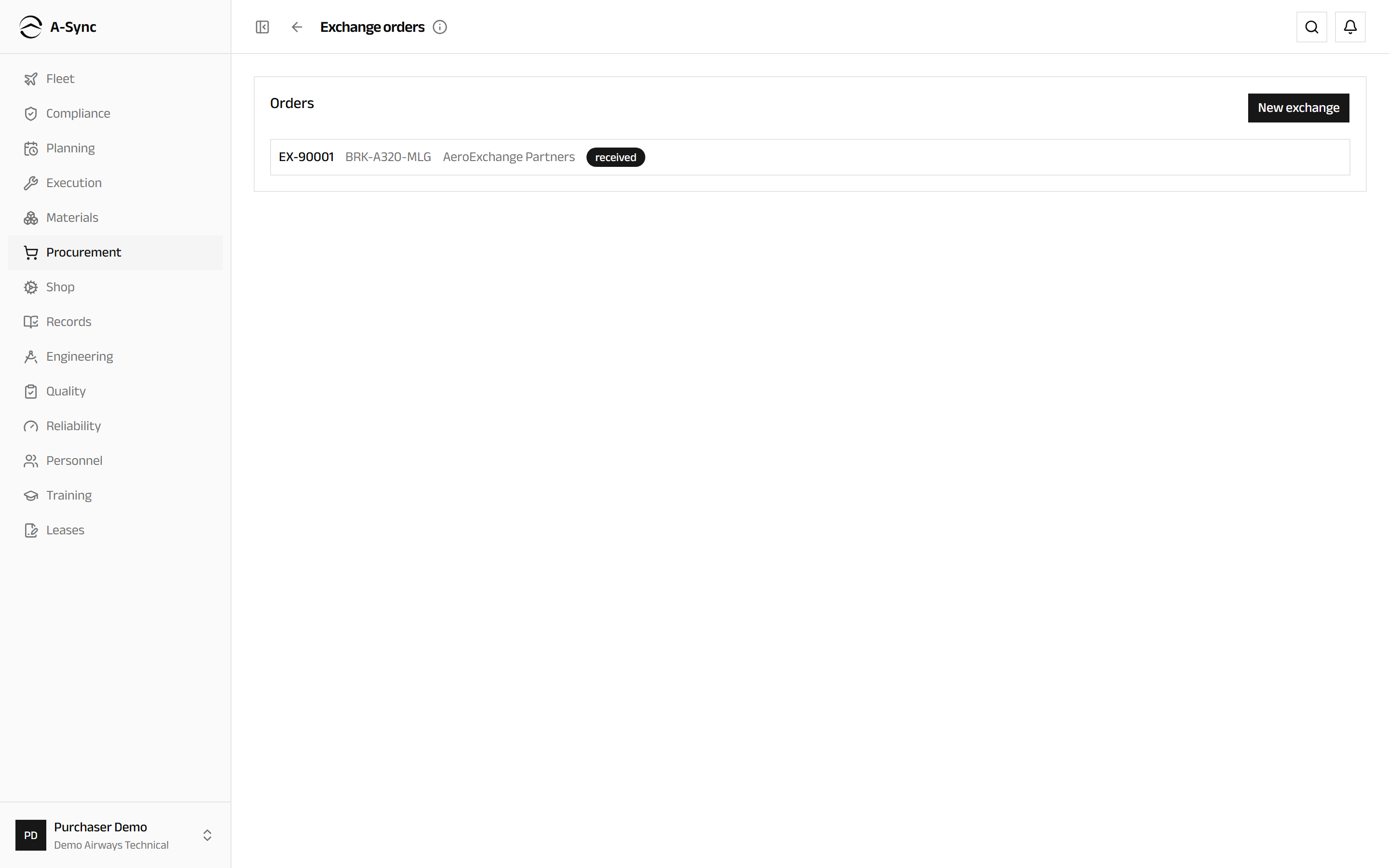
- Choose Procurement, then Exchanges.
- Choose New exchange.
- Choose the Counterparty, or source the unit from a pooling contract instead.
- Choose the Part and enter the agreed Exchange fee and Currency.
- Enter the Needed by date and, if you know it, the Committed core serial.
- Choose Create order, then Approve it.
Open the order to work it through. Receive unit brings the inbound serviceable unit into a warehouse and opens the core-return obligation; Ship core records the serial, ship date and shipping reference you sent back; Accept records the supplier agreeing it; and Close finishes the order.
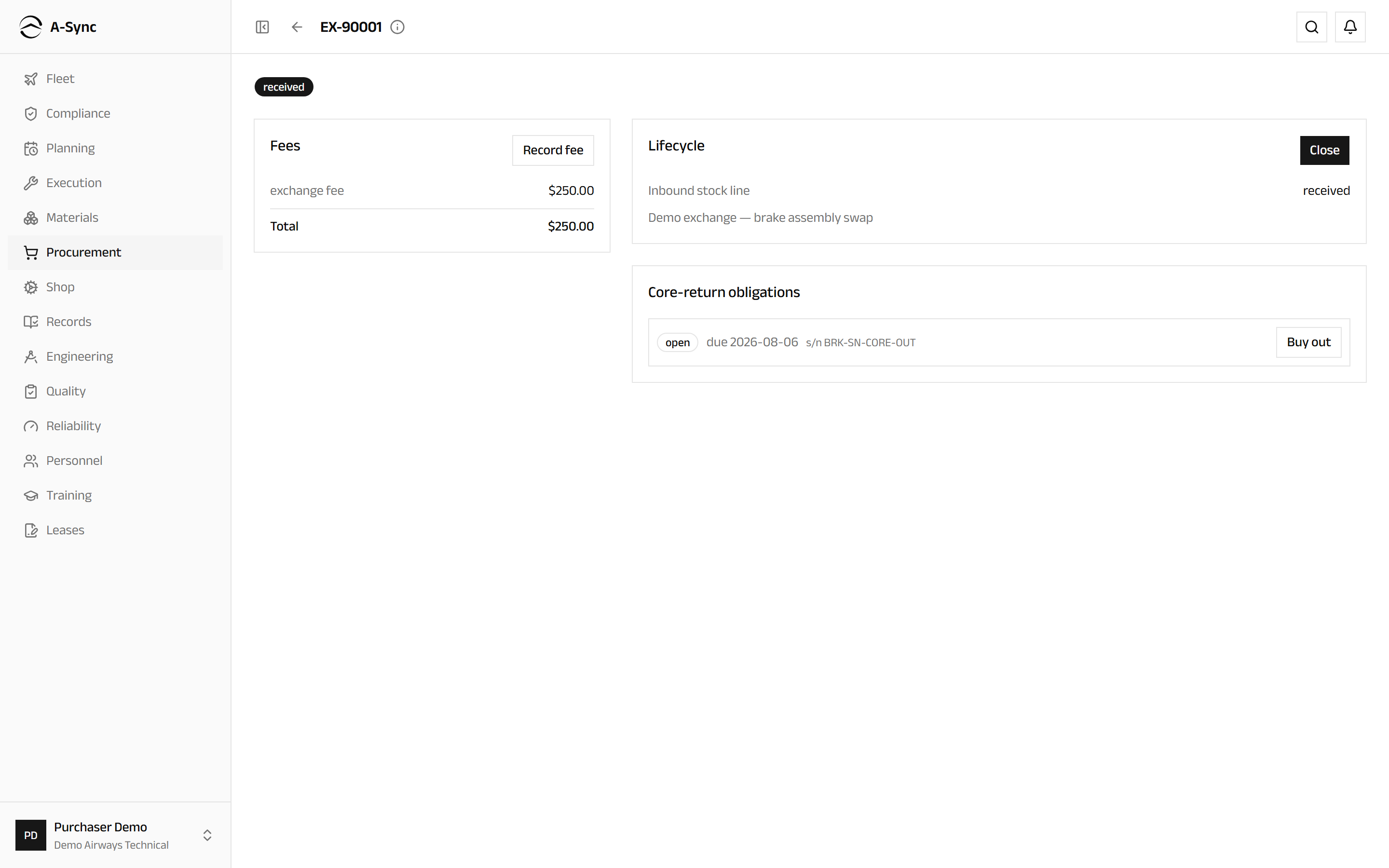
If the supplier disagrees about the core, choose Dispute and then Resolve with a surcharge, a replacement or a buy-out. If the core can never go back, choose Buy out and record the agreed price.
The core is a debt
The obligation opens the moment the inbound unit is received and is flagged overdue once its due date passes. An order cannot close until every fee and surcharge is recorded, so its total cost is complete.
Borrow or lend a unit
- Choose Procurement, then Loans.
- Choose New loan.
- Choose the Direction - loan-in (borrow) or loan-out (lend).
- Choose the Lender or the Borrower, and the Part or the Own unit to lend.
- Enter the Loan start and Due back dates.
- Enter the Flat charge, the Per day rate, or both, and the Currency.
- Choose Create order.
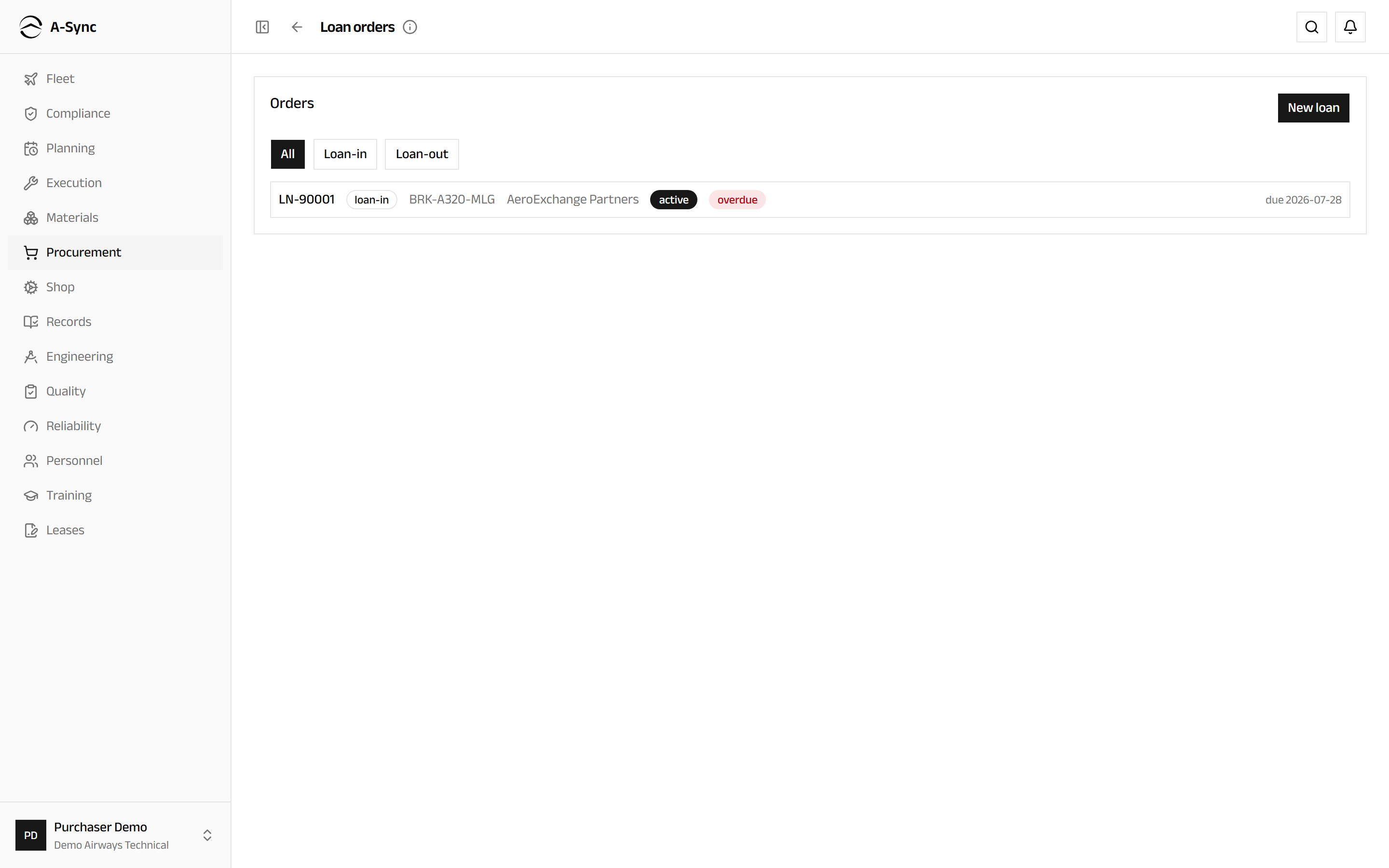
Approve the order, then Receive unit or Ship unit to make the loan active. A borrowed unit is held in stock clearly marked as borrowed and never counted as your own inventory, but it issues to work like any serviceable unit.
As the due-back date approaches, choose Extend with a New due-back date and a reason, Return to record the return date and condition, or Convert the loan into a purchase or an exchange - the accrued charges carry across with nothing re-entered.
Source from a pooling arrangement
- Choose Procurement, then Pooling.
- Choose New contract.
- Choose the Provider - a party registered as a pool provider.
- Enter Starts on and Ends on.
- List the Covered part numbers and Covered ATA chapters.
- Set the Currency and the Expected delivery (days), then choose Register contract.
- Choose Activate when the arrangement is live.
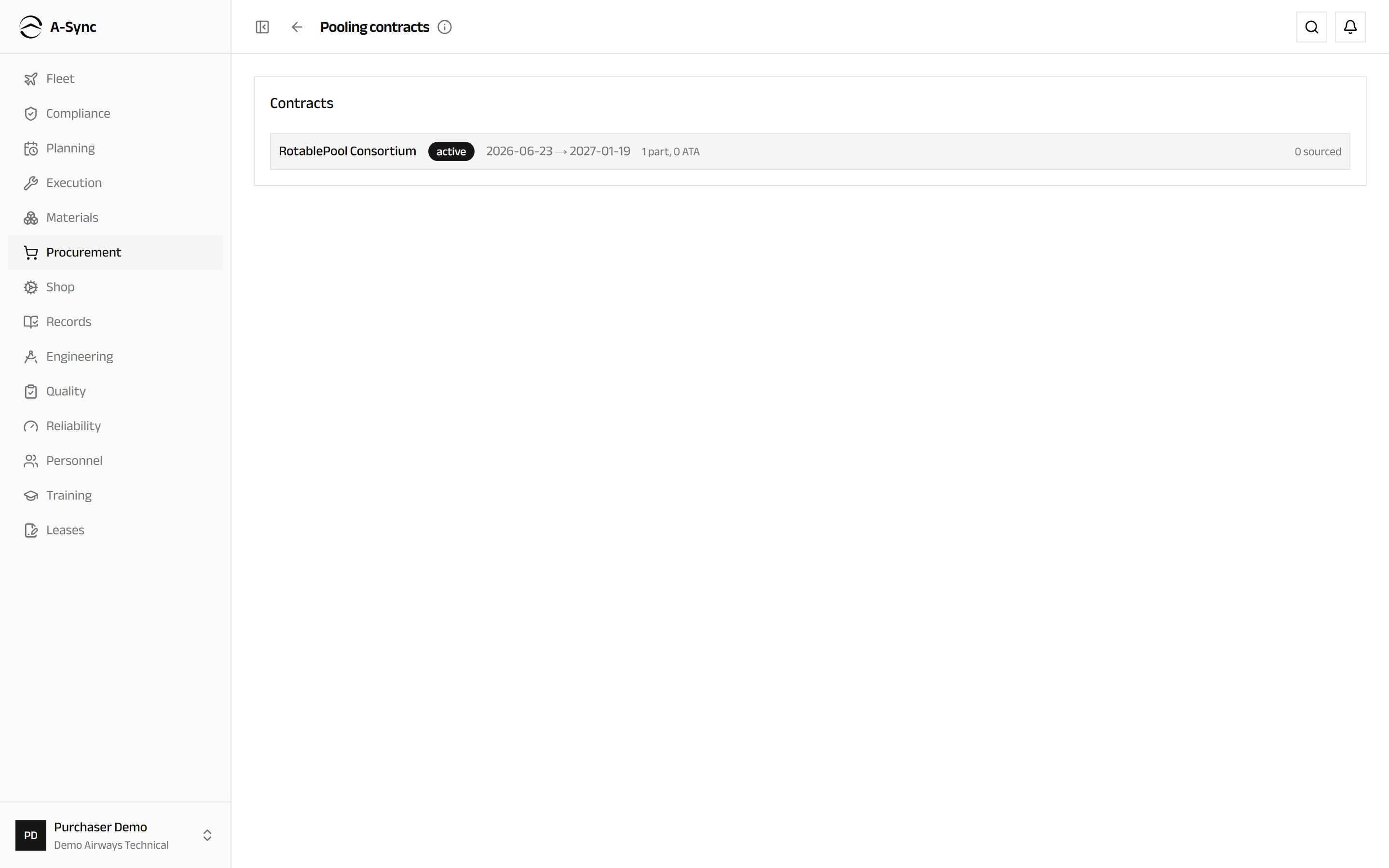
Once a contract is active, the exchange and loan dialogs offer it under Or source from a pooling contract, and every order sourced that way shows up on the contract's utilisation.
Recover money under warranty
- Choose Procurement, then Warranty.
- Choose Record a term for the part, naming the Counts from basis and at least one of Months, Flight hours or Cycles.
- Read Awaiting a decision - units that failed in service or were rejected on arrival while still covered are flagged there automatically.
- On a flagged unit choose Raise a claim, describe What happened and enter the Claimed value.
- Choose Put it to the vendor, then Record the vendor's answer when they reply.
- Choose Record a recovery as a credit note, a replacement or a free-of-charge repair actually arrives.
- Choose Close the claim when the pursuit is over.
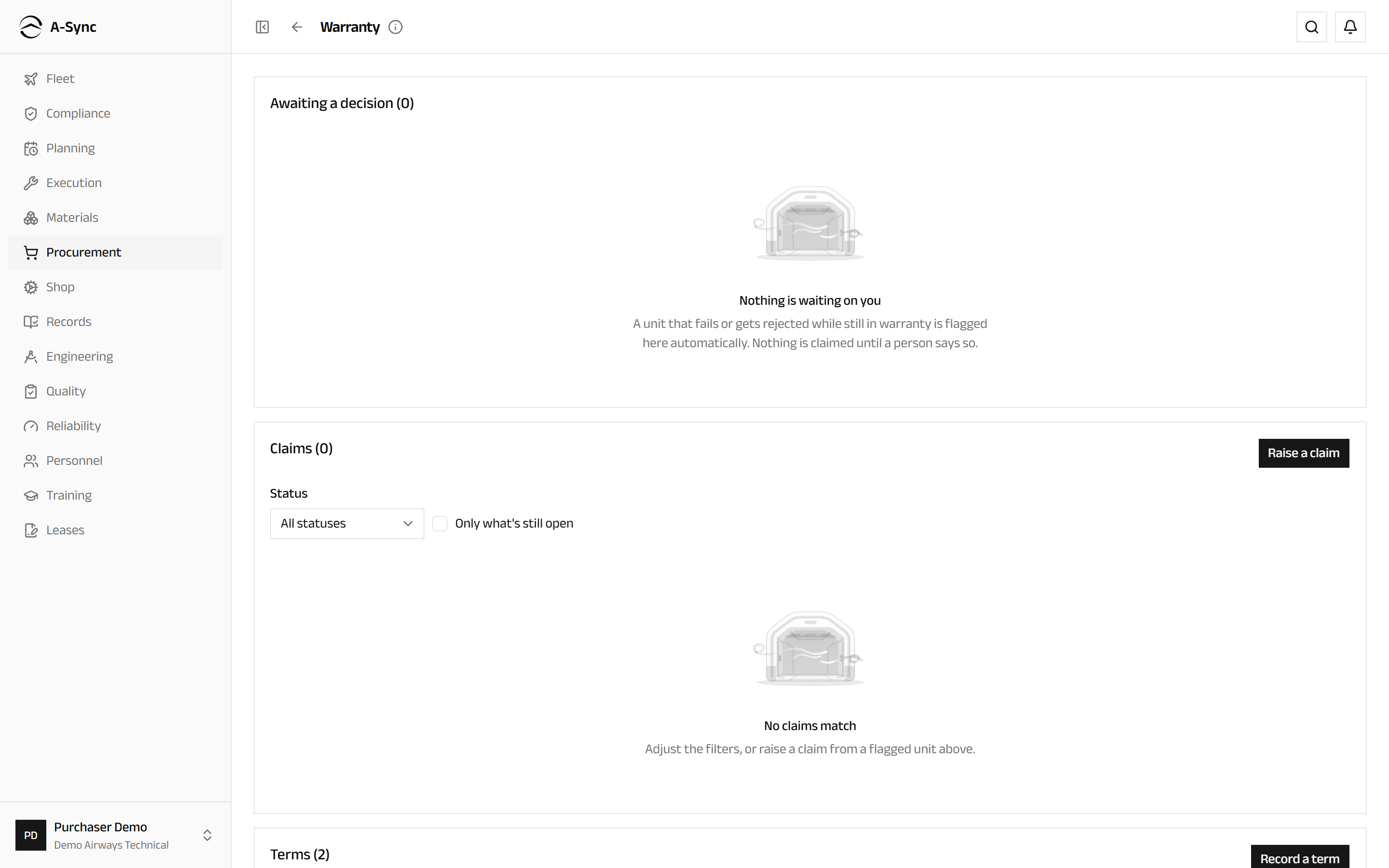
Nothing is claimed automatically - a flag is an invitation to decide. If a flag is not worth pursuing, choose Dismiss and say why; that reason is recorded and the flag does not come back.
A claim argues under the terms it was raised with
The terms are pinned to the claim at the moment it is raised, so changing the policy tomorrow cannot rewrite what an open claim is arguing.
Issue a calibrated tool
- Choose Procurement, then Tool register.
- Find the tool, reading its Calibration due date and Status.
- Choose Issue to give it out, and Return when it comes back.
- After a calibration, choose Record calibration, enter Calibrated on and choose Save calibration.
To add a tool, choose Register tool and enter the Tool number, Description, Interval (days) and Last calibrated date.
An out-of-calibration tool cannot be issued
Once a tool passes its calibration due date, Issue is blocked until a new calibration is recorded.
Role notes
| Role | What it can do here |
|---|---|
| Purchaser | Purchase, repair, exchange and loan orders; RFQs and awards; receiving; warranty claims; parties |
| Planner | Raise requisitions |
| Storekeeper | Raise requisitions, receive goods, raise repair orders, warranty claims, the tool register |
| CAMO engineer | Raise requisitions and repair orders |
| Quality | Vendor assessment, approval standing, certifications and reviews |
| Commercial | Pooling contracts and parties |
| Mechanic, inspector, certifier | Draw and return calibrated tools |
| Everyone else | Read the board, the vendor register and the warranty register |
Overrides are deliberately narrow
Proceeding with a vendor the gate has blocked is an administrator's decision, not a buyer's. Every use of the override is recorded against the vendor and visible on their register entry.
Related modules
- Materials raises the replenishment proposals requisitions answer, and takes delivery of everything bought.
- Shop repairs in-house what would otherwise go out on a repair order.
- Quality owns vendor approval and the assessments behind it.
- Billing checks vendor invoices against the orders and receipts recorded here.
- Fleet flags a fitted component that failed while still under warranty.