Techlog
The electronic technical log - the crew record of every sector flown, defects reported from the flight deck, and the open items to review before departure.
What it's for
The Techlog is the aircraft's technical log, kept electronically. Flight crew record each sector flown, certify it, and report anything they observed - a technical defect in flight, or a discrepancy in the cabin. Before departure the same screen shows what is already open against the aircraft.
It is the boundary between flying an aircraft and maintaining it. A certified sector posts the hours and cycles that make maintenance fall due, and a crew report becomes a defect the maintenance organisation owns and answers for.
The surface is deliberately small. Crew see the technical log and little else, and nothing recorded here certifies maintenance or returns an aircraft to service.
Key concepts
Sector - one flight, from leaving the stand to arriving at the next one. It is identified by a Sector reference and the From and To stations.
Out, off, on, in - the four times that define a sector: off the stand, off the ground, on the ground, on the stand. They are entered in UTC and they are authoritative - the flight hours A-Sync posts are derived from them.
Counter reading - the engine or APU counter read on the flight deck. It does not replace the times; it cross-checks them.
Uplift - fuel or oil put on the aircraft, recorded against the sector. Oil uplifts are what engine consumption monitoring is built from.
Draft and certified - a sector starts as a draft you can review and change. Certifying signs the page in your name and makes it permanent.
Crew entry - what a crew member records: the sector, its times, counters, uplifts and remarks, plus any defect observed. It is a report of what happened in flight. It is not a maintenance certification.
Deferral - a defect the maintenance organisation has accepted for continued operation under the minimum equipment list (MEL), with a category and a date it must be rectified by.
PIREP - a technical defect reported by the crew. A cabin discrepancy is recorded as Cabin instead, so the two are counted separately.
Common tasks
Open an aircraft's technical log
- Choose Techlog in the sidebar.
- Select the aircraft's registration.
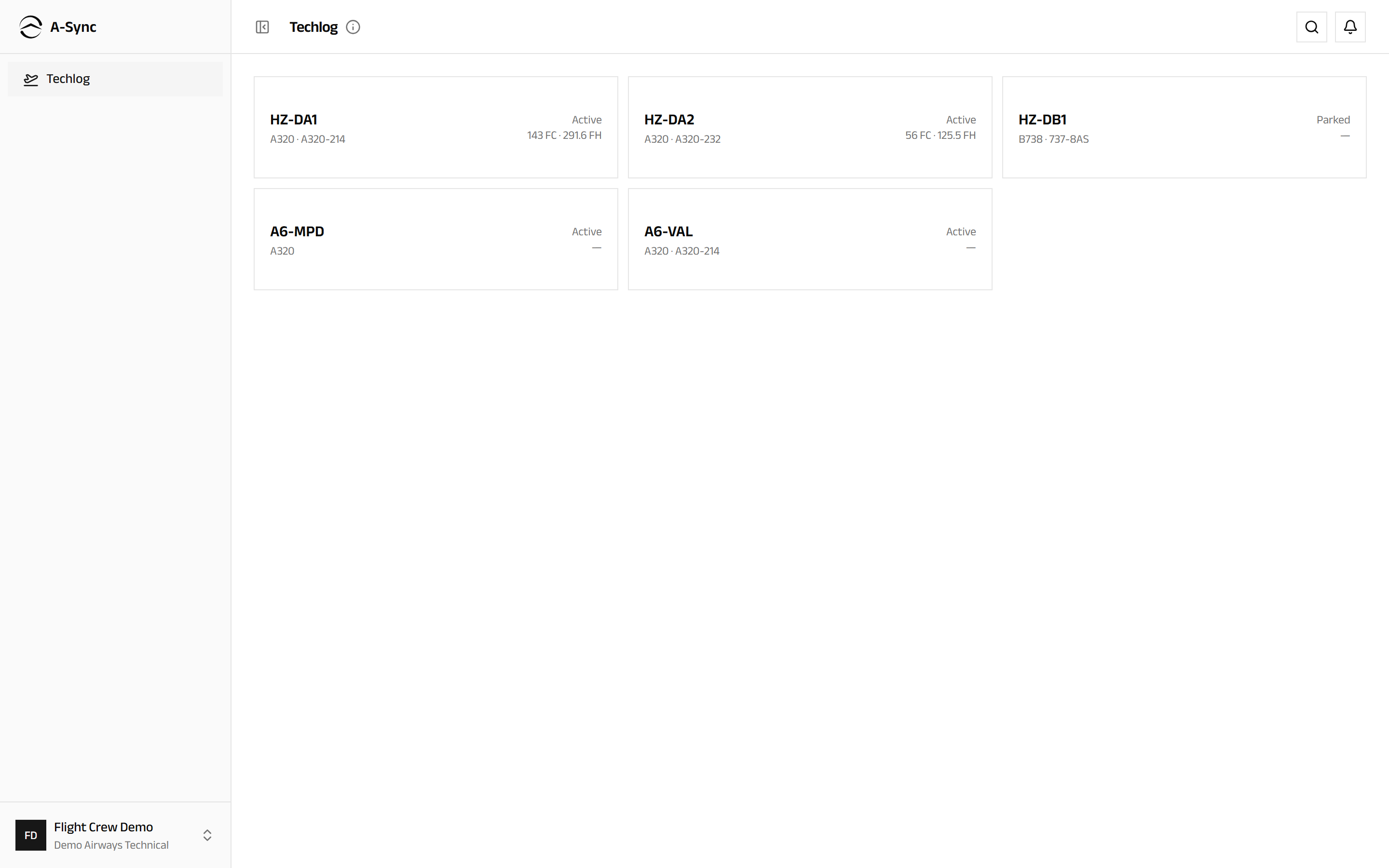
Each card carries the registration, the type, the aircraft's status and its accumulated flight hours and cycles, so you can pick the right tail without opening anything.
Review what is open before you fly
- Open the aircraft's technical log.
- Read Open deferrals - each shows its basis and category, and the date to rectify by.
- Read Unresolved defects - each with its ATA chapter where one is known.
- Read Recent sectors at the foot of the page to see what was last flown and whether it is certified.
An aircraft that is not active
If the aircraft is parked, stored or otherwise not active, a banner says so and sectors cannot be certified until it returns to active status.
Record a sector
- Go to New sector.
- Enter the Sector reference, and the From and To stations.
- Enter Out (UTC), Off (UTC), On (UTC) and In (UTC).
- Enter Engine 1 hours (FH counter), APU hours and Fuel remaining (kg) as your procedures require.
- Add any uplifts: choose Add uplift, choose Fuel or Oil, name the engine or APU for an oil uplift, and enter the quantity.
- Add anything else worth recording under Remarks.
- Choose Save draft.
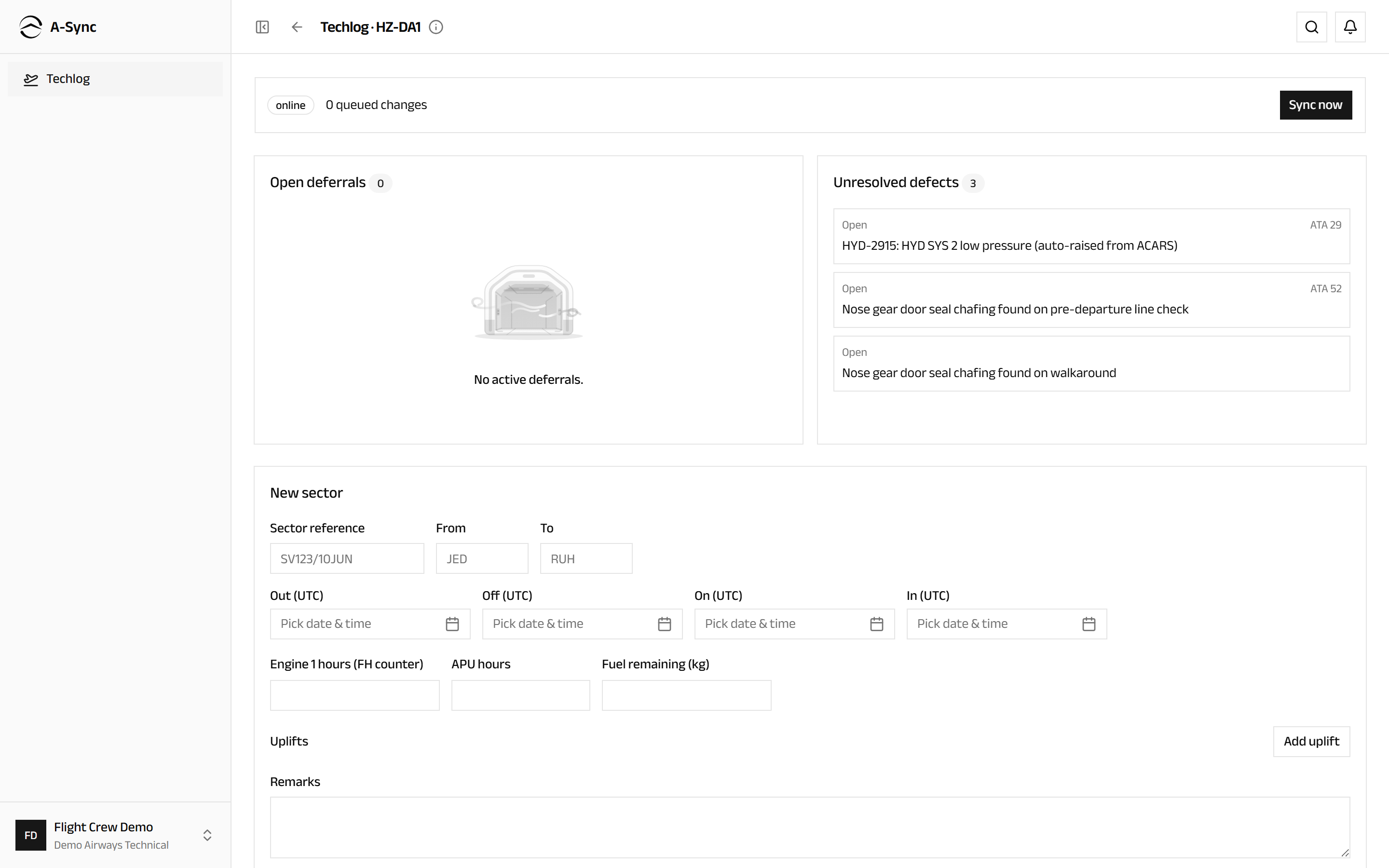
Saving a draft changes nothing about the aircraft. It exists so you can review what you entered before you sign for it.
Certify a sector
- Read the saved draft back.
- Choose Certify sector.
Certifying signs the page in your name and posts the flight hours and the cycle to the aircraft. That posting is what makes maintenance fall due, so a certified sector reaches well beyond the flight deck.
Certifying is permanent
A certified page is never edited or deleted. Changing it afterwards takes a correction, which supersedes the original and keeps both on record.
A-Sync refuses to certify, with a plain explanation, when:
- a station is missing, or the four times are out of order;
- the sector overlaps another certified sector for the same aircraft;
- a counter reading differs from the value derived from the times by more than the tolerance your organisation has set;
- utilisation for that day was already posted another way, so certifying would double-count it;
- the aircraft is not active.
Report a defect
- Go to Report a defect.
- Choose the Sector it was observed on.
- Choose the Type - Technical (PIREP) or Cabin.
- Enter the ATA (optional) chapter if you know it.
- Write what you observed under Description.
- Choose Report defect.
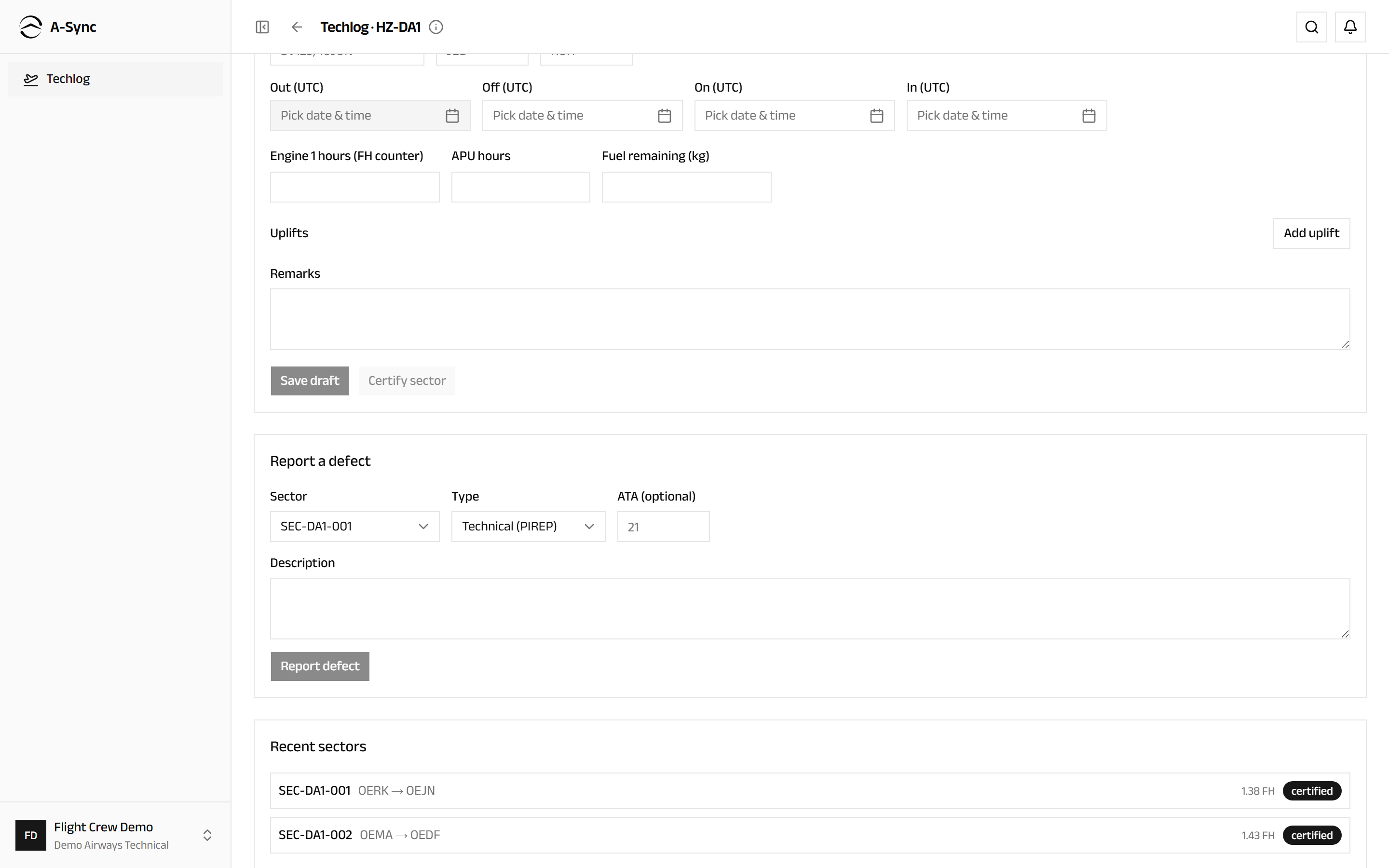
A report belongs to a sector
Crew defects are logged against the sector they were observed on. If the aircraft has no sectors recorded yet, A-Sync asks you to record one first.
Reporting is where the handover happens. The report becomes a defect the maintenance organisation owns; whether it is rectified before the next departure or deferred under the MEL is their decision, not the crew's.
Work without a connection
- Open the aircraft's technical log while you still have signal, so the device holds a copy of its open items.
- Keep recording. The status bar shows offline and counts your queued changes.
- Complete the page - both stations and all four times - before you leave it.
- When you reconnect, choose Sync now, or let A-Sync send by itself.
Offline pages certify on reconnect
A sector recorded offline certifies automatically when it reaches the server, but only if it is complete. A partial page cannot be certified, so a page left half-entered stays waiting.
Resolve a sync conflict
Collisions appear under Sync conflicts needing resolution - most often two sectors claiming overlapping times for the same aircraft.
- Read the message on the conflict.
- Choose Keep server to accept the record already held.
- Or choose Keep mine to re-apply your record over it.
Nothing is merged for you
A certified page is a regulated record, so A-Sync will not quietly reconcile two versions of one. Someone has to say which is authoritative, and that decision is kept.
Check dispatch readiness
Dispatch readiness gathers what a departure needs to know into one screen, for aircraft flying extended-range twin-engine operations (ETOPS) and for everything else.
- Open Dispatch readiness.
- Select the aircraft's registration along the top.
- Read the ETOPS pre-departure check: badge - Recorded, Outstanding or Not required.
- Read ETOPS-significant items; anything that matters for this departure is badged ETOPS-dispatch concern.
- Read Open defects, and Recorded checks for the checks already made.
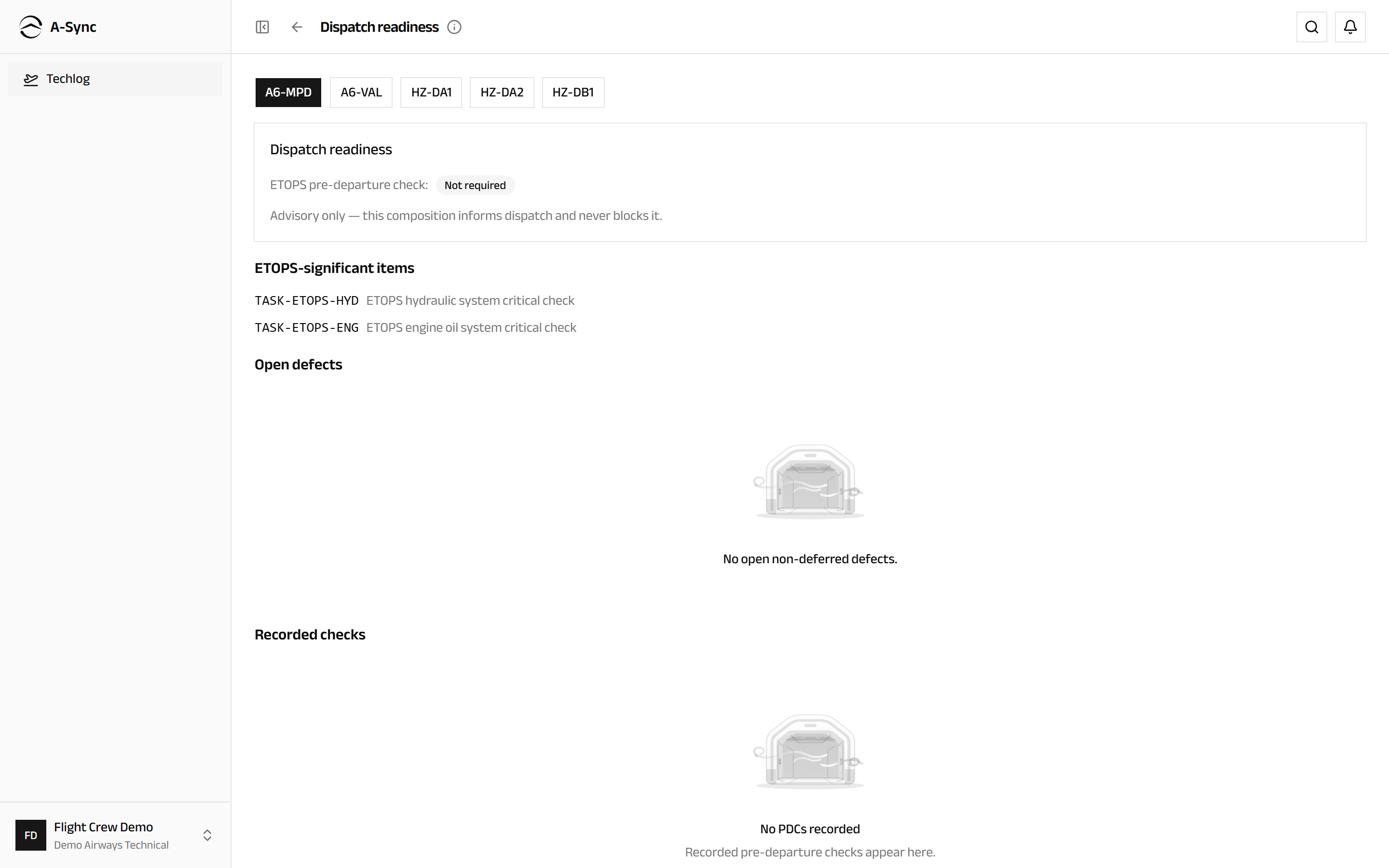
Advisory only
The readiness board informs dispatch and never blocks it. It composes what is already recorded elsewhere; it makes no decision of its own.
Crew do not record the check
Record PDC appears only for the line maintenance staff who perform pre-departure checks. A check is the attestation of the person who did it, and it stands as recorded even if the departure is later re-timed.
Role notes
| Role | What it can do here |
|---|---|
| Flight crew | Record and certify sectors, report technical and cabin defects, resolve their own sync conflicts |
| Mechanic, certifier | Record a pre-departure check; read the log |
| CAMO engineer | Read the log; deferrals and the MEL are managed in Compliance |
| Everyone else | Read the technical log |
Only crew certify a sector
Recording and certifying sectors belongs to flight crew alone. A certified sector is the crew's record of a flight - it is not a maintenance release, and it never returns an aircraft to service. Releases are signed by a certifier in Execution.
Who sees this module
Techlog is in the sidebar for flight crew and administrators. Other roles can read technical-log data, but they meet it through Fleet, Compliance and Execution rather than on this screen. Flight crew, in return, see almost nothing else.
Related modules
- Fleet receives the hours and cycles a certified sector posts.
- Compliance holds the MEL and turns posted utilisation into what falls due.
- Execution is where a reported defect is rectified, deferred or signed off.
- Line Maintenance is the maintenance side of the same aircraft.
- Reliability reports on crew reports and oil consumption over time.
Line Maintenance
The workspace you take to the aircraft - assigned work, the punch clock, sign-offs, defects and parts lookup, all usable without a connection.
Settings
The organisation-wide defaults every other module works to - locale and units, alerting, forecasting and costing, technical-log tolerances, certificate identities and the security policy.