Billing
Quotations, commercial work orders and customer approvals, invoicing and receivables, supplier invoices, landed cost, inventory valuation, assets and budgets.
What it's for
Billing is the commercial side of the operation. It is where a customer enquiry becomes a priced quotation, an accepted quotation becomes work the hangar can start, and the work that was done becomes an invoice with the numbers behind it still visible.
The same module holds the other direction - what your suppliers billed you, what the freight and duty on a part actually cost, what the stock and the fleet are worth, and whether the spend so far matches the plan.
Everything here is derived from work the platform already recorded. Nobody retypes hours, parts or receipts into a spreadsheet to produce a number.
Billing is a restricted module
Billing does not appear in the sidebar unless your role includes it. Commercial staff have it in full; CAMO engineers and planners can read the commercial picture; administrators hold the few settings and overrides. No other role sees the module at all, and a mechanic never sees pricing anywhere in A-Sync.
Key concepts
Customer agreement - the standing terms for one customer: currency, default labour rate, per-trade rates, markups, payment terms and any pre-authorisation limit.
Quotation - a priced offer, built from labour, material and service lines, issued with a validity window, and revised rather than edited once issued.
Pricing structure - how the job is priced: Fixed price, time and material, Not-to-exceed with a ceiling, or capped per category.
Commercial work order - the binding between an accepted quotation and the execution record doing the work, whether that is a work package or a shop order.
Terms snapshot - the rates, structure, caps and currency frozen onto the commercial work order at acceptance. Changing the agreement afterwards never rewrites won work.
Over-and-above - work found during execution that nobody quoted. It goes to the customer for a decision before it is performed.
Milestone - one line of a billing schedule: a description, a trigger and a value, so a long job bills as it progresses instead of only at the end.
Landed cost - the freight, duty, handling and insurance that arrived with a part, apportioned onto the stock it landed so the part's unit cost is the true one.
Cost centre - the bucket spend is attributed to: the hangar, the component shop, stores, a line station.
Common tasks
Find your way around Billing
- Choose Billing in the sidebar to open Costs & billing.
- Use the Commercial front office card to reach Quotations, Commercial work orders, Accounts payable, Landed cost, AR / Receivables, Valuation, Assets and Budgets.
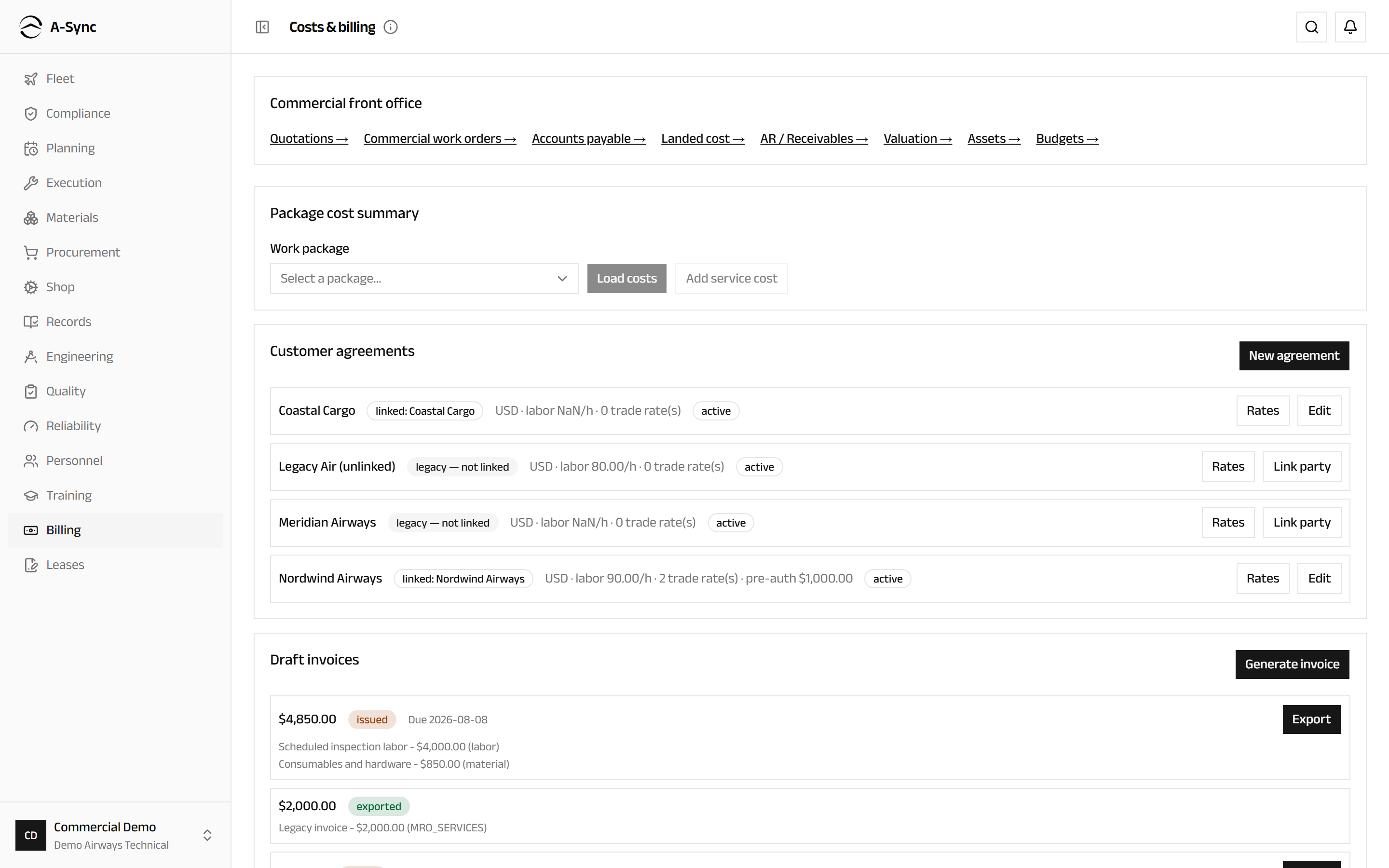
The hub itself carries three things you use constantly: the Package cost summary, which loads Labor, Material and Outside services against their estimates for any work package; Customer agreements; and Draft invoices waiting to be issued or exported.
Set up a customer agreement
- Choose Billing.
- Under Customer agreements, choose New agreement.
- Choose the Customer party and enter a Display name.
- Enter the Default labor rate and the Pre-auth limit if the customer has one.
- Enter the Payment terms (days), the Material markup % and the Service markup %.
- Choose Save agreement.
- Choose Rates on the agreement to add Per-trade rates, then Save rates.
The agreement is what quotations default their rates from, and what a walk-in work order is opened under. Payment terms are what stamp a due date on an invoice when it is issued.
Build and issue a quotation
- Choose Billing, then Quotations.
- Choose New quote.
- Choose the customer, the Currency and the Subject.
- Choose the Context - an aircraft check or a component visit - and the Pricing structure, with a Fixed price or Ceiling amount where the structure needs one.
- Enter Validity (days) and link the Customer agreement so labour rates default from it.
- Choose Create quote.
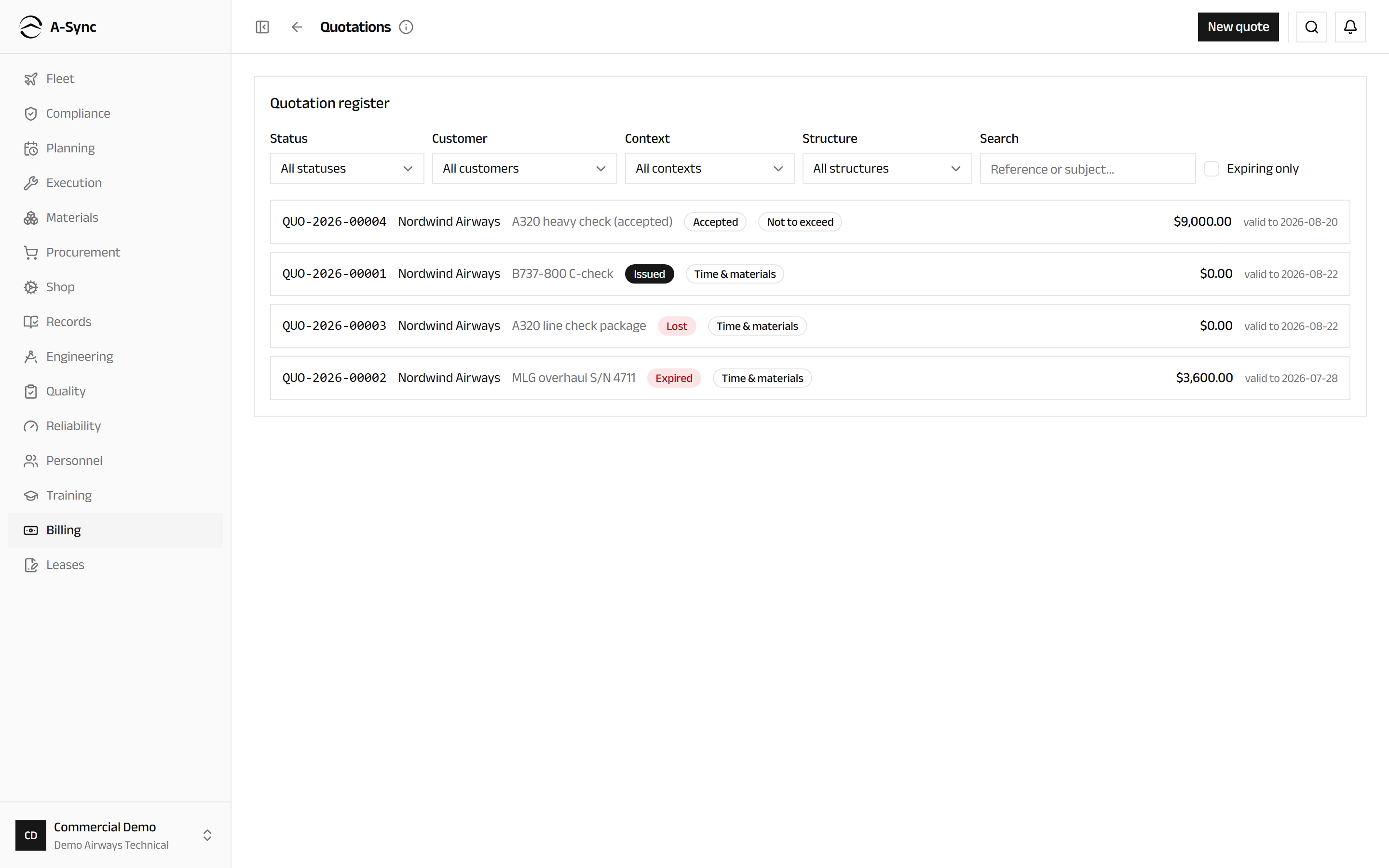
Open the quote to price it. Add lines with + Labor, + Material and + Service, then Save lines - category subtotals and the quote total are derived, never typed. Where the customer sent a task list, paste it under Imported customer workscope, choose Add items, and then either price each item into lines or give it an Exclude reason.
Nothing imported is silently dropped
A quote cannot be issued while an imported workscope item is neither priced nor excluded. It is the check that stops a customer's task disappearing between their email and your price.
Choose Issue quote when it is complete. The quote becomes read-only, gets its validity date and produces a customer-facing rendering through Download PDF. To change an issued quote, choose Revise - the new revision supersedes the old one and both stay readable. A quote the customer declines is recorded with Mark lost and a Lost reason; it leaves the pipeline and stays on the register.
Accept a quote and turn it into work
- Open the issued quotation.
- Under Lifecycle, choose Record acceptance.
- Enter Accepted by (customer) and the Customer reference (optional).
- Choose the Binding: Spawn a new work package, Bind an existing record, or Defer - await unit induction if the unit has not arrived.
- Choose Accept & convert.
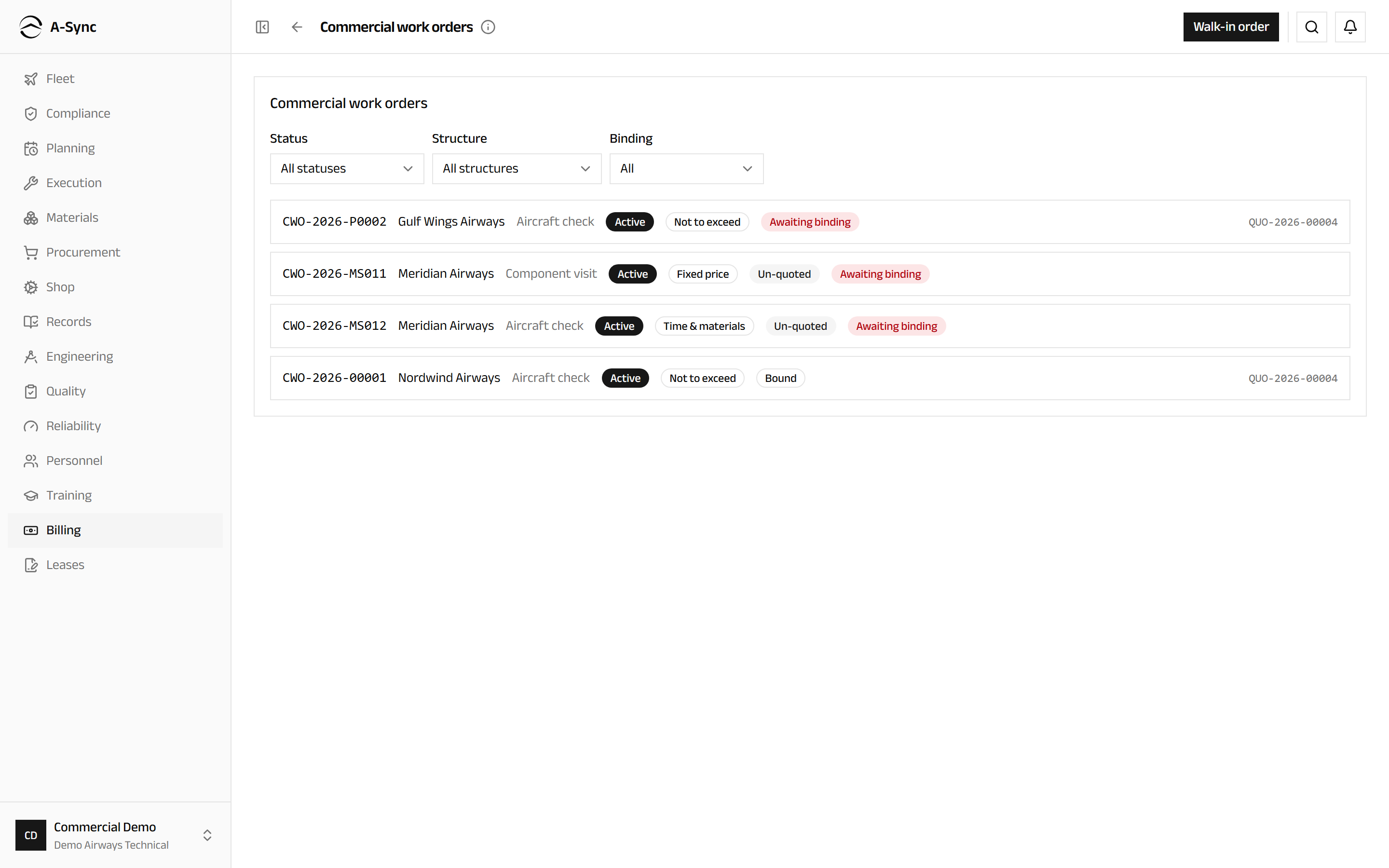
Acceptance creates the commercial work order and freezes the Terms snapshot onto it. The quoted workscope becomes package items or requested shop work with its estimates intact, so nothing is re-entered. Planners and shop staff then see a Commercial panel on the package or shop order naming the customer, the structure and any caps.
For AOG work with no time to quote, choose Billing, then Commercial work orders, then Walk-in order, and open the order directly under the customer's agreement. It carries a terms snapshot the same way and is flagged as un-quoted.
One commercial order per execution record
A work package or shop order can carry only one active commercial work order, and an accepted quote converts once. A second attempt is refused rather than quietly creating a duplicate.
Get the customer to approve extra work
- Open the commercial work order.
- Under Customer approval, choose Assemble a request.
- Choose the Covered task, give the request a Title, and enter the Labor trade and Hours the extra work needs.
- Choose Assemble.
- Send the customer the Packet PDF.
- When they decide, enter the Approver and Evidence ref, then choose Approve or Decline.
The request prices each item at the snapshotted rates. While it is pending, the work it covers cannot be started - a mechanic who tries is told the task is waiting on customer approval, and is shown nothing about the money. Approved work unblocks and its amounts join the estimate as a separate over-and-above band. Declined work is marked Not performed - customer declined and the disposition is kept.
Decisions are added, never rewritten
If the scope or the price changes, choose Supersede and assemble a fresh request. The old one stays readable and can no longer receive a decision. Where declining the work has an airworthiness consequence, that is handled through the normal defect and deferral route - it is never simply ignored.
Compare quoted with actual, and invoice
- Open the commercial work order.
- Read Quoted vs actual: the Estimate (quoted) band, Approved over-and-above, the Actual, and the Variance for labour, material and services.
- Check the cap badge - Within cap, Approaching cap or Cap breached.
- Choose Generate draft invoice.
Labour actuals are valued at the rates snapshotted at acceptance and attributed to the trade that did the work; material is valued at the unit costs stamped when it was issued. The invoicing basis follows the pricing structure on its own: a fixed price bills the fixed amount plus approved extras, time and material bills the actuals, a not-to-exceed order bills actuals capped at the ceiling, and a capped structure applies its per-category caps.
Anything recorded against declined or still-pending scope is flagged as unapproved work and left out of the basis.
Bill a long job in stages
- Open the commercial work order.
- Under Billing schedule, choose Edit schedule.
- Choose Add milestone and enter a Description.
- Choose the Trigger - a Date, an Event such as Induction or Completion, or Manual.
- Enter the Value as an amount or a percentage of the contracted value.
- Choose Save schedule.
A milestone drafts its invoice when its trigger occurs; a manual one drafts when you choose Release. The final invoice deducts everything already billed, so the customer sees the total less what they have already paid toward it. A schedule that totals more than the contracted value warns and asks for an Over-value reason rather than overbooking quietly. Milestones can be edited until they are billed and are fixed afterwards.
Track what customers owe you
- Choose Billing, then AR / Receivables.
- Under Invoices, choose Issue on a draft to issue it with its due date.
- Read Aged receivables for each customer's open balance, on-account credit and unallocated cash.
- Choose Record payment, enter the Amount received and Received on, and allocate it across the customer's open invoices.
- Choose Record.
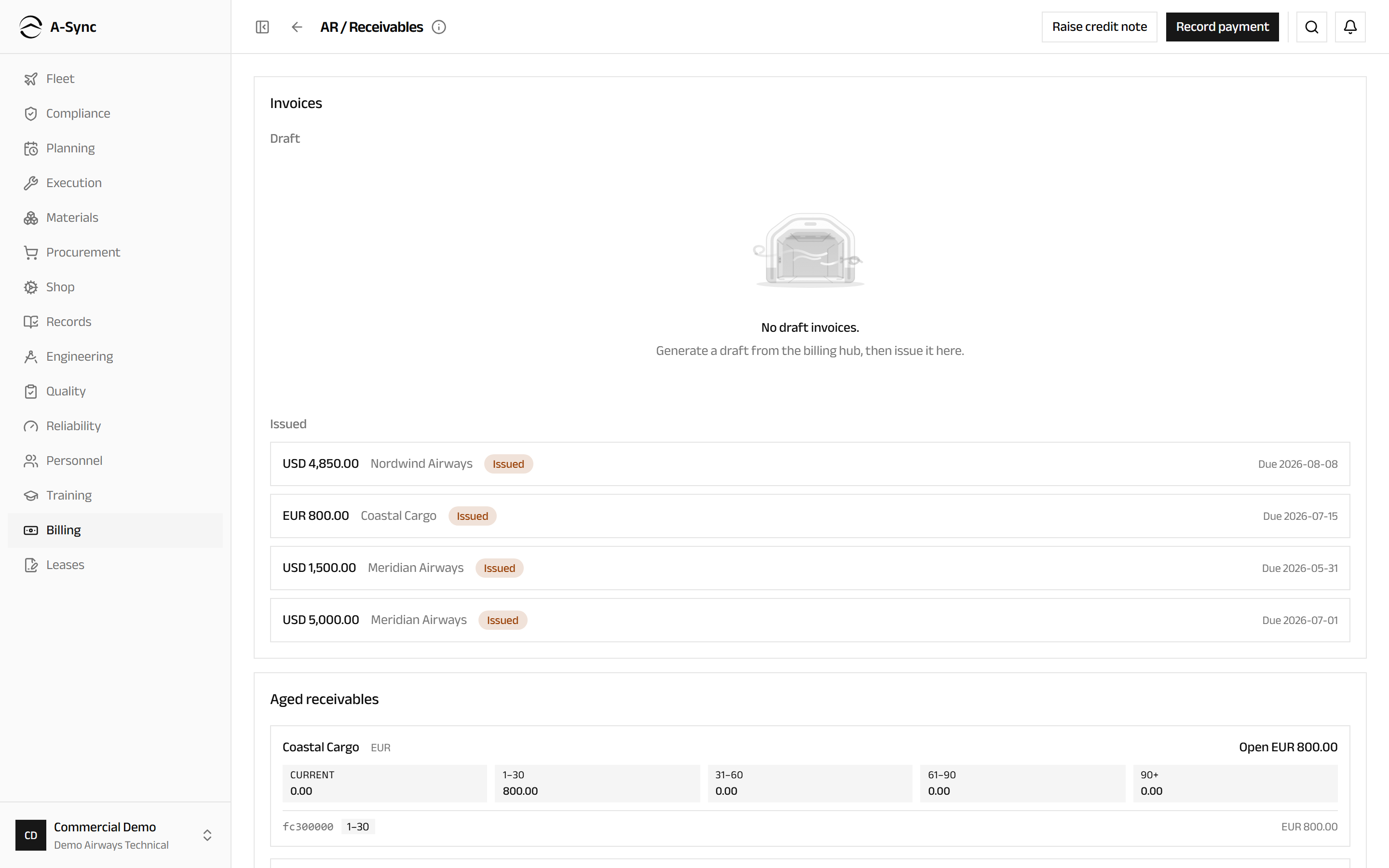
Allocation only ever applies to invoices in the payment's own currency; anything left over stands as visible credit on account and can be applied later with Allocate. To reduce a balance without cash, choose Raise credit note, pick the invoice or leave it on account, and give a Reason.
Payments reverse, they do not disappear
Reverse undoes a payment once, with a reason. Its allocations survive as history and every balance it touched is restored by recalculation - nothing is deleted.
Check what a supplier has billed you
- Choose Billing, then Accounts payable.
- Read Owed by vendor for the outstanding position.
- Filter by Status, by Held on, or turn on Only what's stuck.
- Select an invoice to open it.
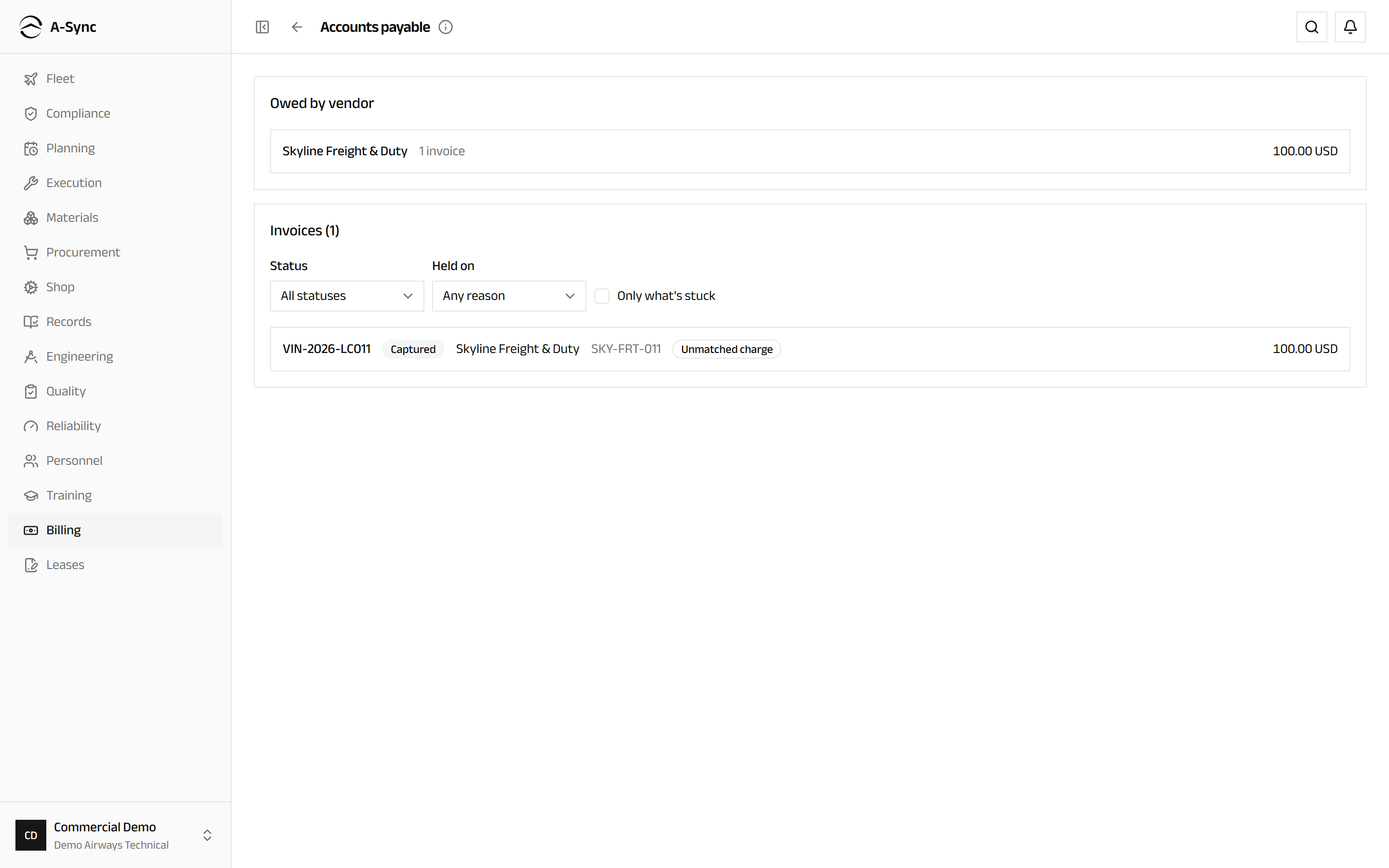
Most invoices need nobody: if the goods arrived and the numbers agreed within tolerance, the invoice clears itself. What is left is what is genuinely stuck, and each hold names its reason under Held on.
To clear a freight or duty charge that has no order line behind it, choose Link to movement and pick the inbound movement it arrived with - that turns it into a landed-cost charge and releases the hold. Where a supplier has already issued credit, choose Apply a credit note. Choose Send to finance once an invoice is settled.
Overriding a match is an administrator's call
Override the match is a person overruling the check, so it is restricted to administrators and always needs a reason. If you do not hold it, A-Sync says so and points you at the credit-note route instead.
Add freight and duty to what a part cost
- Choose Billing, then Landed cost.
- Choose Capture charge.
- Enter the Amount and Currency, and choose what the charge is - freight, duty, handling, insurance or other.
- Choose the Movement the charge arrived with, and the Charge evidence document.
- Choose Capture.
- Choose Apportion on the captured charge, pick the Basis - by value, by weight or by quantity - and confirm.
Apportioning raises each received stock line's unit cost by its share, so every issue, consumption and valuation afterwards reads the truer number. Freight billed on a supplier invoice does not start here: link it from Accounts payable instead.
Not every share can attach
Shares belonging to stock that is not yours, or to quantity already consumed before the charge landed, appear under Unabsorbed variance with their reason. That is deliberate - closed work is never repriced, and no share is quietly lost. Corrections are made with Reverse and a fresh apportionment, never by editing.
Value the inventory
- Choose Billing, then Valuation.
- Set As of and choose Value.
- Read the table by Ownership, Warehouse and Part group.
- Set From and To under Movement summary and choose Show.
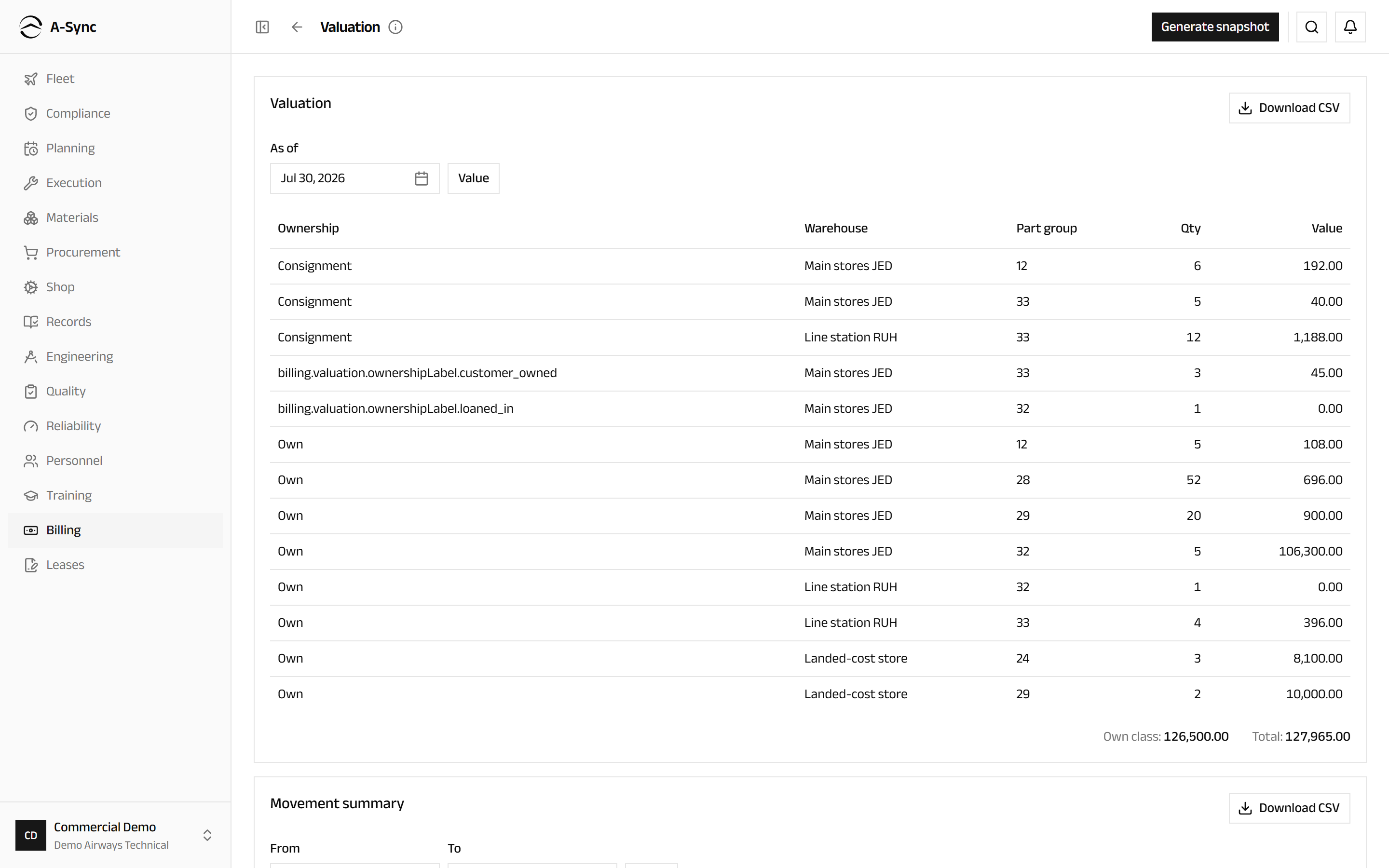
Only own stock rolls up to the owned-inventory total; consignment, customer-owned and loaned-in material is reported separately because it is not yours to value. The movement summary reconciles Opening through Receipts, Issues, Adjust, Apportioned value and Scrap to Closing, exactly.
A snapshot is permanent
Choose Generate snapshot and give a Period key to fix a completed period's number. A period can be snapshotted once and never regenerated, which is the point: the figure you reported for March still reads the same in June, whatever was corrected in between.
Carry an owned asset at book value
- Choose Billing, then Assets.
- Choose Designate asset.
- Choose the Subject - an aircraft or a component.
- Enter the Acquisition cost, Acquired on, Useful life (months) and Residual value.
- Enter the Opening accum. depreciation if the asset was acquired before you started using A-Sync.
- Choose Designate.
Book value, accumulated depreciation and the monthly charge are worked out straight-line for any date you ask for. A designated component leaves the inventory valuation from that day forward, so nothing is counted twice. Use Revise life to re-plan the remaining value over a new life without touching book values before the effective date, Dispose to record proceeds and see the gain or loss, and Remove to return the subject to the inventory valuation.
Hold spend against a budget
- Choose Billing, then Budgets.
- Choose Set budget, pick the Cost center, the Granularity and the Period key, and enter the amount and Currency.
- Read Budget vs actual for Actuals, Commitments and Headroom.
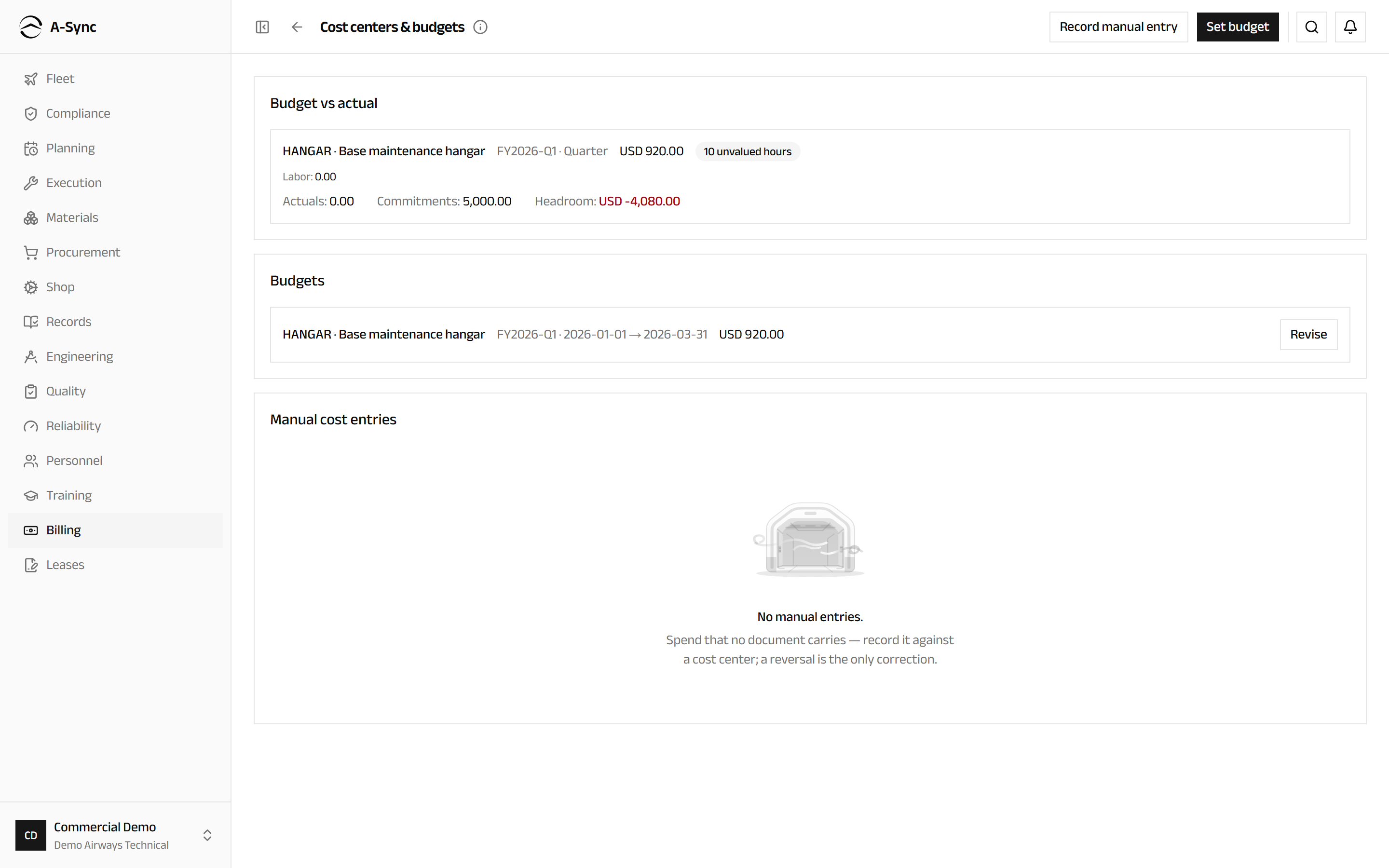
Actuals build themselves from cleared supplier invoices, material issued at landed cost, and labour valued at the per-trade cost rate in force on the day it was worked. Hours for a trade with no configured rate are shown as unvalued hours rather than counted as nothing. Commitments are the open value of attributed purchase orders not yet received. Spend that no document carries goes in with Record manual entry, and the only correction is Reverse, once.
Cost centres and labour rates are administrator settings
New cost center and Set labor rate are restricted to administrators. Labour cost rates are append-only and effective-dated - setting a new rate never revalues hours already logged.
Watch the pipeline
- Choose Billing, then Pipeline.
- Read By status for what is in flight and what it is worth.
- Work down Expiring quotes and Due follow-ups.
- Read Win / loss for the Win rate and the Loss reasons behind it.
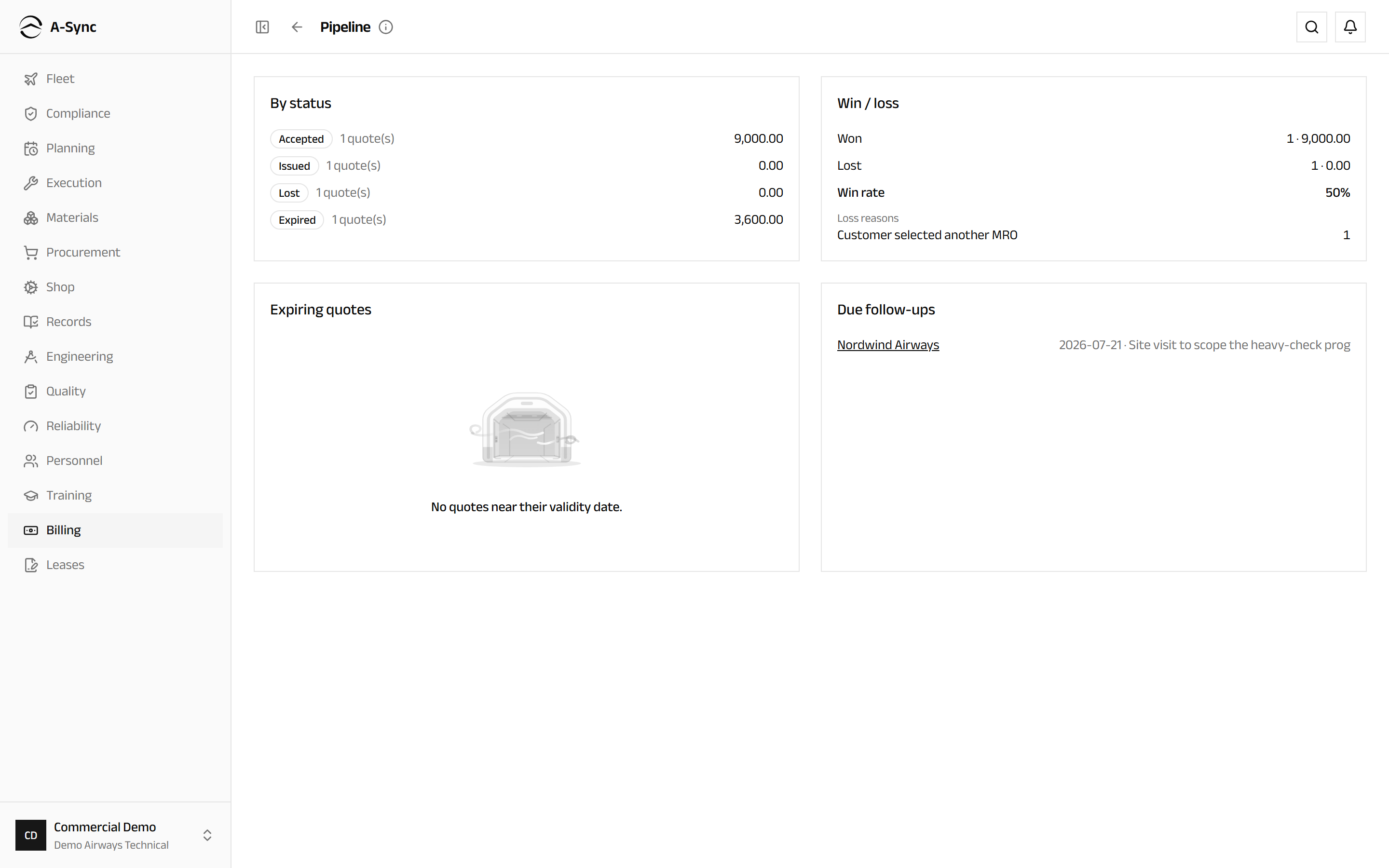
Visits, calls, emails and notes are recorded against the customer's own page, where they sit alongside that customer's open quotes, won work and portal access. Recording a follow-up date is what makes a quote surface here before its validity runs out.
Role notes
| Role | What it can do here |
|---|---|
| Commercial | Everything: agreements, quotations, commercial work orders, customer approvals, invoicing, receivables, payables, landed cost, valuation, assets and budgets |
| CAMO engineer, planner | Read the commercial picture - quotations, commercial work orders, quoted-vs-actual, valuation and budget-vs-actual - and see the commercial context on their own packages and shop orders |
| Administrator | Cost centres, labour cost rates, and the overrides on a held supplier invoice |
| Everyone else | No access - Billing is not in the sidebar, and no pricing appears on their screens |
Access inside the module is narrower still
Reading Billing and acting in it are separate. A planner can open Accounts payable and find the register empty rather than partly hidden, because payables ride the commercial posture end to end. The same is true of receivables, landed cost, valuation snapshots and budgets: reading the position is one permission, changing it is another, and the server enforces both whichever way you reach the page.
Related modules
- Planning owns the work packages a commercial work order binds to.
- Shop owns the shop orders a component visit binds to.
- Execution records the labour that becomes the actual side of quoted-vs-actual.
- Materials supplies the stock that landed cost revalues and valuation reports on.
- Procurement raises the orders behind the supplier invoices in accounts payable.
- Leases carries the lease side of the money: reserves, statements and lessor claims.
- The customer portal is where your customers see their own quotations, approvals, documents and invoices.