Engineering
The controlled technical library, read-and-sign, one-time task extensions, OEM revisions, modification campaigns, weight and balance, and structural damage.
What it's for
Engineering is the technical desk. It controls the manuals the work is done against, records who has read each change, and holds the decisions that sit above day-to-day maintenance.
Compliance says what is due. Engineering says what it is due against, and on whose authority anything about it moves: a one-time extension to a due task, an OEM revision landing in the task library, a modification run across the fleet, what each aircraft weighs, and where its structure is damaged.
Key concepts
Publication - a controlled manual in the library: an aircraft maintenance manual, a component maintenance manual, an illustrated parts catalogue, a structural repair manual, a service bulletin, or another document you name. Each one records its publisher, the publisher's reference, and the aircraft types, registrations or part numbers it applies to.
Revision - one issue of a publication. Exactly one revision is in force at a time and at most one draft is open. A revision in force is never edited; a correction is a fresh revision.
Citation - a task-library item's pointer at the publication and revision it was authored against. When a newer revision comes into force, every citation of the one it replaced is flagged for review. Nothing re-points itself.
Read-and-sign - the acknowledgement a distribution list owes a revision. Bringing a revision into force opens one obligation per listed person, and each signature records who signed and when.
Task extension - a one-time, bounded, approved shift of a single due point on a single aircraft or component. The task's interval is never touched, and the extension is consumed the next time the task is accomplished.
Modification campaign - a service bulletin or modification run across the fleet, with one line per applicable aircraft or component and a running count of how much is embodied.
Derived basic empty weight - what an aircraft weighs today: its last weighing report plus every equipment change since.
Damage record - a dent, crack, corrosion or other finding mapped to a zone on one aircraft, typed, dimensioned and assessed against the structural repair manual.
Common tasks
Find your way around Engineering
- Choose Engineering in the sidebar.
- Read the counts on each card to see what is waiting.
- Choose a card to open it.
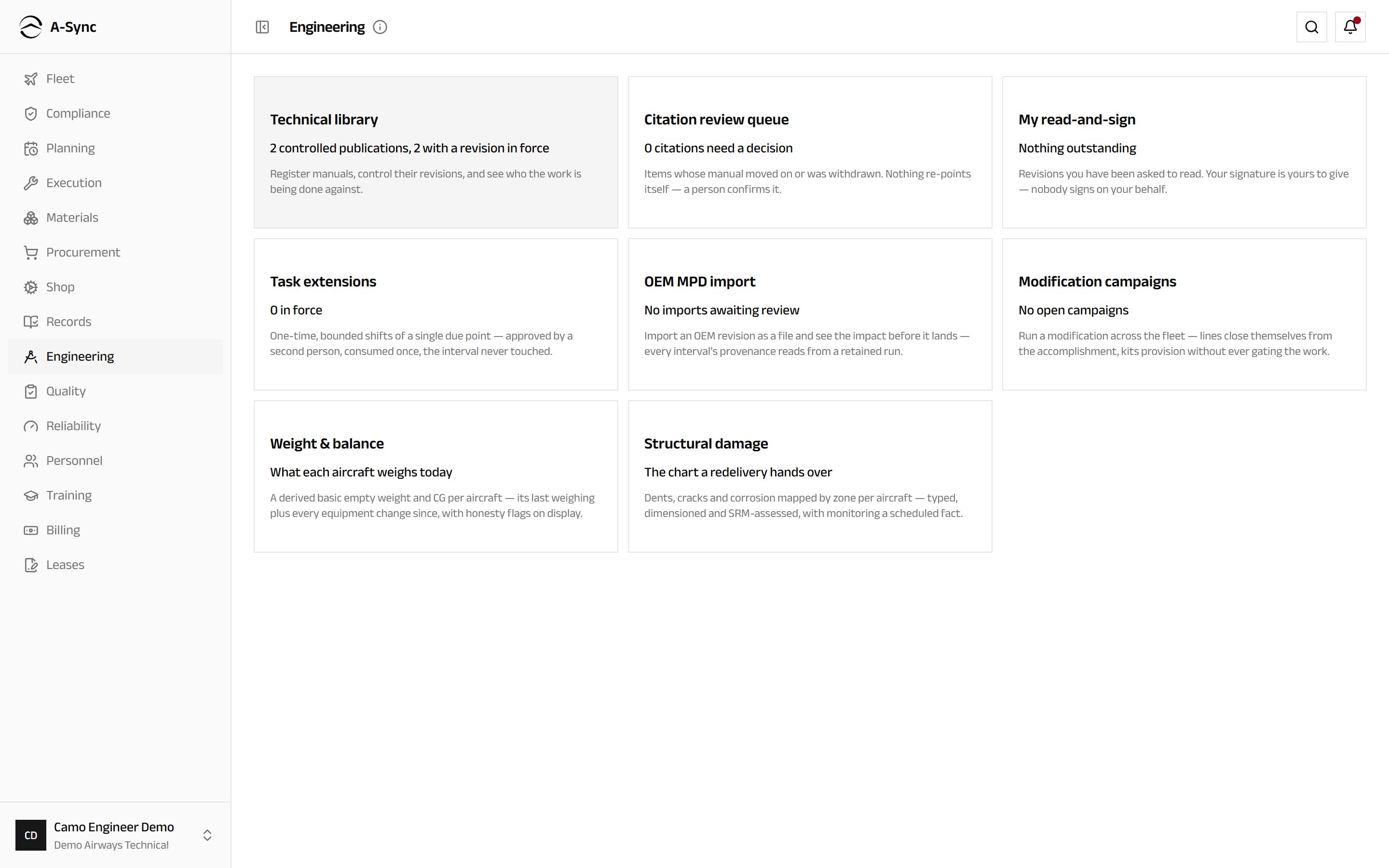
The hub shows Technical library, Citation review queue, My read-and-sign, Task extensions, OEM MPD import, Modification campaigns, Weight & balance and Structural damage. You see only the cards your role can read - with one exception.
My read-and-sign is for everyone
A distribution list can name any role, so mechanics and flight crew are routinely on one. My read-and-sign is therefore on the hub for every user, whatever their role, so that everybody can find and clear their own obligations.
Register a publication
- Choose Engineering, then Technical library.
- Choose Register publication.
- Choose the Type, and set the Acknowledgement deadline (days).
- Enter the Title, the Publisher and the Publisher's reference.
- Choose the Controlling role - overdue acknowledgements escalate to it.
- Narrow Aircraft types, Registrations or Part numbers if the manual does not apply to the whole fleet.
- Choose Register.
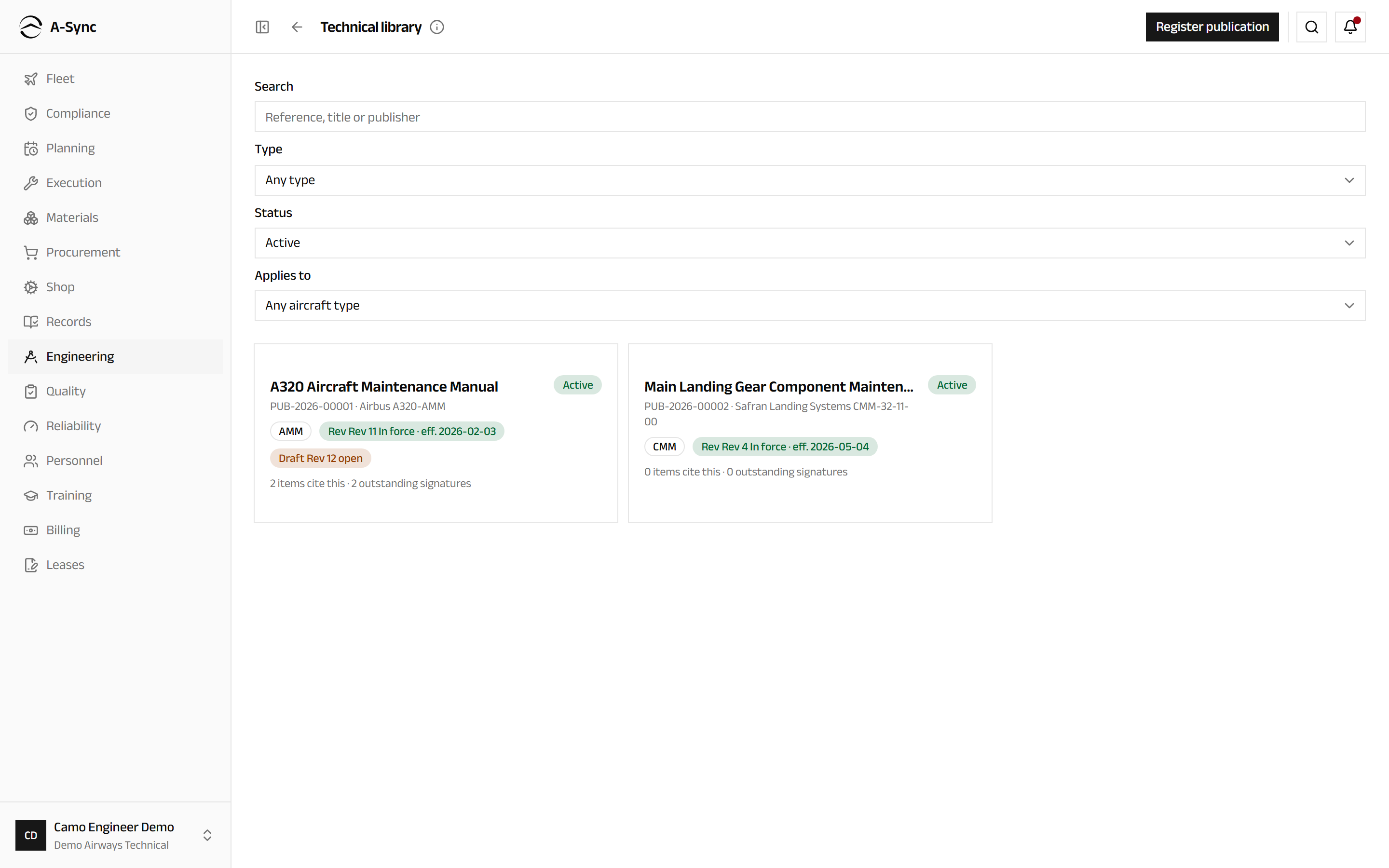
The register controls the manual, not its content. The revision you add next is what carries the file. Use Search, Type, Status and Applies to to find anything in a large library.
Bring a revision into force
- Open the publication.
- Choose Open draft revision and enter the Revision code, the Issue date and the Effective date.
- Choose Attach file and upload the manual.
- Choose Bring into force.
A revision cannot come into force without an effective date and a stored file. The revision it replaces is marked superseded and stays readable for good.
Activation lands everywhere at once
Bringing a revision into force replaces the revision in force across the platform immediately. Every citation of the superseded revision is flagged for review, and everybody on the distribution list is asked to read and sign within the publication's deadline. A-Sync tells you how many of each before you confirm.
Keep the distribution list right
- Open the publication and find Distribution list.
- Choose Edit list.
- Add a role under Add a role, or an individual under Add a person.
- If you are removing anyone, say why in the reason field.
- Choose Save list.
Naming a person opens their obligation against the revision in force straight away. Naming a role covers whoever holds it, and joiners are picked up overnight. Removing an entry closes that person's outstanding obligations as lapsed, with your reason on the record.
Read and sign a revision
- Choose Engineering, then My read-and-sign.
- Select the revision waiting on you and open its file.
- Choose Read and sign.
- Choose I have read this.
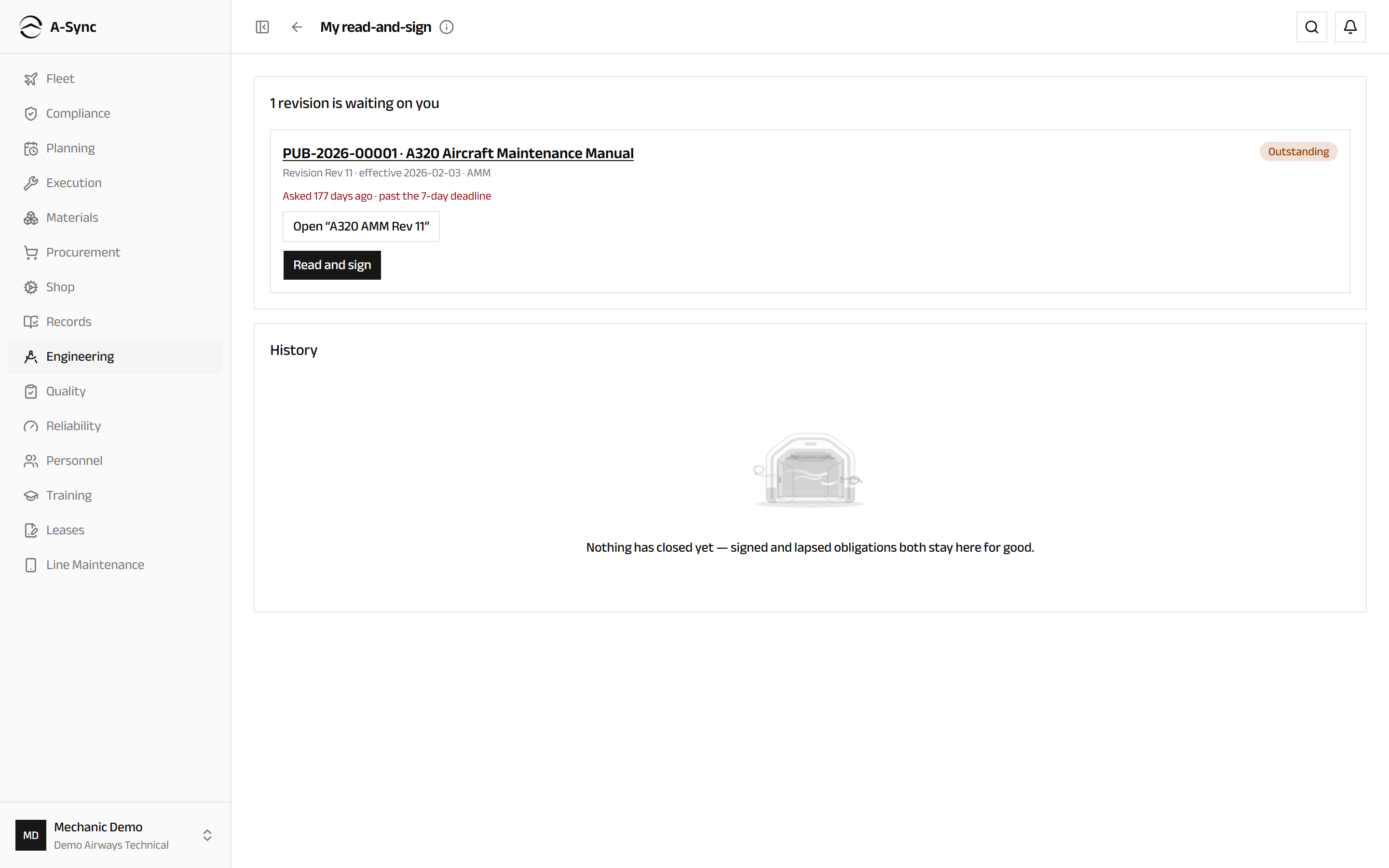
Your signature is yours
Nobody can sign on your behalf. Your name and the time go on the record, and the entry cannot be taken back. Signed and lapsed obligations both stay under History permanently.
Clear the citation review queue
- Choose Engineering, then Citation review queue.
- Filter by Publication or Item kind if the queue is long.
- Read what changed - either a newer revision is in force, or the publication was withdrawn.
- Choose Re-confirm on an item you have checked, or select several and choose Re-confirm selected.
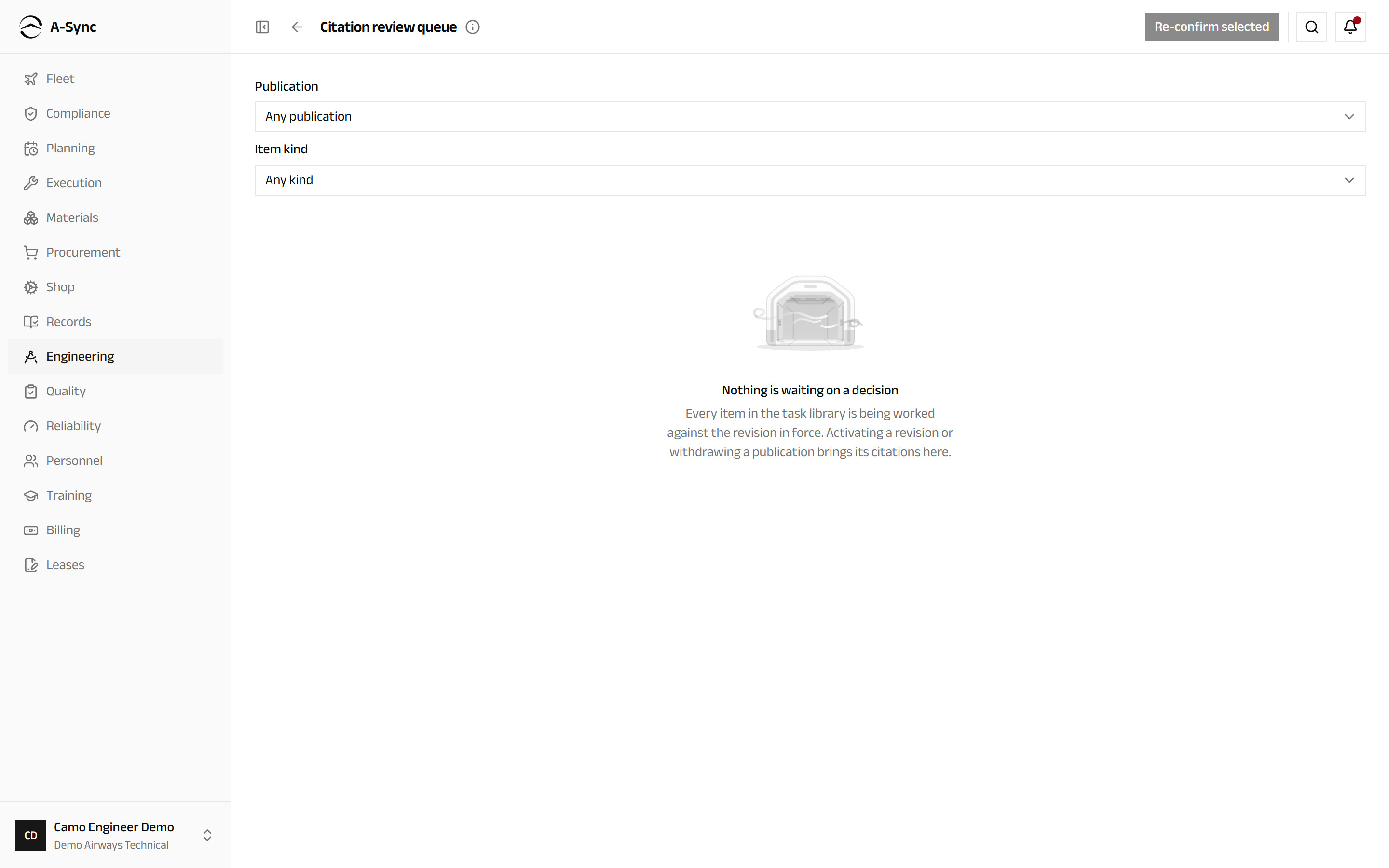
Re-confirming re-points the item at the revision now in force and records who did it. Where the publication was withdrawn there is nothing to confirm against, so re-point the item to the replacement manual or choose Remove citation and say why.
Extend a due task, once
An extension is raised from the due item on the compliance due list, then decided here.
- Choose Engineering, then Task extensions.
- Filter by Status to find what is awaiting approval.
- Read the Authority, the Justification and the proposed not-to-exceed point.
- Choose Approve, or Reject with a decision reason.
The due point for that one aircraft or component moves to the not-to-exceed point and is shown as extended everywhere it appears. The task's interval is untouched, and every other aircraft is unaffected. An approved extension that has not been used yet can be withdrawn, which puts the due point back.
Never the same person twice
The engineer who requests an extension cannot approve it. Approval is a separate authority held by quality staff and administrators, which is what makes the extension a control rather than an edit.
Import an OEM revision
- Choose Engineering, then OEM MPD import.
- Choose Import revision and then Download the MPD template.
- Fill the template with the OEM revision and choose the Aircraft type.
- Attach the filled template and choose Import.
- Open the run and work the differences: select rows and choose Accept selected or Reject selected.
Valid rows are staged and error rows are kept with their reason - nothing reaches the task library until you decide it. Each change shows how many aircraft it affects, and live tasks that are absent from the file are listed under Candidate retirements for review. They are never cancelled automatically.
Run a modification campaign
- Choose Engineering, then Modification campaigns.
- Choose Open campaign.
- Enter the Title and choose the Driving item - the service bulletin or modification.
- Choose a Kit definition (optional) if the modification needs parts.
- Choose Open campaign.
One line resolves per applicable aircraft or component. Lines close themselves when the modification is accomplished, and the campaign shows the percentage embodied as the fleet works through it. A line that does not apply can be marked Not applicable with a reason. Kits provision the parts but never gate the work: use Raise kit to stage material, and carry on without it if you must.
See what an aircraft weighs
- Choose Engineering, then Weight & balance.
- Select the aircraft.
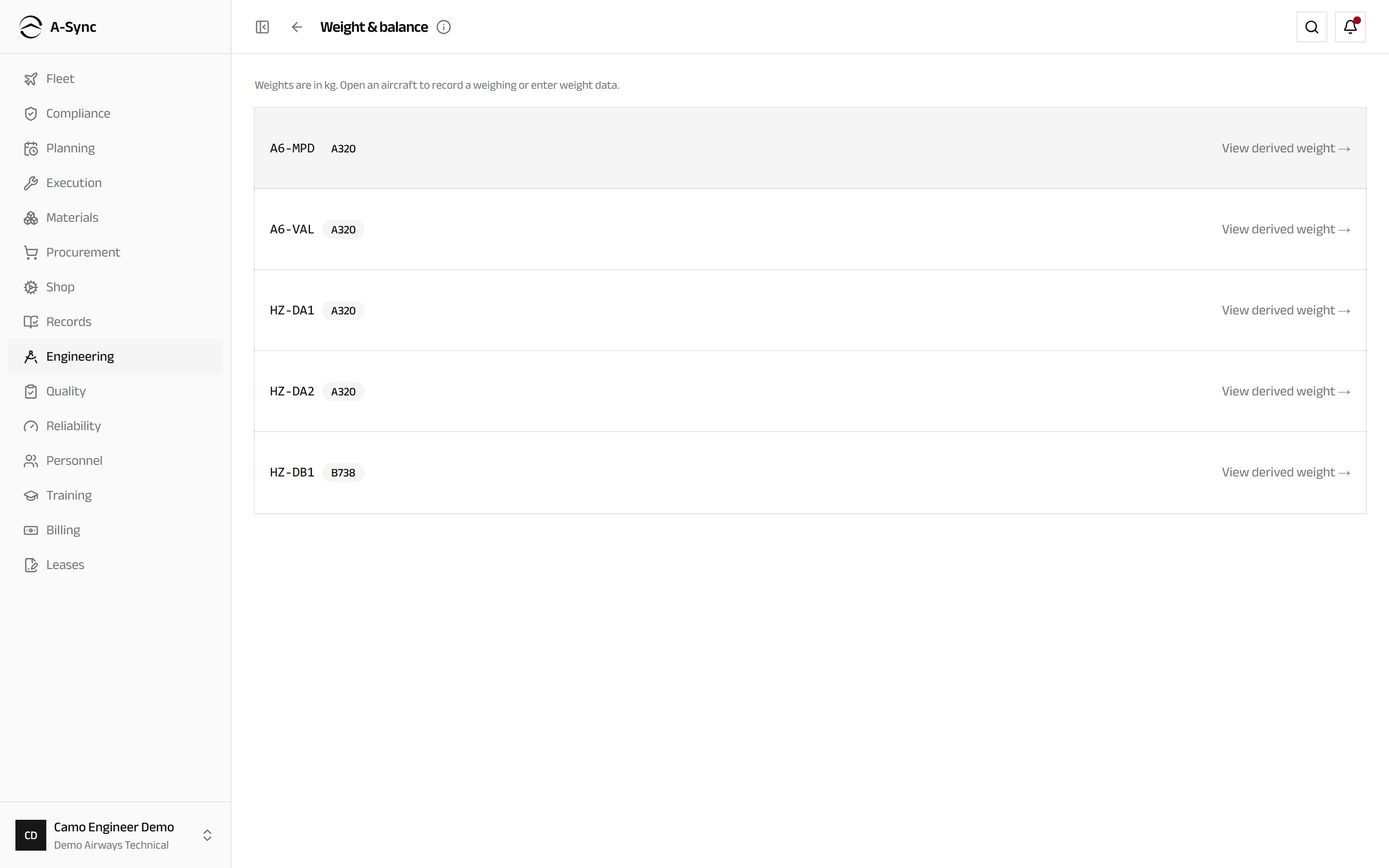
The Derived basic empty weight and Derived CG are calculated, never typed in: they are the baseline weighing plus every fitment and modification since, each listed under Contributors. Two honesty flags appear when the figure cannot be trusted completely - Approximate when a change is counted but not measured, and Weight only when the moment data is incomplete and no centre of gravity can be derived.
To establish or replace the baseline, choose Record weighing and enter the weighing details with the captured report, which is mandatory. Use Part weight data and Mod weight data to tell A-Sync what a part or a modification weighs, so future changes are measured rather than approximated.
Map structural damage
- Choose Engineering, then Structural damage.
- Select the aircraft to open its damage chart.
- Choose Raise damage.
- Enter the Zone, and the Station and Frame / stringer where you know them.
- Choose the Type and enter the Length, Width and Depth.
- Enter the Found on date and the SRM reference.
- Choose the Assessment, and set the Monitor interval (days) if the damage is being watched rather than repaired.
- Choose Raise.
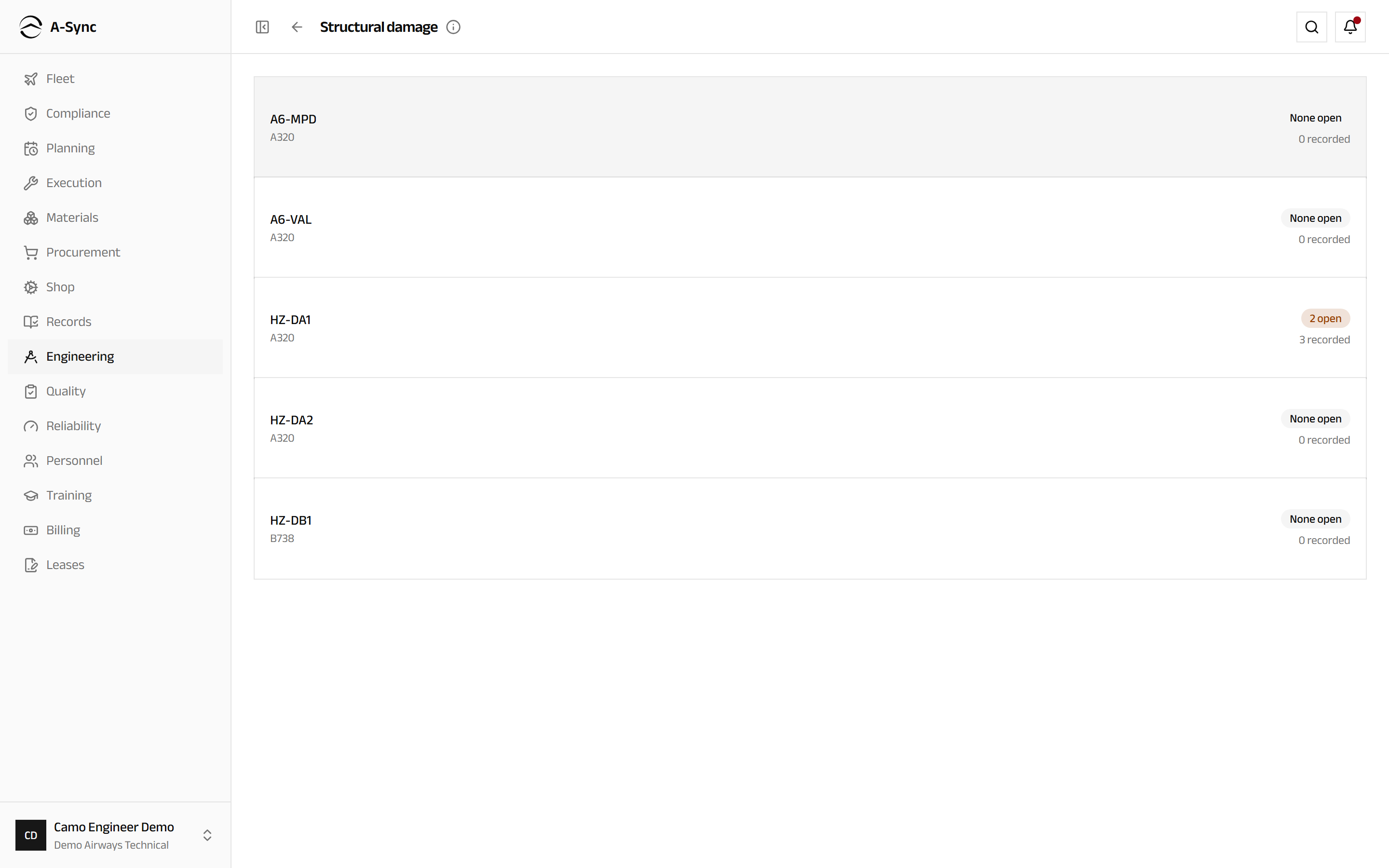
Damage is grouped by zone and filtered by Status and Type. A monitored record carries its own recurring inspection, so watching damage is a scheduled fact rather than a promise. Choose Repair to close a record with its repair work order reference, or Re-assess to take it off monitoring - which cancels the linked inspection through its normal path.
Role notes
| Role | What it can do here |
|---|---|
| CAMO engineer | Register publications and revisions, run OEM imports, open campaigns, record weighings and weight data, raise and repair damage, request extensions |
| Quality | Approve or reject task extensions |
| Anyone on a distribution list | Read and sign the revisions they are listed for |
| Everyone else | Read the library, the campaigns, the weight figures and the damage charts |
Reading is deliberately wide. The manuals are for everybody who does the work, so the library, the campaign progress, the derived weights and the damage charts are readable across the organisation - only the writes are restricted.
Related modules
- Compliance holds the task library that cites these publications, and the due list an extension shifts.
- Fleet supplies the aircraft a campaign, a weight figure or a damage chart belongs to.
- Materials stages the kits a modification campaign raises.
- Execution is where the modification is actually embodied and the damage repaired.
- Records keeps the stored files behind every revision, weighing report and damage photo.