Fleet
The aircraft register, aircraft configuration, utilisation postings and component history.
What it's for
Fleet is the register of what you maintain. Every aircraft you operate or care for is recorded here, together with the components fitted to it and the hours and cycles each has accumulated.
Everything else in A-Sync leans on this. Maintenance is due because an aircraft has flown; a task card exists because an aircraft needs it; a part is fitted to a position on an aircraft. Get the fleet right and the rest follows.
Key concepts
Registration - the aircraft's tail number, and how you will refer to it everywhere in A-Sync.
MSN - the manufacturer's serial number. Unlike a registration, it never changes.
Status - where the aircraft is in its life with you: Active, Parked, Stored, Leased out or Phased out.
Utilisation - accumulated flight hours, cycles and any other counter the aircraft is tracked against. Posting utilisation is what makes maintenance fall due.
Configuration - the named positions on an aircraft (engine 1, APU, a landing gear) and which component currently occupies each one.
Fitment - installing or removing a component. Each movement is kept, so every component carries its own on/off history.
Common tasks
Find an aircraft
- Choose Fleet in the sidebar.
- Type part of the registration into Search aircraft, or read down the list.
- Select the row to open the aircraft.
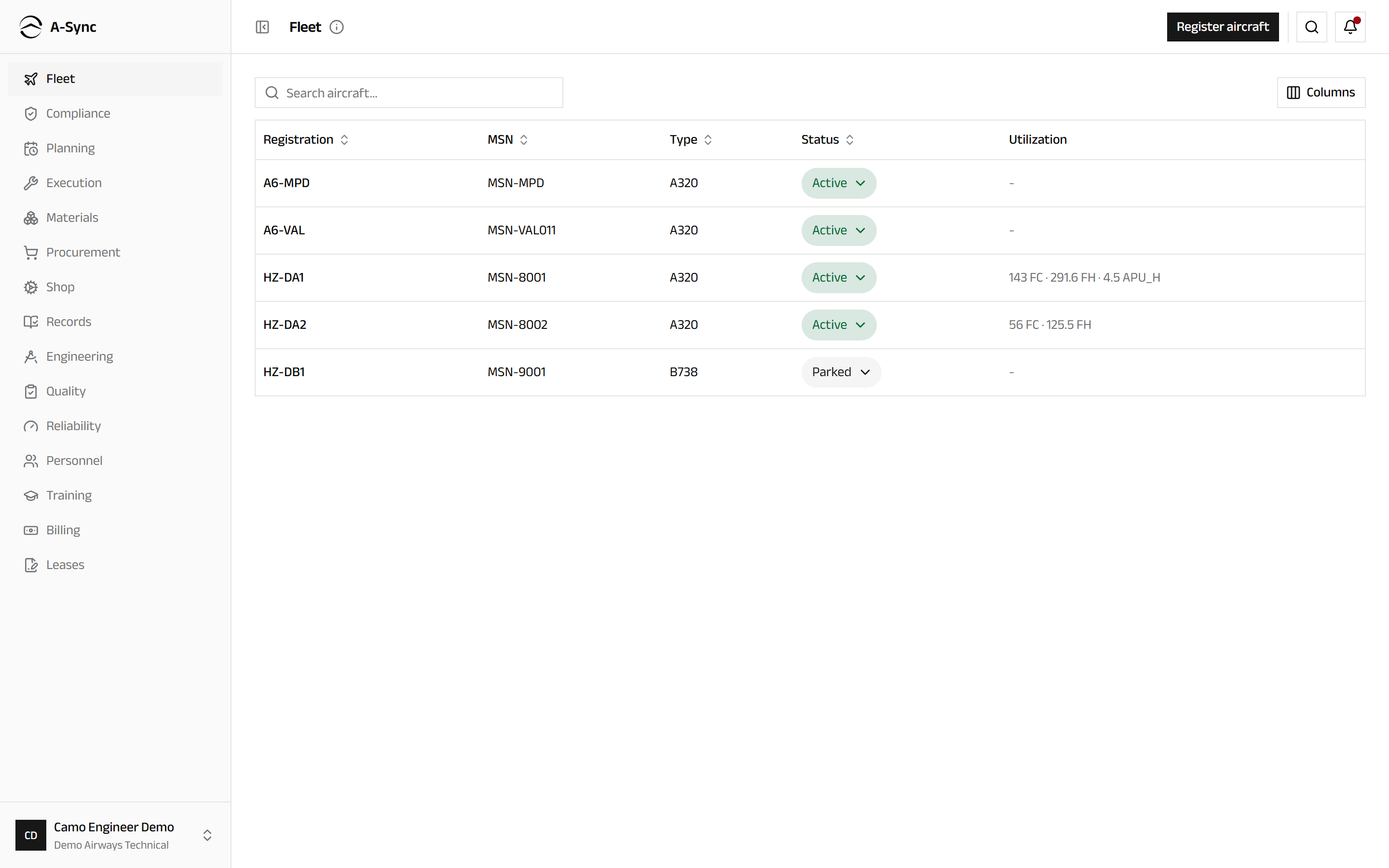
The list shows Registration, MSN, Type, Status and Utilization so you can see the state of the whole fleet without opening anything.
Register an aircraft
- Choose Fleet in the sidebar.
- Choose Register aircraft in the page header.
- Fill in Registration, MSN and Type.
- Choose Register.
The aircraft appears in the register immediately. Configuration positions and maintenance baselines are set afterwards - you do not need them to create the record.
Who can do this
Registering aircraft and changing fleet configuration is limited to CAMO engineers. Everyone else sees the register as read-only.
Change an aircraft's status
- Open the aircraft.
- Choose the status control in the header.
- Choose the new status.
A-Sync confirms the change. Status is visible on the register, so a parked or stored aircraft is obvious to planners at a glance.
Review an aircraft
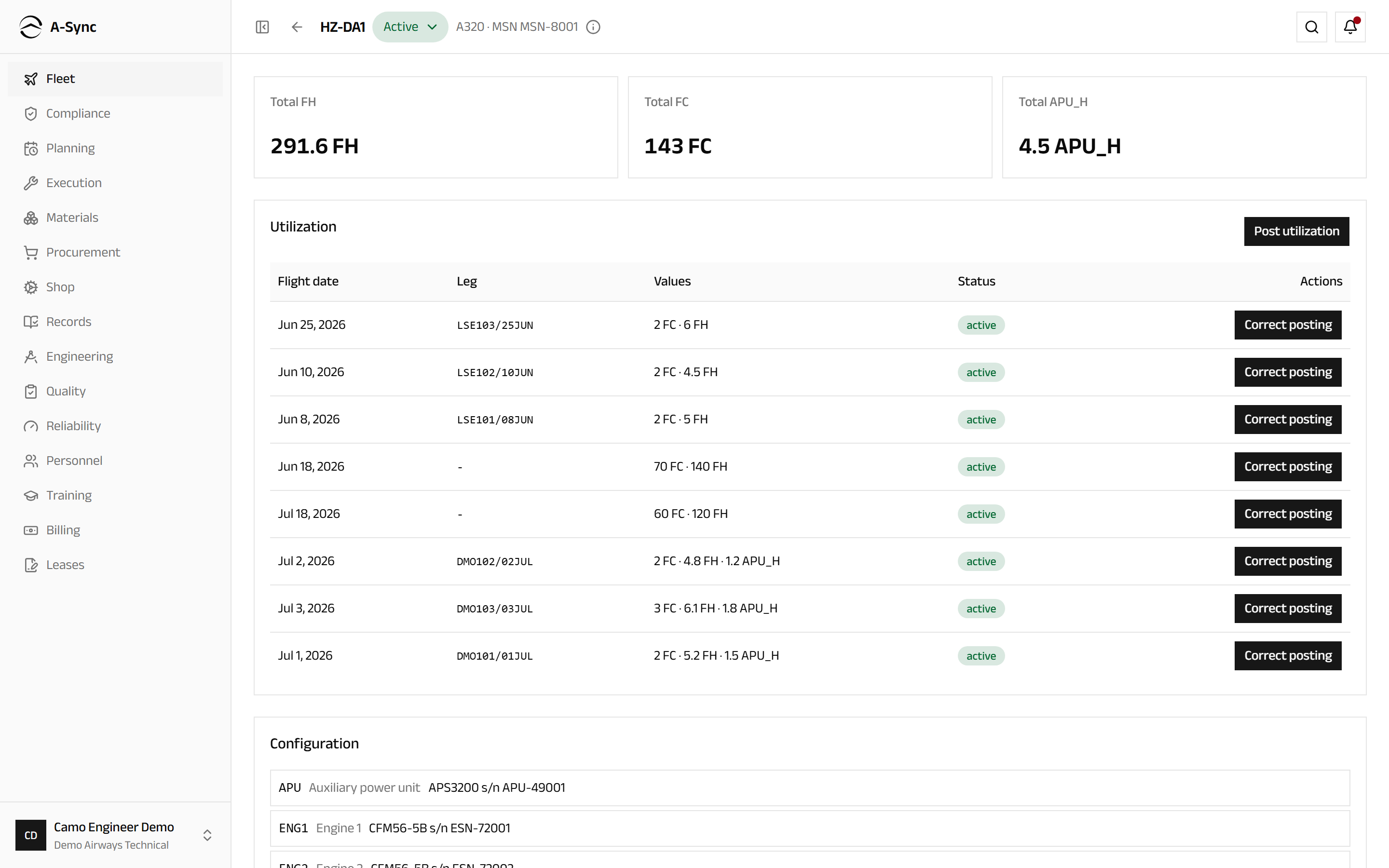
Open an aircraft to see its registration, status and type in the header, and its accumulated totals - Total FH, Total FC and any other tracked counter - across the top.
Below the totals are:
- Utilization - the postings that built up those totals, each with its flight date, leg, values and status.
- Configuration - every position on the aircraft and what is fitted to it. An empty position is marked empty. Select a fitted component to open its own record.
- Any safety occurrences raised against the aircraft.
Post utilisation
Record what the aircraft flew. This is the step that drives everything due.
- Open the aircraft.
- In Utilization, choose Post utilization.
- Enter the Flight date.
- Optionally enter a Leg reference, such as
ASY123/05JUL. - Enter the hours, cycles or other values flown.
- Choose Post.
Totals update immediately for the airframe and for every component installed on it, so a fitted engine accrues the hours the aircraft flew.
Enter at least one value
A posting with no values is rejected. Values cannot be negative.
Correct a utilisation posting
Postings are never edited or deleted. A correction supersedes the original and keeps both.
- Open the aircraft and find the posting in Utilization.
- Choose Correct posting.
- Enter the corrected values.
- Enter a Reason explaining why the original was wrong.
- Choose Apply correction.
The original is marked superseded and kept. Totals and everything due are recalculated, and the change is recorded in the audit trail with your name and reason.
Corrections can move due dates
Recalculation can bring maintenance forward or push it out. Check Compliance after correcting a large error.
Review a component's history
- Open an aircraft and select a component in Configuration, or reach it from Materials or the Shop.
- Read its accumulated hours and cycles, and its Life limit with the remaining figure.
- Open On / off history for every installation and removal, with the aircraft and position each time.
Where a component is covered by a supplier warranty, a Warranty panel shows the cover and how long it runs. If the unit failed while still covered, A-Sync flags it as Looks claimable and offers Decide on the warranty register - flagging only, never an automatic claim.
Role notes
| Role | What it can do here |
|---|---|
| CAMO engineer | Register aircraft, change configuration, correct utilisation |
| Planner | Read the fleet, post utilisation |
| Mechanic, inspector, certifier | Read the fleet, fit and remove components, post utilisation |
| Everyone else | Read the register and component history |
Only a CAMO engineer can correct a posting once it is made.
Related modules
- Compliance turns utilisation into what is due.
- Materials supplies the components you fit.
- Shop repairs and overhauls components once removed.
- Records holds the airworthiness record behind each aircraft and component.
- Leases covers aircraft you lease in or out.