Quality
Audits, findings and corrective actions, safety occurrence reporting with regulator filings, and the material review board.
What it's for
Quality is where the organisation checks itself and where safety events are handled. It covers two things that feed each other.
The first is quality assurance: an audit plan, the findings each audit raises, and the corrective actions that answer them - each with an owner, a due date and a verification step. The second is safety management: any member of staff can report an occurrence, the safety office assesses its risk, investigates it, decides whether a regulator must be told, and files the submission inside the legal window.
The material review board sits here too, because a decision about held material is a quality decision.
Key concepts
Audit - a planned check with a reference, a title and a date. It moves from planned, through in progress, to reported and then closed.
Finding - something an audit or an investigation turned up. Its severity is Level 1, Level 2 or Observation, and it carries an owner and a due date.
Corrective action - the answer to a finding: a root cause, the action taken, and then the two steps that close it - Mark implemented and Verify. An action can be marked as blocking closure, in which case nothing closes until it is verified.
Occurrence - a safety event: ground damage, an in-flight event, a maintenance error, a hazard or near miss, a bird strike, foreign object debris, or another type your safety office defines. Every occurrence gets a unique reference and can never be deleted.
Confidential report - a report where the reporter's identity is captured but visible only to the safety office.
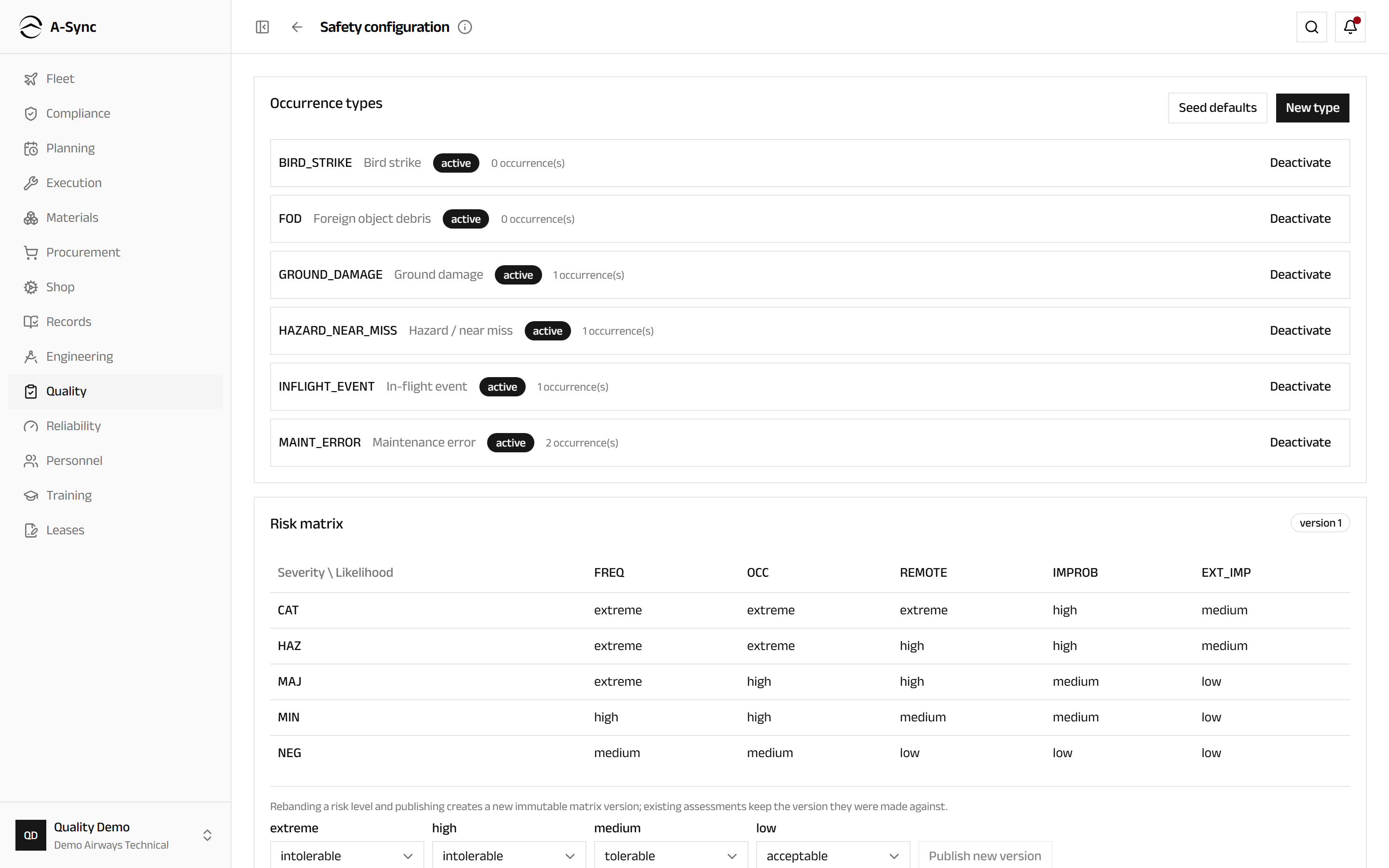
Risk matrix - the severity and likelihood scales your organisation works to, and the risk level and tolerability band each combination produces. Publishing a change creates a new version; assessments already made keep the version they were made against.
Reportability decision - the recorded judgement, per authority, of whether an occurrence must be reported. It fixes the filing deadline, counted from when the organisation became aware.
Submission - the point-in-time rendering filed with an authority. It receives a tracking number and becomes immutable the moment it is generated.
Quarantine case - the file on one held item: what it is, why it is held, how long it has been held and what it is worth. Nothing leaves quarantine except through a recorded disposition.
Common tasks
Find your way around Quality
- Choose Quality in the sidebar.
- Choose Occurrences, Safety dashboard, Safety configuration or Material review board.
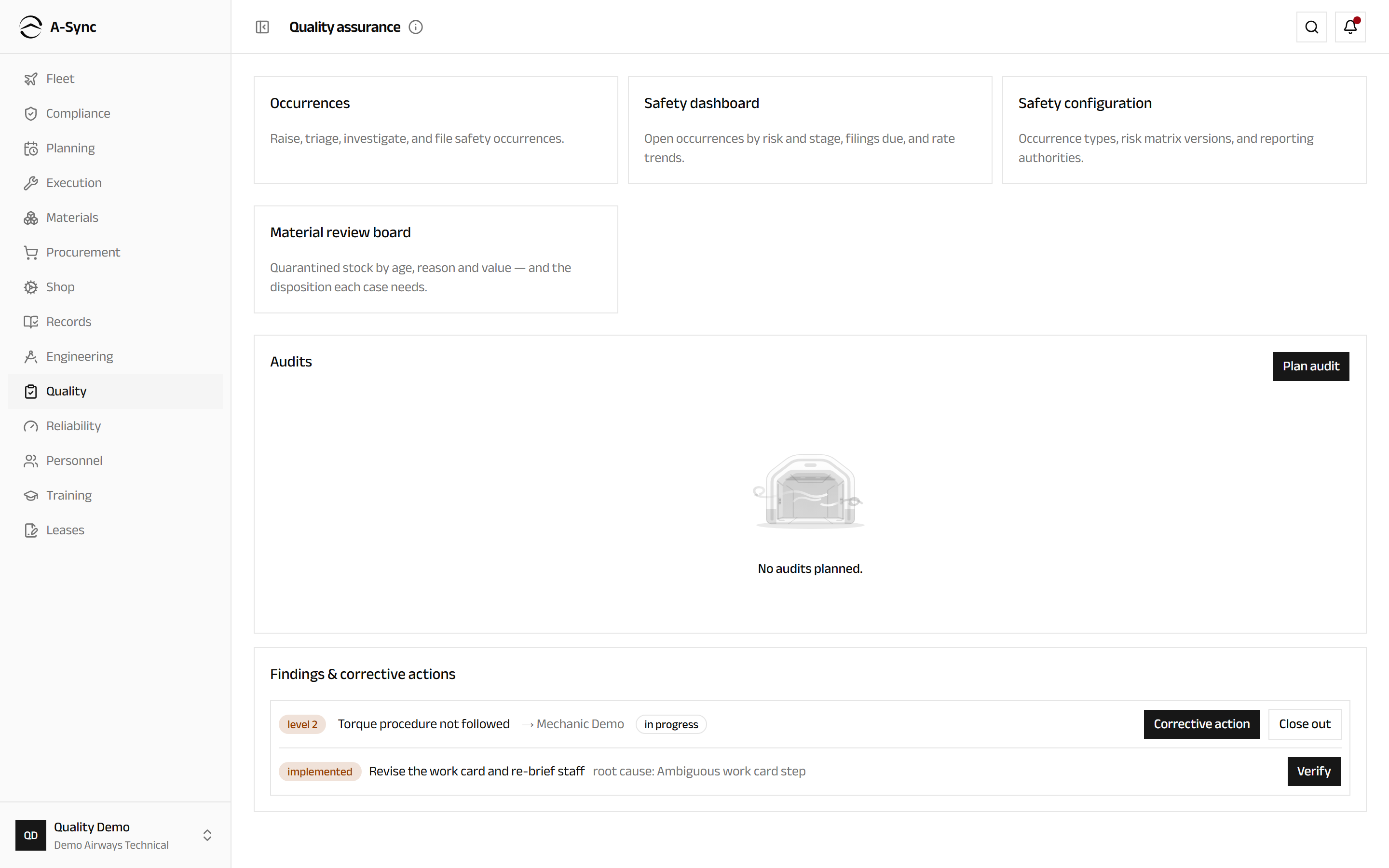
Below the cards sit Audits and Findings & corrective actions, so the audit programme is on the same screen as the safety entry points.
Plan an audit and work its findings
- Choose Quality in the sidebar.
- In Audits, choose Plan audit.
- Enter the Reference, the Title and the date under Planned for, then choose Plan an audit.
- When the audit begins, choose Start.
- For each thing you find, choose Record finding, enter the Description, choose the Severity, name the Owner and set the Due date, then choose Save finding.
- Choose Report when the audit is written up, and Close once it is done.
Findings appear under Findings & corrective actions with their owner and due date. A finding that passes its due date is badged escalated, so an ageing corrective action cannot quietly disappear.
Answer a finding
- Find the finding under Findings & corrective actions.
- Choose Corrective action.
- Enter the Root cause and the Action, then choose Save action.
- When the action is done, choose Mark implemented.
- When someone has checked it, choose Verify.
- Choose Close out on the finding.
Answering is everyone's job
Recording and verifying a corrective action is open to every staff role, not just quality - the person who owns the process being fixed is usually the one who fixes it. Planning audits, recording findings and closing them out stay with quality.
Report a safety occurrence
Anyone in the organisation can raise a report, including flight crew, and it can be done from any screen in Quality.
- Choose Quality, then Occurrences.
- Choose Report occurrence.
- Choose the Type.
- Enter When it happened and Where.
- Describe the event in your own words under What happened.
- Link the Aircraft (optional) if one was involved.
- Turn on Report confidentially - my identity is visible only to the safety office if you want that protection.
- Choose Submit report.
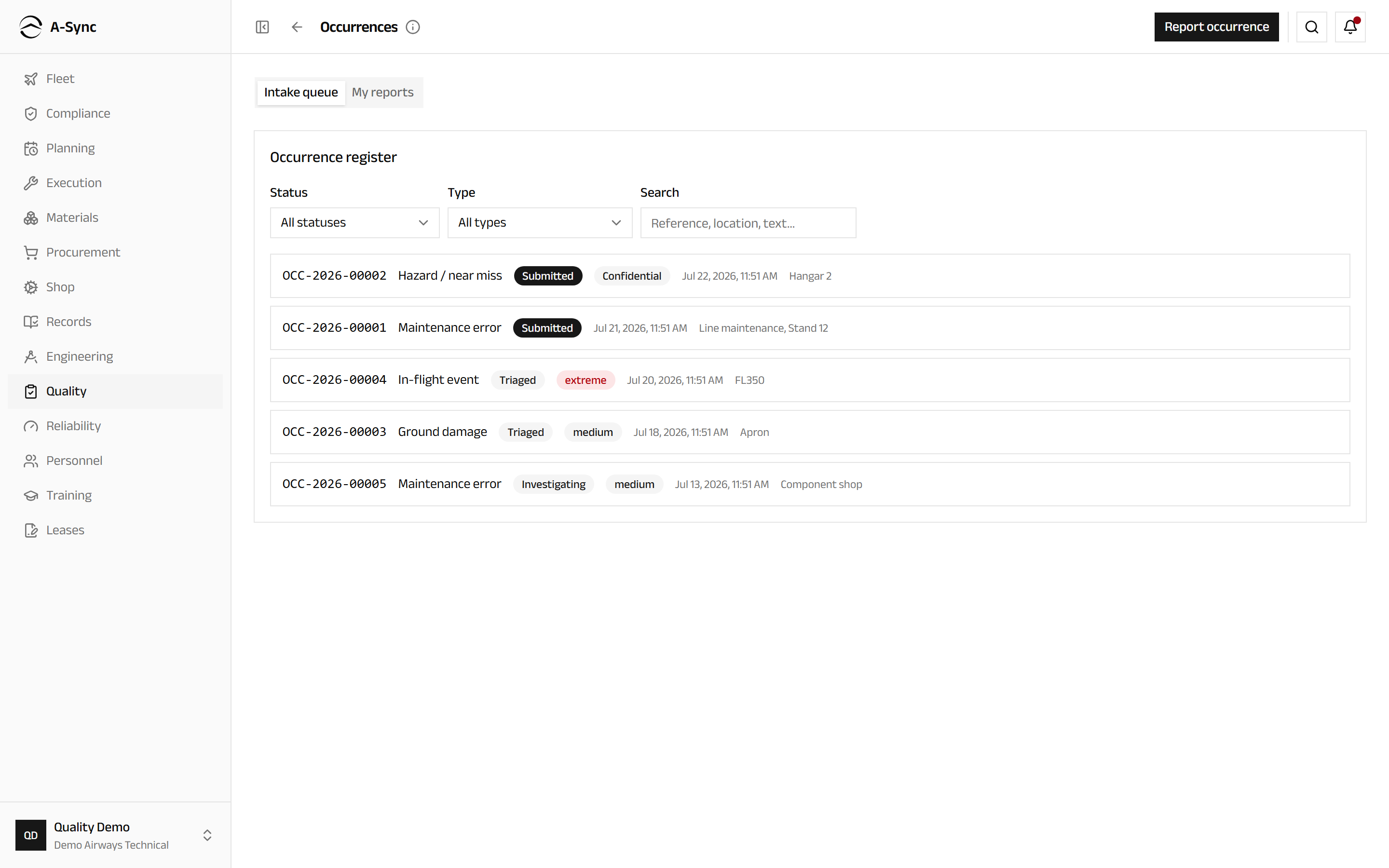
You get the occurrence reference straight away, and your own reports stay visible to you under My reports so you can follow what happens to them.
Confidential reporting, stated plainly
A confidential report is not anonymous, and A-Sync does not pretend it is. Your identity is recorded and is visible to the safety office, because they may need to come back to you. It is hidden from everybody else - on the register, on the dashboards, in the audit history and in anything exported - and it never appears in a submission sent to a regulator.
Triage an occurrence
- Choose Quality, then Occurrences, and stay on Intake queue.
- Select the report to open it.
- Under Risk triage, leave the Kind as Initial.
- Choose the Severity and the Likelihood, and enter the Root cause if it is already clear.
- Choose Record assessment.
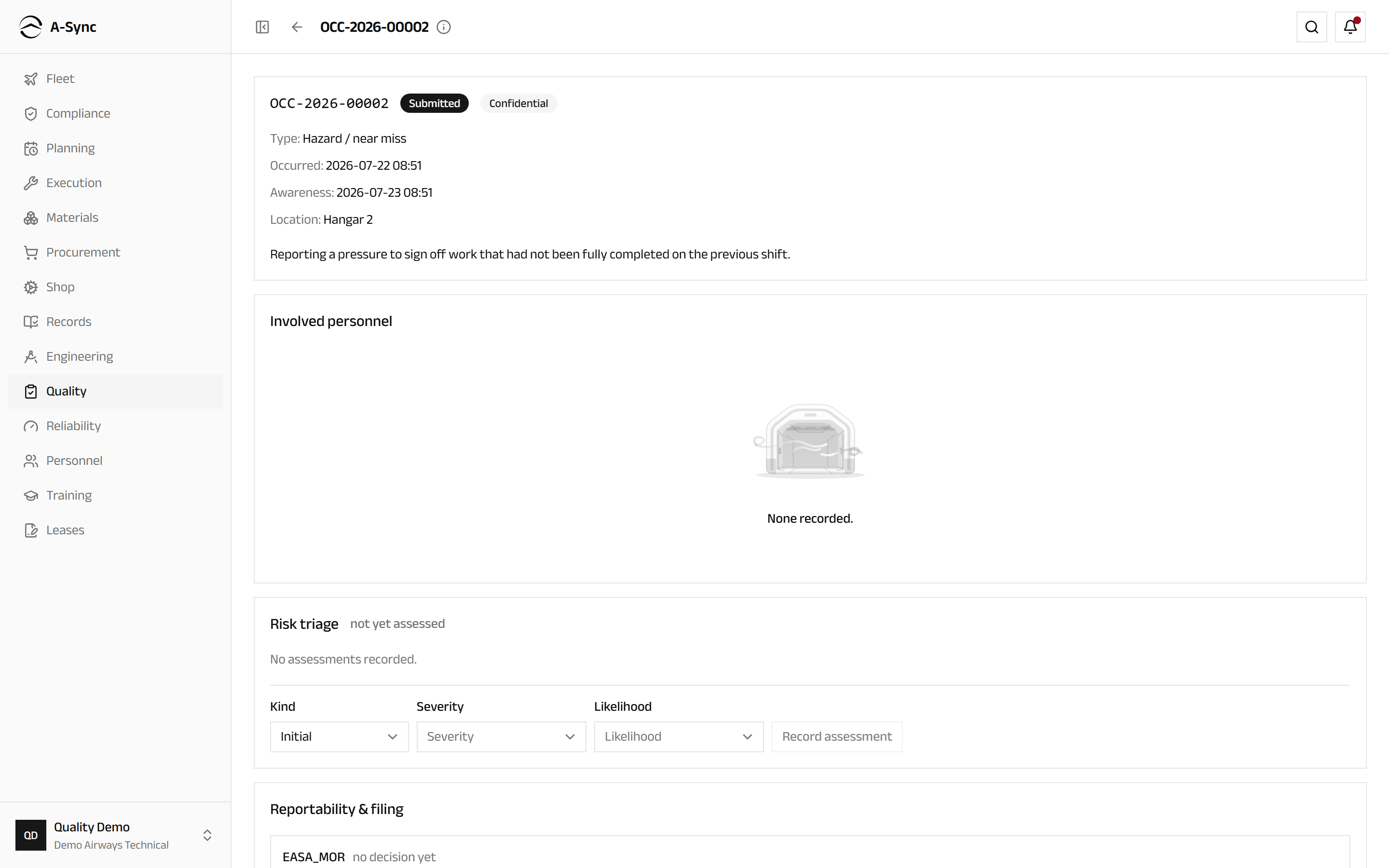
A-Sync derives the risk level and tolerability band from your organisation's matrix and shows both. An intolerable result is flagged immediately and cannot be parked. A report that turns out not to be a safety occurrence at all is taken out of the queue with Close as invalid and a reason - it stays on record with its whole history.
Decide reportability and file with a regulator
- Open the occurrence and find Reportability & filing.
- For each authority, set Reportable and enter the Rationale.
- Choose Save decision.
- Choose Generate submission.
- Once you have sent it, choose Record transmission and enter when it went and the authority's acknowledgement.
The deadline is counted from when the organisation became aware, not from the day you made the decision, and the countdown is shown on the occurrence and on the register. Recognising reportability late therefore shows as overdue immediately, which is the honest answer.
A submission cannot be changed
Generating a submission fixes its content and its tracking number for good. New facts do not edit it - you generate a follow-up, which supersedes the original while both stay readable. A submission generated in error is voided with a reason, never deleted. Verify integrity re-checks the whole chain and tells you whether it is still valid.
Investigate and close an occurrence
- Open the occurrence and find Lifecycle.
- Choose the Investigator and choose Start investigation.
- Under Findings & corrective actions, choose Add finding and record each contributing factor or cause.
- Choose Add action against a finding, and mark it as blocking closure if the occurrence must not close without it.
- Record a second risk assessment with the Kind set to Residual.
- Move the occurrence on to closed.
Closure is gated. A-Sync refuses it, naming what is missing, while the residual risk is unrecorded or intolerable, while a required submission is unfiled, or while an action marked blocks closure is unverified.
Watch the safety picture
- Choose Quality, then Safety dashboard.
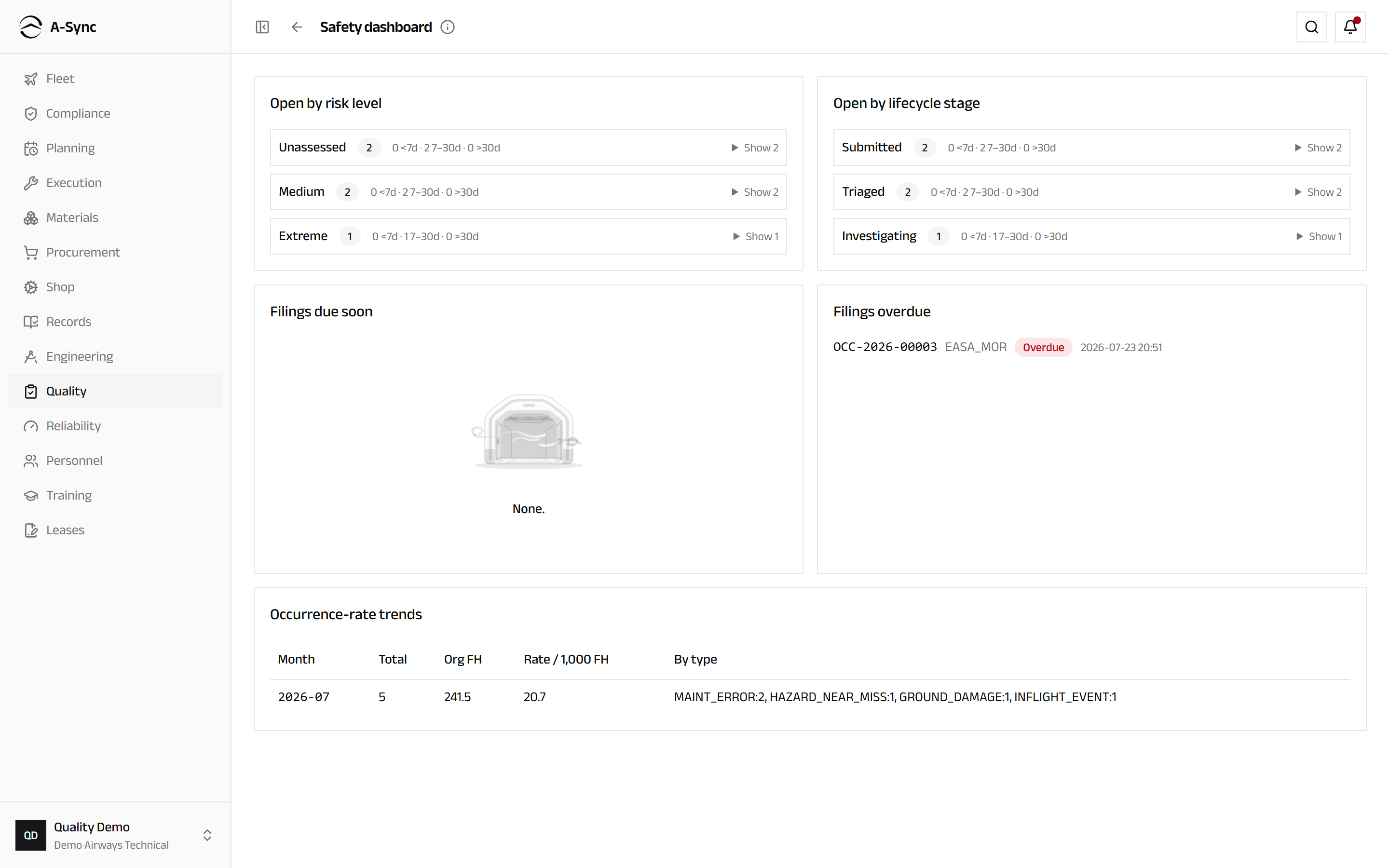
The dashboard shows Open by risk level and Open by lifecycle stage, each with an ageing breakdown, Filings due soon and Filings overdue, and Occurrence-rate trends per month against flight hours. Everything is derived when you open it, and a confidential reporter's identity appears nowhere on it.
Set up the safety office
- Choose Quality, then Safety configuration.
- Under Occurrence types, choose Seed defaults for the six standard categories, or New type to add your own.
- Under Risk matrix, choose Seed default matrix for the conventional aviation five-by-five, or reband the levels and choose Publish new version.
- Under Reporting authorities, choose Seed defaults, or New authority and set its Code, Name and Filing window (hours).
Changes never rewrite history
Publishing a new matrix version leaves existing assessments on the version they were made against. Changing an authority's filing window only affects decisions taken afterwards - a deadline already pinned to an occurrence stays where it is. Deactivating an occurrence type stops new reports using it while leaving it on the reports that already do.
Disposition quarantined stock
- Choose Quality, then Material review board.
- Filter by Status and Reason, or by Held over a fortnight, to find what needs attention.
- Select the case and read The hold - the quantity held, the ownership, the value at stamped cost and the attributed vendor.
- Choose Record a decision.
- Choose the Disposition, supply whatever it needs, and enter the Justification.
- Choose Record decision.
Each disposition asks for what makes it valid. Releasing stock held for a lapsed shelf life needs a new expiry date or an authority reference. Rework needs exactly one order - an in-house shop order or a vendor repair order - and the case then follows it. Return-to-vendor closes on the shipment being dispatched, not on the decision.
Decisions are final, cases are not deletable
A recorded decision cannot be edited. A change of mind is a new decision. A case that should never have been raised is cancelled with a reason, and the record stays either way.
Material you do not own
Where the held stock is customer-owned, consignment, pool or loaned in, A-Sync says so and requires the owner's authorization reference on any disposition.
Role notes
| Role | What it can do here |
|---|---|
| Quality | Plan audits, record and close findings, triage, investigate and close occurrences, generate and file submissions, configure the safety office, record material review decisions |
| Everyone, including flight crew | Report an occurrence, confidentially if they choose, and follow their own reports |
| Every staff role | Record corrective actions, mark them implemented and verify them |
| Storekeeper, inspector, quality | Put stock into quarantine, which opens its case |
| Everyone else | Read the audit plan, the findings, the occurrence register and the review board |
What the register does not show you
Reading the occurrence register is open to every staff role, and that is deliberate - safety data is only useful when it is shared. What is withheld is narrow and specific: the identity behind a confidential report, which only the safety office sees, and the value of held material, which needs cost visibility.
Related modules
- Execution raises the defects and tasks an occurrence is often linked to.
- Materials is where stock is quarantined, and where a scrap or a return posts once the board has decided.
- Procurement holds the vendor a held item is attributed to, and the repair order rework routes to.
- Reliability turns the same defect and interruption data into trends.
- Personnel holds the qualifications quality staff maintain.
- Records keeps the filed submissions and audit evidence.
Engineering
The controlled technical library, read-and-sign, one-time task extensions, OEM revisions, modification campaigns, weight and balance, and structural damage.
Reliability
Fleet reliability measures with drill-down to the source events, threshold alerts, and the aircraft health feed that turns reported faults into defects.