Leases
Lease contracts, maintenance-reserve rates and statements, lessor claims, and returning an aircraft or engine at the end of a lease.
What it's for
Leases is the record of what you operate but do not own. It holds the contract - who the lessor is, which asset is leased, for how long - and the maintenance reserves that contract obliges you to accrue as the asset flies.
It also carries the two things that decide how a lease ends well or badly: the claims you raise against the lessor when a shop visit or a heavy check falls due, and the return conditions the asset has to meet on the day you hand it back.
A-Sync records obligations and positions. It never pays a lessor, never negotiates and never gives you a number to put in a contract - it shows you what the contract you recorded implies, from the utilisation the platform already holds.
Key concepts
Contract - one lease, naming one lessor and exactly one leased asset: an aircraft, or a serialised component such as an engine, APU or landing gear.
Lessor - the counterparty, always chosen from your party register. Lessor names are never typed free-hand.
Status - where the contract is: Draft, Active, in redelivery, Returned, Terminated or Cancelled. The last three are final.
Rent - recorded on the contract for reference. A-Sync never accrues, states or alerts on rent.
Maintenance-reserve rate line - what you accrue for one category of maintenance event: an airframe heavy check, engine performance restoration, engine life-limited parts, a landing gear overhaul or the APU. Each line has a basis - per flight hour, per cycle or per month - and its own dated rate history.
Statement - one month of accrual for one contract, line by line, showing the hours, cycles and rates that produced every figure.
Catch-up - the difference between what has now accrued in total and everything already stated. A late utilisation correction or a backdated rate shows up here, on the next statement, instead of rewriting an issued one.
Claim - money asked back from the lessor against a recorded maintenance event, drawn on one of the contract's own rate lines.
Return condition - something that has to be true when the asset goes back.
Redelivery - the tracked closure of those conditions, ending in acceptance of the return.
Common tasks
Find out whether an asset is leased
- Choose Leases in the sidebar.
- Search on Search by reference…, or filter by Status, Lessor or Asset kind.
- Select a reference to open the contract.
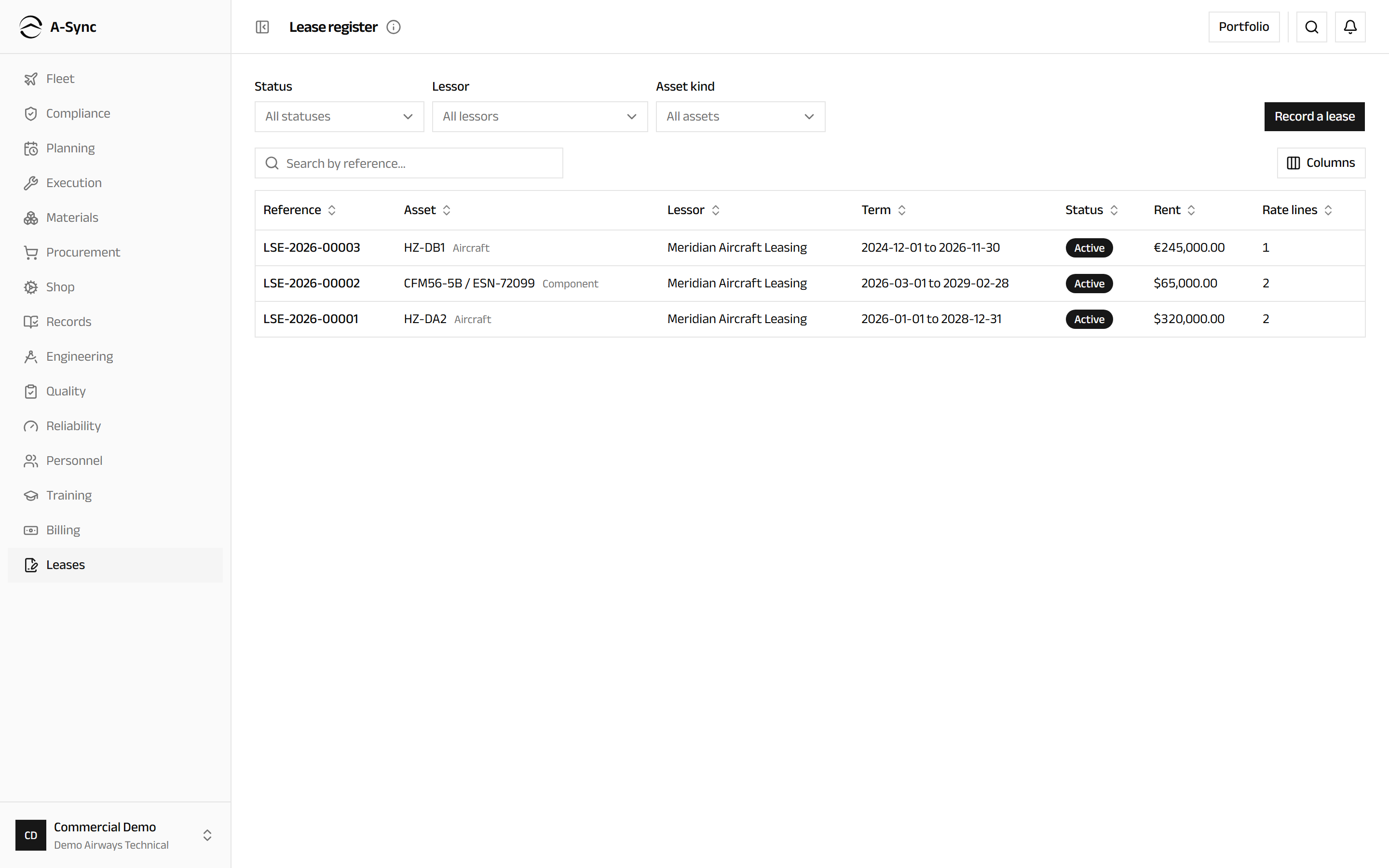
The register answers the operational question - which of our assets are leased, from whom, and until when - for everybody. The money columns are another matter; see the role notes below.
An asset that has left your register while its lease is still recorded is badged No longer tracked. The contract stays visible with its positions intact, because a mismatch you can see is safer than one that is hidden.
Record a lease contract
- Choose Leases, then Record a lease.
- Choose the Lessor from the registered counterparties.
- Choose the Asset kind, then the Leased asset.
- Enter Term start and Term end.
- Choose the Currency and enter the Rent (per the note) with a Rent
note such as
monthly, in advance. - Enter the Lessor's contract number and any Notes.
- Choose Record contract.
The contract is created as a draft. Choose Activate on the contract once it is right; Cancel draft frees the asset's window again if it was entered in error.
One lease per asset at a time
An asset cannot carry two contracts whose terms overlap, and a draft counts. A follow-on lease starting after the current one ends is accepted normally.
Set up the maintenance reserves
- Open the contract and stay on Terms & rates.
- Under Maintenance-reserve rate lines, choose Add rate line.
- Choose the Event category and give the line a Label - labels are what tell two lines of the same category apart, such as one per engine position.
- Choose the Basis.
- Enter First rate effective from and the Rate.
- Choose Add line.
A lease with no rate lines is a rent-only lease. That is a legitimate contract, not an unfinished one.
To record an escalation or any other change of rate, choose Add rate on the line and give the new Effective from date. Rates are append-only: the previous rate keeps governing its own dates, and a backdated rate flows through as catch-up on the next statement rather than disturbing anything already issued. An Escalation % recorded on a line is informational and never drives accrual by itself.
Adopting a lease part-way through
For a lease that predates your use of A-Sync, choose Add opening on each rate line and state what had accrued and settled at a cutoff date. Derived accrual starts the day after, and statements always show that asserted opening separately from anything the platform worked out itself.
Issue a monthly reserve statement
- Open the contract and choose Statements.
- Read Current position for accrued, settled and outstanding per rate line.
- Under Living draft, choose Generate - or Regenerate to rebuild a draft you have already produced.
- Check each line against the segments shown beneath it.
- Choose Issue.
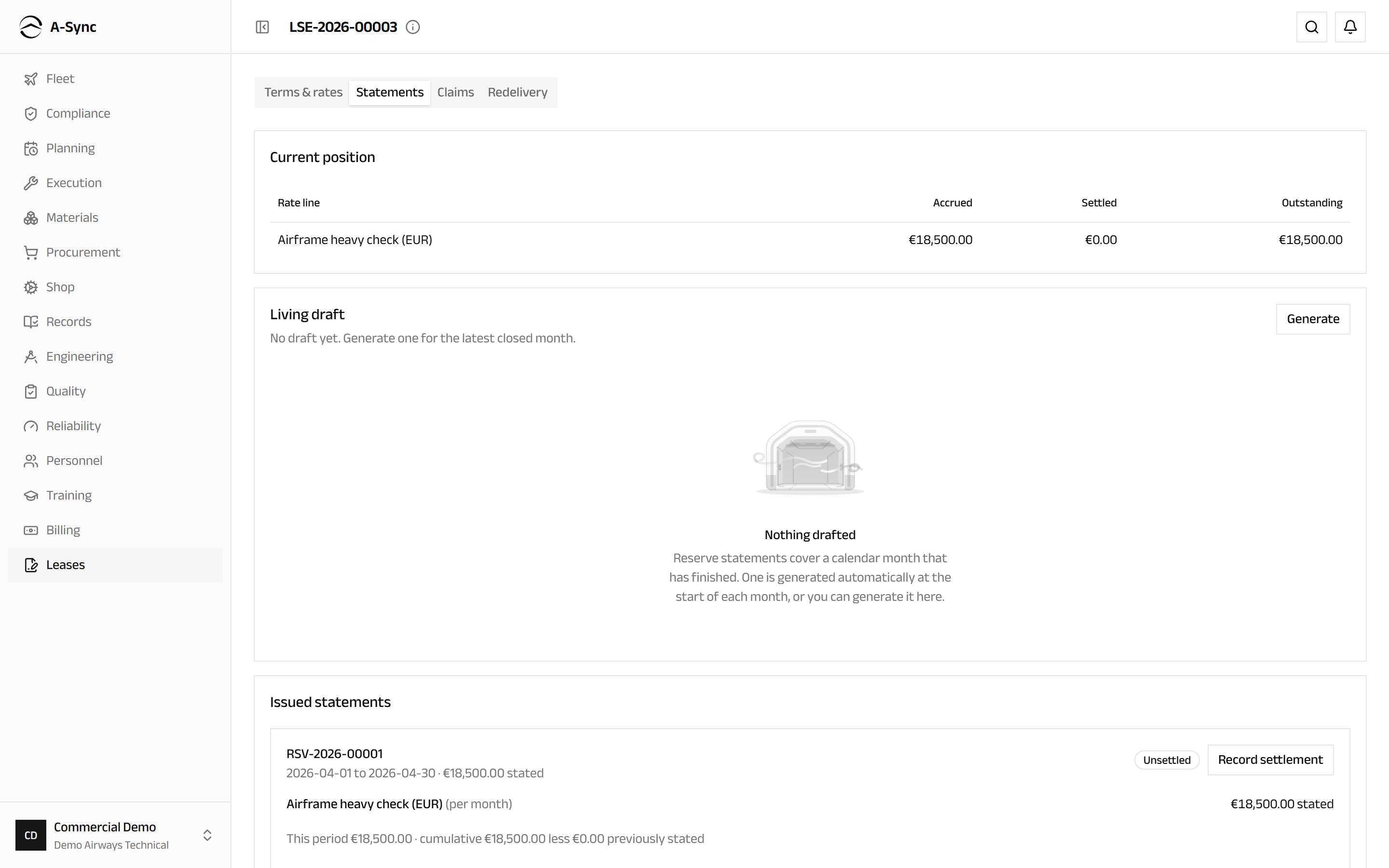
A draft is composed automatically at the start of each month for the month that just closed, so in normal running you review rather than generate. Every line can be recomputed by hand from what is on screen: each rate period shows its From and To dates, the Quantity flown, the Unit, the Rate and the Amount.
A date range with no rate in force is shown as Not priced rather than as a zero, because a gap in the rate history and an idle month are not the same thing.
Issuing freezes the statement
An issued statement can never be edited or deleted. Corrections reach the ledger as catch-up on the next statement, clearly labelled, so the document you sent the lessor stays exactly as they received it.
When the lessor is paid, choose Record settlement and enter the date and the bank or remittance reference. The settlement sits beside the statement; the statement itself does not change. Reverse undoes a settlement once, with a reason.
Claim against the lessor
- Open the contract and choose Claims.
- Choose Raise a claim.
- Choose the Reserve rate line the event draws on.
- Choose the Qualifying maintenance event - the list already holds only events recorded on this lease's own asset.
- Enter the Amount claimed and any Notes.
- Choose Raise claim.
The claim keeps a snapshot of the reserve position as it stood when you raised it, so later movement cannot rewrite the context you claimed in. Claiming more than has accrued is allowed - A-Sync notes the shortfall rather than refusing it, because the reserve balance is the lessor's ledger and not the platform's.
As money arrives, choose Record reimbursement and enter the amount, the date and the reference. Claimed, Reimbursed and Outstanding are worked out from those entries and never typed.
Reimbursements and closure are permanent
A reimbursement entry cannot be edited. To correct one, record another entry with a negative amount; the original stays and the totals recompute. Choosing Close is final - the claimed-versus-reimbursed position as it stands becomes the record of what was agreed.
Prepare an asset for return
- Open the contract and choose Redelivery.
- Choose Add a condition.
- Enter the Category and a description of what has to be true at handover.
- Choose how it should be assessed: By hand - no automatic check, Remaining life on a named requirement, or A compliance check.
- For a remaining-life condition, choose the Maintenance requirement, the Unit and the Minimum remaining.
- Choose Record condition.
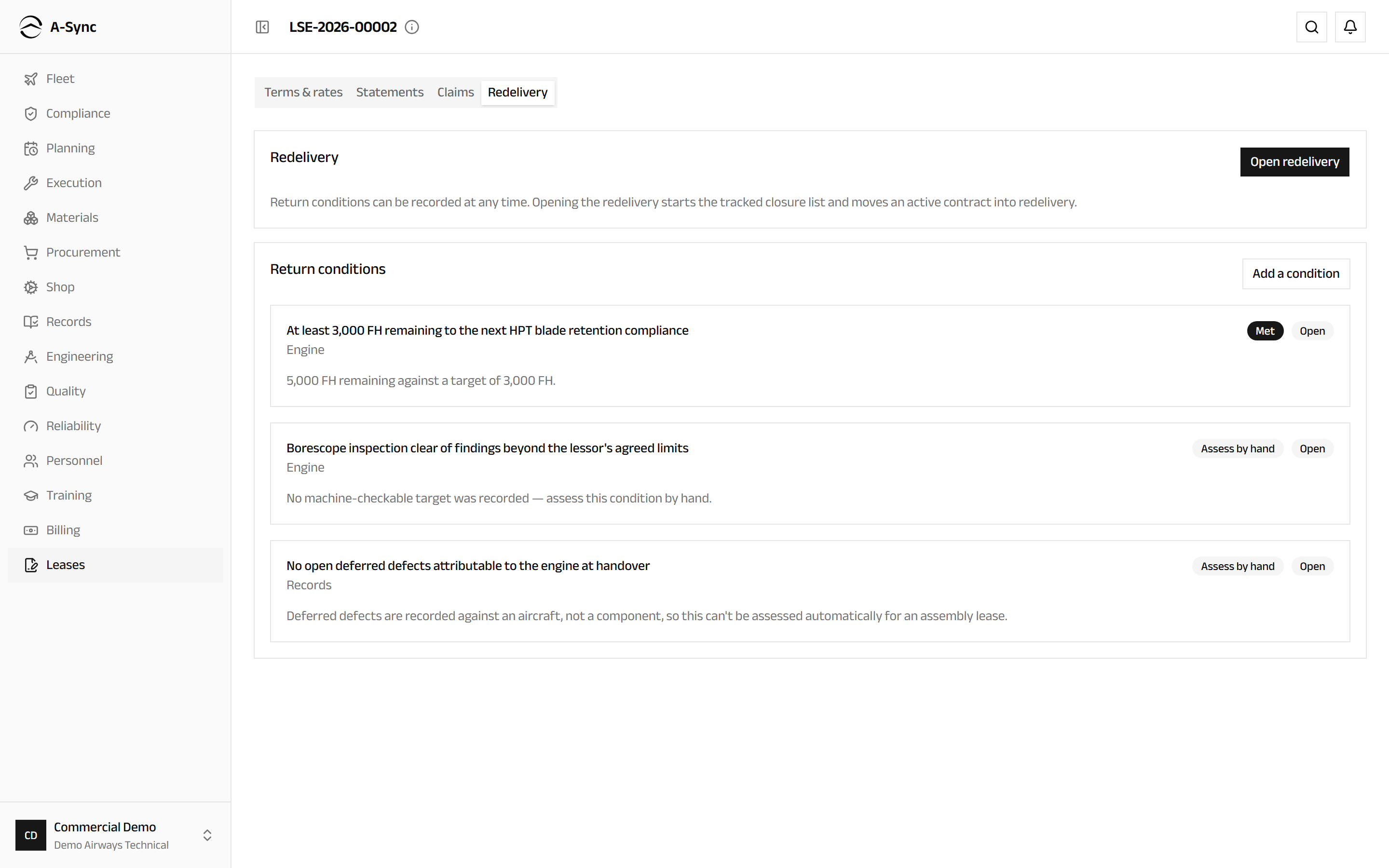
Conditions can be recorded at any time. Choosing Open redelivery starts the tracked closure list and moves an active contract into redelivery.
Every condition is assessed the moment you look at it, against today's compliance and records truth - nothing is stored and then quietly left behind. Measurable conditions read Met or Not met with the figures behind them. Anything A-Sync cannot judge reads Assess by hand, which is deliberate: an honest "I cannot tell you" is worth more than a green tick nobody checked.
Close a condition with Close with evidence and a reference the lessor can follow. Waive records a condition the lessor has let go, with a reason. Reopen brings one back, also with a reason.
Accepting the return freezes the record
Accept the return is only offered once every condition is closed or waived. Acceptance freezes the redelivery record and moves the contract to returned. Choose Export records package to assemble the contract summary, every condition with its closure or waiver, the reserve position and the claims summary into one document.
Terminate a lease early
- Open the contract and stay on Terms & rates.
- Choose Terminate.
- Enter the date it was Terminated on and a Reason.
- Choose Terminate.
Accrual stops on the termination date. One final catch-up statement can still be generated afterwards, and a successor lease may start the following day. Termination is final: a terminated contract never becomes a returned one, and any redelivery record you keep working is the record of the handover.
Review the whole lease estate
- Choose Leases, then Portfolio.
- Read Exposure by contract and Exposure by event category for accrued, settled, claimed and reimbursed.
- Work down Unsettled issued statements, Open claims and Upcoming term events.
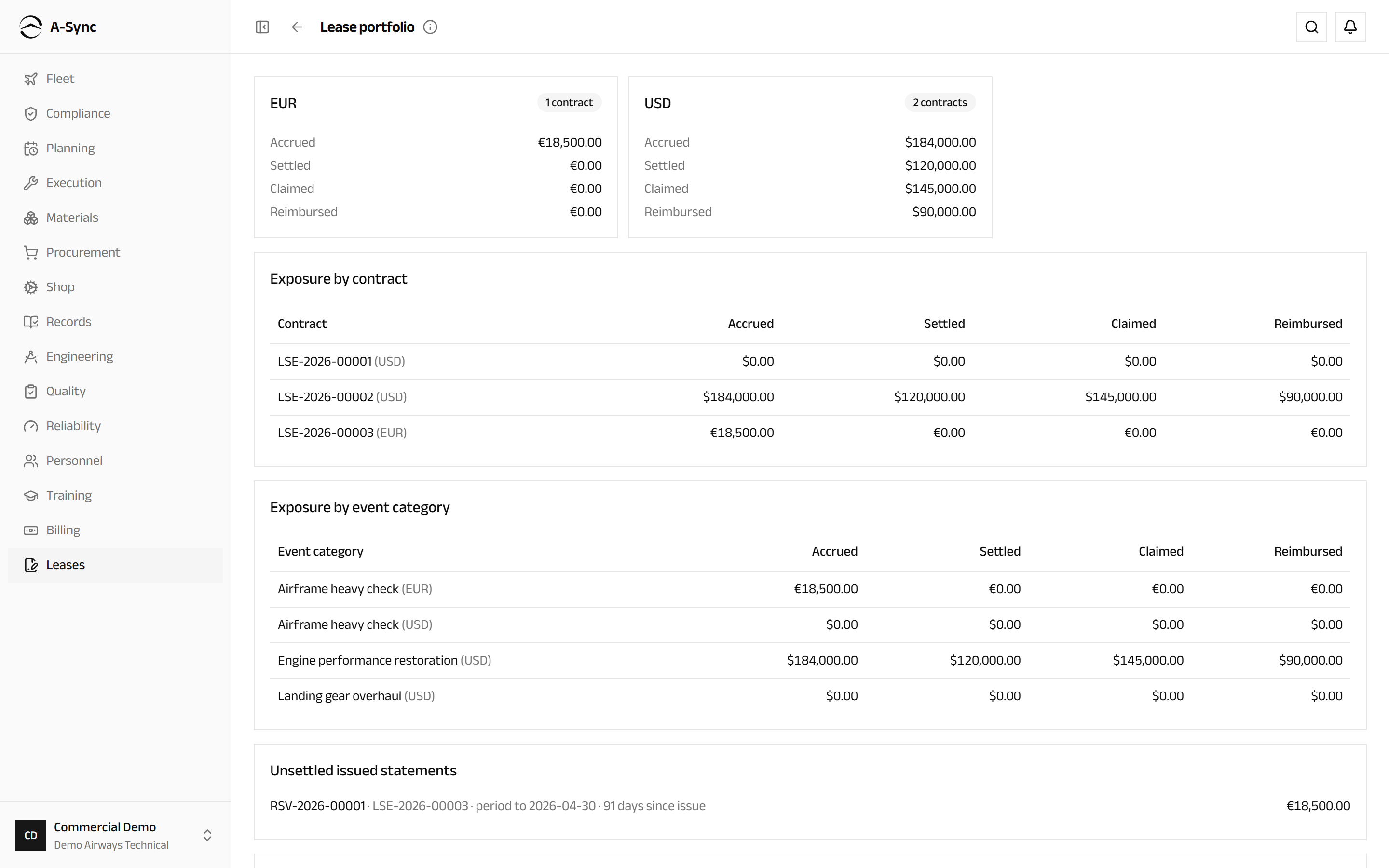
Totals are grouped by currency and never converted, so a dollar lease and a euro lease are reported side by side rather than added together. Upcoming term events distinguishes the Expiry window from the Redelivery window, which is your cue to start recording return conditions rather than discovering them.
Role notes
| Role | What it can do here |
|---|---|
| Commercial, records | Record and activate contracts, rate lines and openings, statements, settlements, claims, reimbursements, return conditions and redelivery - and see every money figure |
| Everyone else | Read the register: which asset is leased, from whom, until when, its return conditions and its redelivery state |
Money is gated inside the module
Rent, reserve rates, statements, positions, claims and the portfolio are visible to commercial and records only. Opening the portfolio without that access tells you plainly that the figures are not available to your role, rather than showing an empty board - a screen full of zeros would read as an estate worth nothing.
Related modules
- Fleet holds the aircraft and components leases are recorded against, and the utilisation that drives reserve accrual.
- Compliance supplies the remaining-life and overdue figures return conditions are assessed against.
- Shop records the engine visits and heavy work that claims are raised for.
- Records is where the redelivery records package joins the wider airworthiness record.
- Billing carries the rest of the money: receivables, payables, valuation and budgets.
Billing
Quotations, commercial work orders and customer approvals, invoicing and receivables, supplier invoices, landed cost, inventory valuation, assets and budgets.
Line Maintenance
The workspace you take to the aircraft - assigned work, the punch clock, sign-offs, defects and parts lookup, all usable without a connection.