Training
The course catalogue, who is due for what training, sessions and results, and each person's training file.
What it's for
Training is where qualifications come from. It holds the courses your organisation runs, records who needs which of them, shows who is due and by when, and turns a completed course into a qualification with nobody retyping anything.
The picture is always worked out fresh. Move someone into a trade, revoke a qualification, or retire a requirement, and the training matrix changes the next time it is opened. There is no second list to keep in step.
Key concepts
Course - one thing you train: a code, a title, how it is delivered, and how long completing it stays good for.
Conferral - the qualification a course produces. A course can confer more than one, so a combined sitting such as EWIS and fuel tank safety is a single course with two conferrals.
Validity - how long a completion lasts. A course with a validity in months is recurrent and falls due again; a course with no validity is one-time and never expires.
Requirement - the statement that a course is needed, aimed at a Trade, a Role or an Individual. Requirements are what put people on the matrix.
Grace days - extra time for someone a requirement has only just caught, so a new joiner is not overdue on their first day.
Needs matrix - a person against a course, in one of four states: Current, Expiring, Lapsed or Never trained. Where a course confers several qualifications, the cell shows the worst of them and the earliest due date.
Session - a sitting of a course, with dates, a location, an instructor and a seat capacity.
Enrollment - one person's seat on one session.
Result - what happened for one enrollee: completed, failed or a no-show. A completion is what issues or extends the qualification.
External record - training completed elsewhere, or before you started using A-Sync, recorded straight against the course.
Common tasks
Read the training matrix
- Choose Training in the sidebar.
- Read down the Needs matrix - one row per person, one column per course.
- Narrow it with Filter by course, Filter by trade or Filter by status.
- Select a cell to open that person's position on that course.
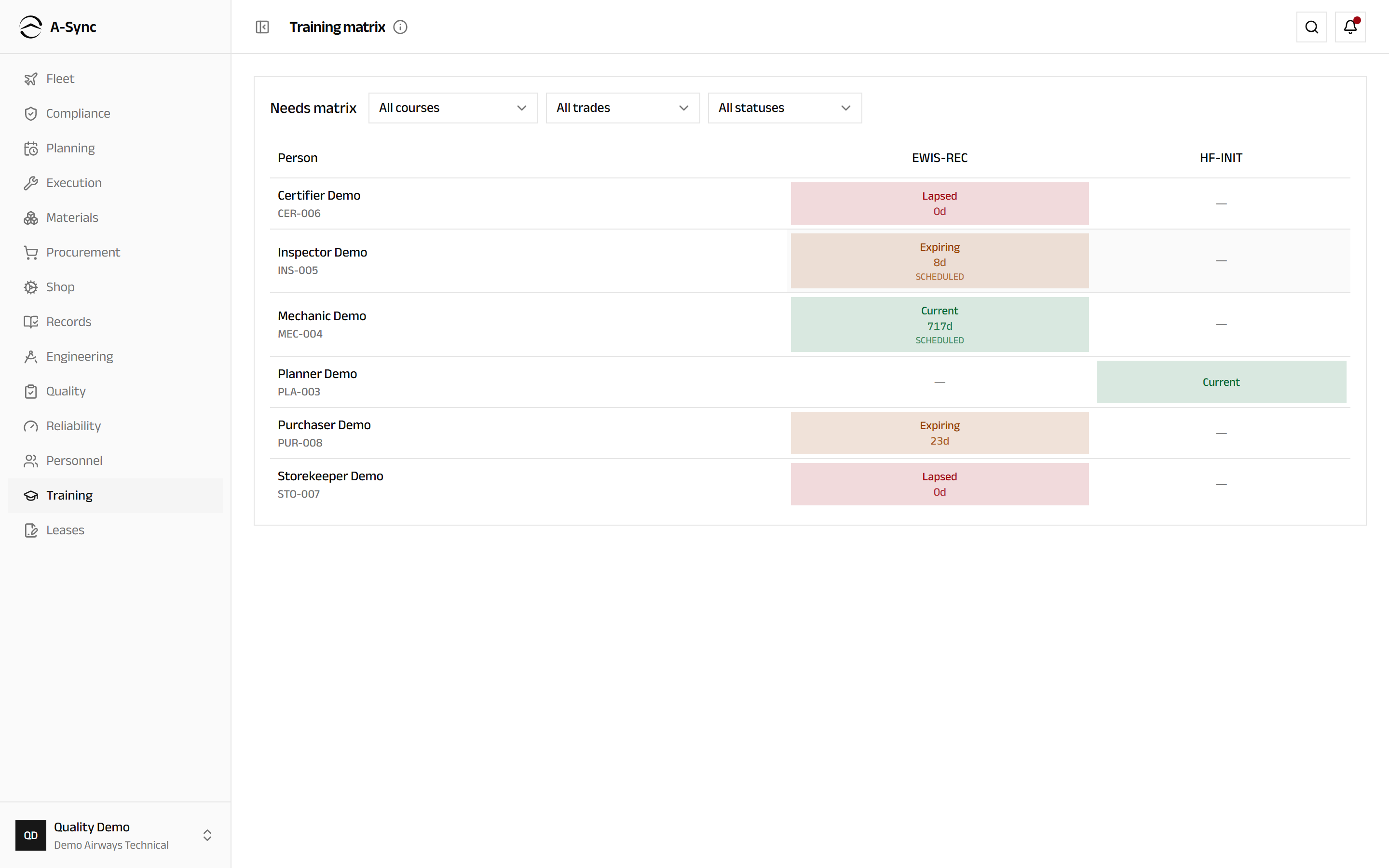
The panel that opens shows the Status, the Due date and the Days remaining, and offers View the governing qualification where one exists. A cell already covered by a booked seat is badged Scheduled, so you do not book the same person twice.
You can always see yourself
Everyone can open Training and read their own row and their own file. Seeing the whole matrix, any roster and anyone else's file belongs to the supervisory roles - quality, planning, CAMO engineering and records.
Add a course to the catalogue
- Choose Training, then Catalog.
- In Courses, choose New course.
- Enter the Code and the Title, and a Description if it helps.
- Choose the Delivery form.
- Enter Validity (months, blank = one-time).
- Under Conferred qualifications, choose Add conferral and describe what completing the course produces - its reference, and any aircraft types, ATA chapters or privileges it is limited to.
- Choose Create.
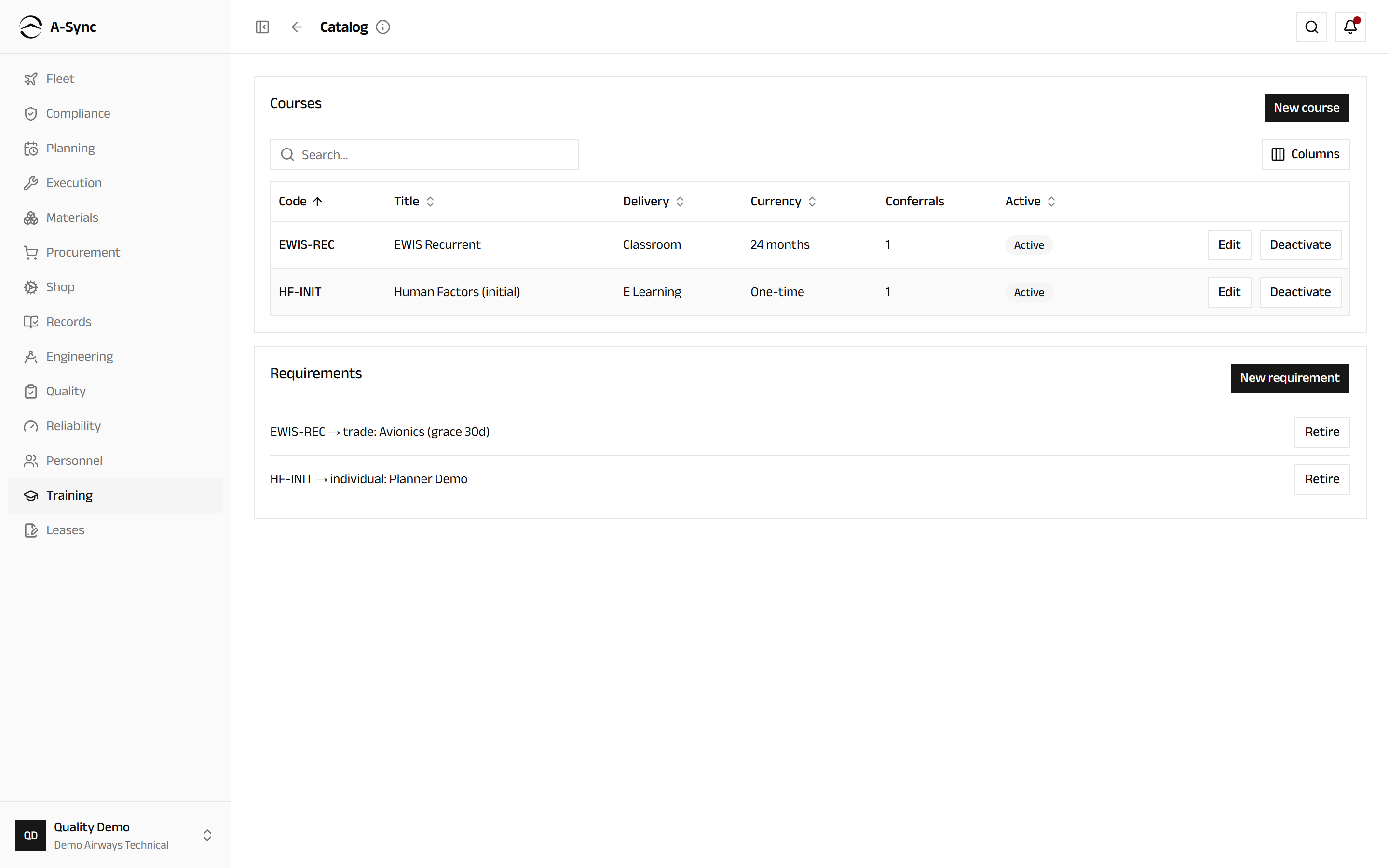
A course you no longer run is retired with Deactivate, never deleted. Sessions already scheduled still run, every qualification it ever issued stays untouched, and no new requirement can point at it.
Say who needs a course
- Choose Training, then Catalog.
- In Requirements, choose New requirement.
- Choose the Course.
- Choose the Target - Trade, Role or Individual - and then the trade, role or person it applies to.
- Enter Grace days if newly targeted people should have time to comply.
- Choose Create.
Everyone the requirement catches appears on the matrix at once, showing the status of any qualification they already hold. Retire takes the requirement and its cells off the matrix and leaves every issued qualification alone.
Schedule a session
- Choose Training, then Sessions.
- Choose Schedule session.
- Choose the Course, then enter Starts and Ends.
- Enter the Location.
- Choose an Internal instructor, or type a name into …or external instructor name.
- Enter the Capacity.
- Choose Schedule.
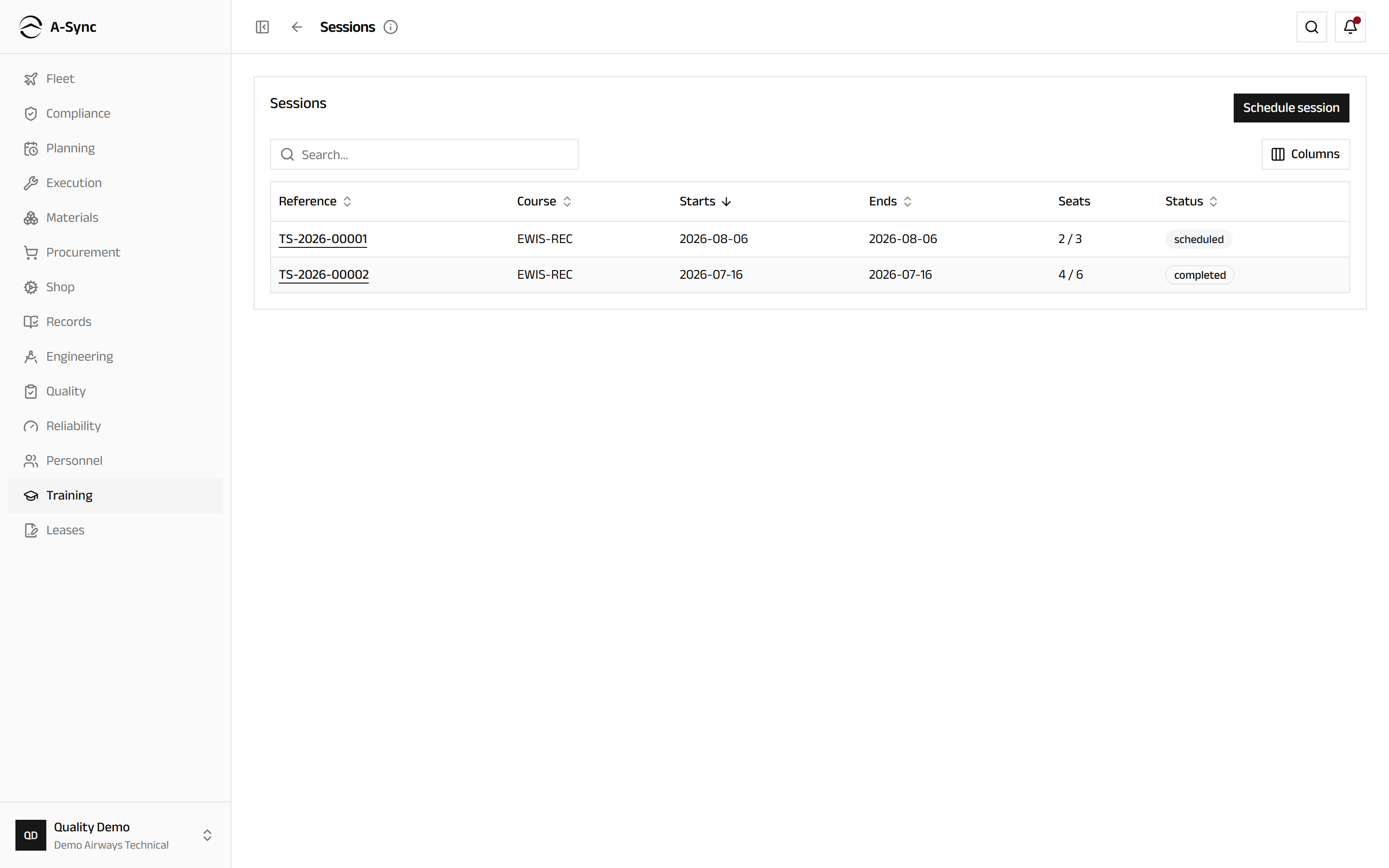
The register shows Reference, Course, Starts, Ends, Seats and Status, so you can see which sittings still have room before you start booking people into them.
Enrol people from the matrix
- Choose Training and filter the matrix to the course you are filling.
- Select the people you want to book.
- Choose the sitting under Target session.
- Choose Enroll.
A-Sync reports how many it enrolled and names anyone it refused. Capacity is enforced rather than advisory: once a session is full the next seat is declined and you are told to raise the capacity or pick another sitting. The same person cannot hold two seats on one session.
Withdrawing frees the seat
An enrollee can be withdrawn with a reason at any time until a result exists for them. The seat is released immediately, the withdrawal stays on the record rather than being deleted, and the person returns to the matrix as unscheduled.
Record who attended and how they did
- Choose Training, then Sessions, and select the session.
- Work down Record results and set each person's outcome.
- Add the Score and any Remarks, and check the completion date.
- Save the row.
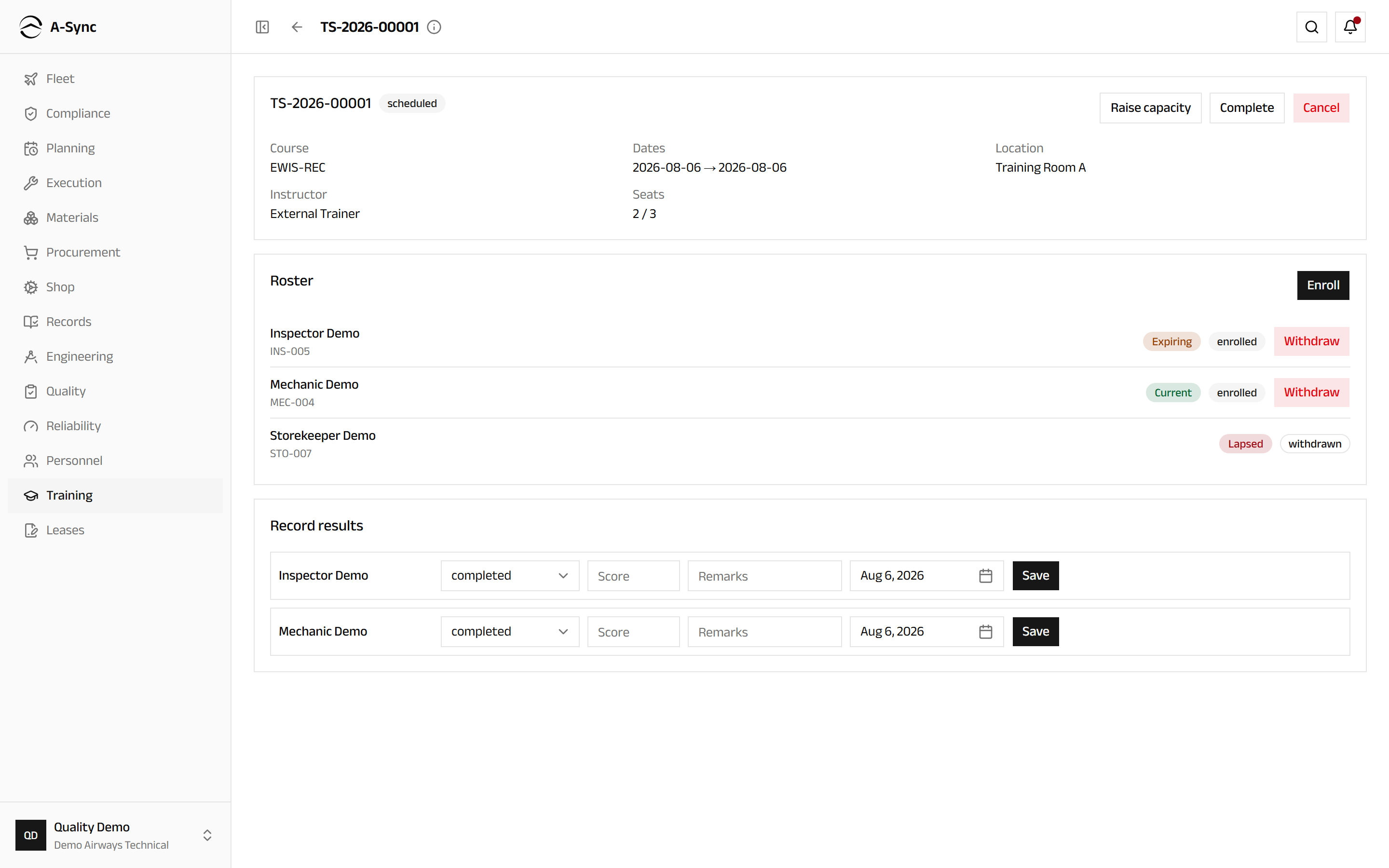
Recording is a single step, and saving is the confirmation. A completion issues or extends every qualification the course confers straight away, each one linked back to this session. Failures and no-shows change nothing - the person simply stays due on the matrix.
Someone refreshing early, while still valid and inside the expiring window, keeps their anniversary: the new expiry runs from the old one rather than from the day they sat the course. Every other completion runs from the completion date.
A saved result cannot be edited
To put a result right, choose Correct, set the corrected outcome and give a reason. The original stays on the record marked superseded, and any qualification it issued is adjusted or revoked with the link back to it intact.
Use Raise capacity to add seats to a session, Complete to close it once it has run, and Cancel to abandon it. Cancelling releases every enrollment with a reason and keeps the record that the session was scheduled at all.
Record training done elsewhere
- Open the person's training file.
- Under External & historical records, choose Record external training.
- Choose the Course and enter the Completion date.
- Enter the Provider and the Certificate reference.
- Choose Record.
External records feed exactly the same issuance path as a session result, using the date you state. A 24-month course completed 20 months ago therefore lands as expiring rather than current, which is the point - it is how a new joiner's history and years of paper records become truthful matrix cells.
Evidence is required
An external record with neither a certificate reference nor an attached document is refused. Corrections work the same way as session results: a superseding entry, never a silent edit.
Read a training file
Every person has one training file, gathering what they are booked on, what they have sat, what was recorded and every qualification that came out of it.
- Open your own file at
/training/me. - Read My upcoming training for what is booked.
- Read Session history, Session results and Qualifications issued / extended for what has already happened, including any superseded entries and the corrections that replaced them.
- Choose Export PDF to produce the whole file as a single document.
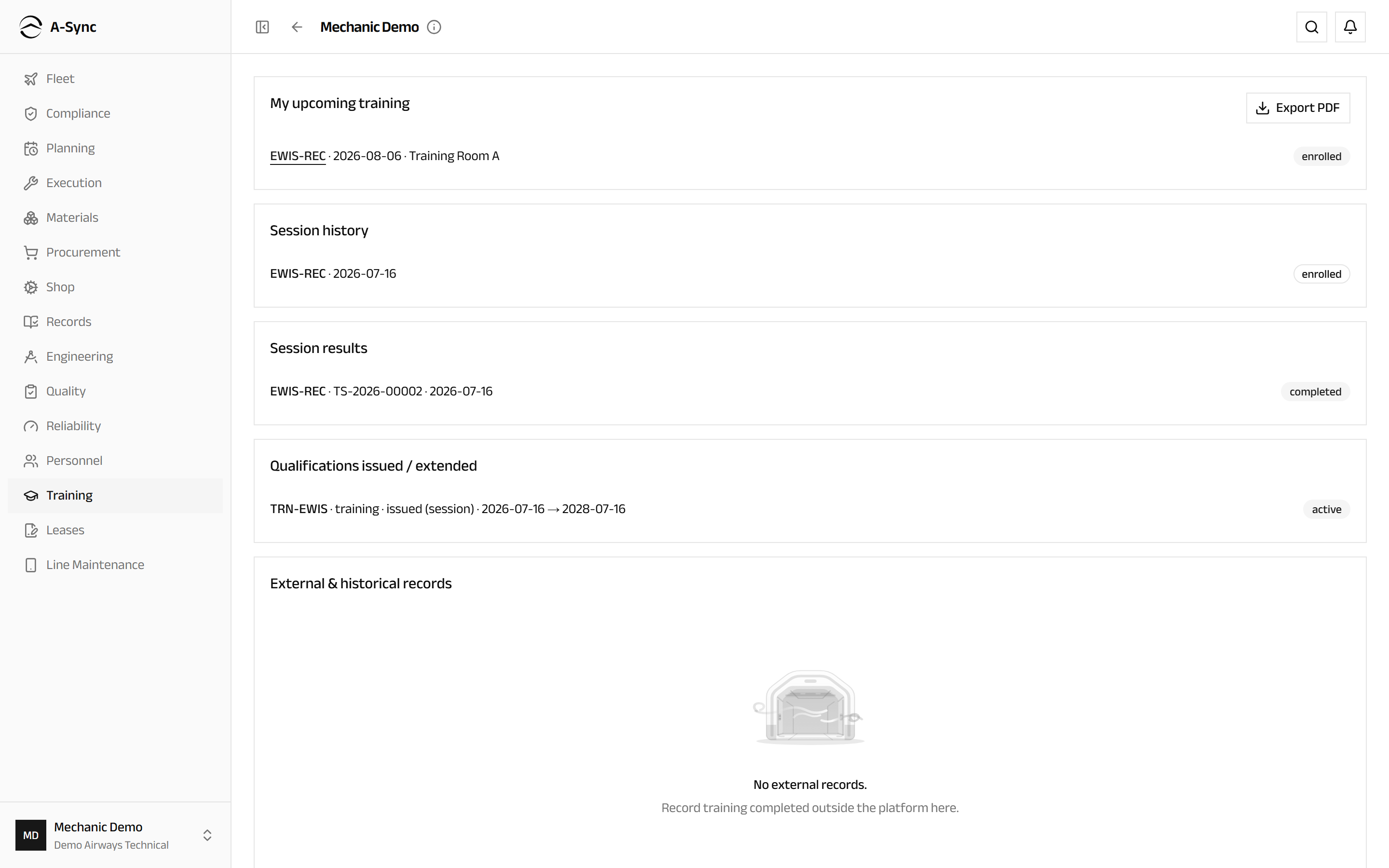
The export is what you hand to a regulator or a customer auditor who asks to see one engineer's training history. It is self-contained and in date order.
Role notes
| Role | What it can do here |
|---|---|
| Quality | Courses, conferrals, requirements, sessions, enrolment, withdrawal, cancellation, results and external records |
| Planner, CAMO engineer, records | Read the whole matrix, any roster and anyone's training file |
| Everyone else | Read the catalogue and the session schedule, and read their own matrix row, enrolments and training file |
Recording a result is restricted to quality because it is the act that issues a qualification. Nobody else can put a qualification on someone's record through Training.
Nothing here is deleted
Results, external records, withdrawals and cancelled sessions are all kept. Corrections supersede rather than overwrite, so the trail behind every qualification stays readable.
Related modules
- Personnel holds the qualifications this module issues, and the licences and authorisations alongside them.
- Execution checks those qualifications when someone signs for work.
- Planning staffs work from people who are qualified and available.
- Quality owns the audits and findings that training gaps usually surface in.
- Records is where exported training evidence joins the wider record.
Personnel
Qualification records with expiry tracking, assignment scope checks, and the trades, shifts and absences behind available man-hours.
Billing
Quotations, commercial work orders and customer approvals, invoicing and receivables, supplier invoices, landed cost, inventory valuation, assets and budgets.